 3:26
Chauvet ShowXpress random video from ellaskins
Contents of the video
0:00 Chauvet chauvet, show express, pretty
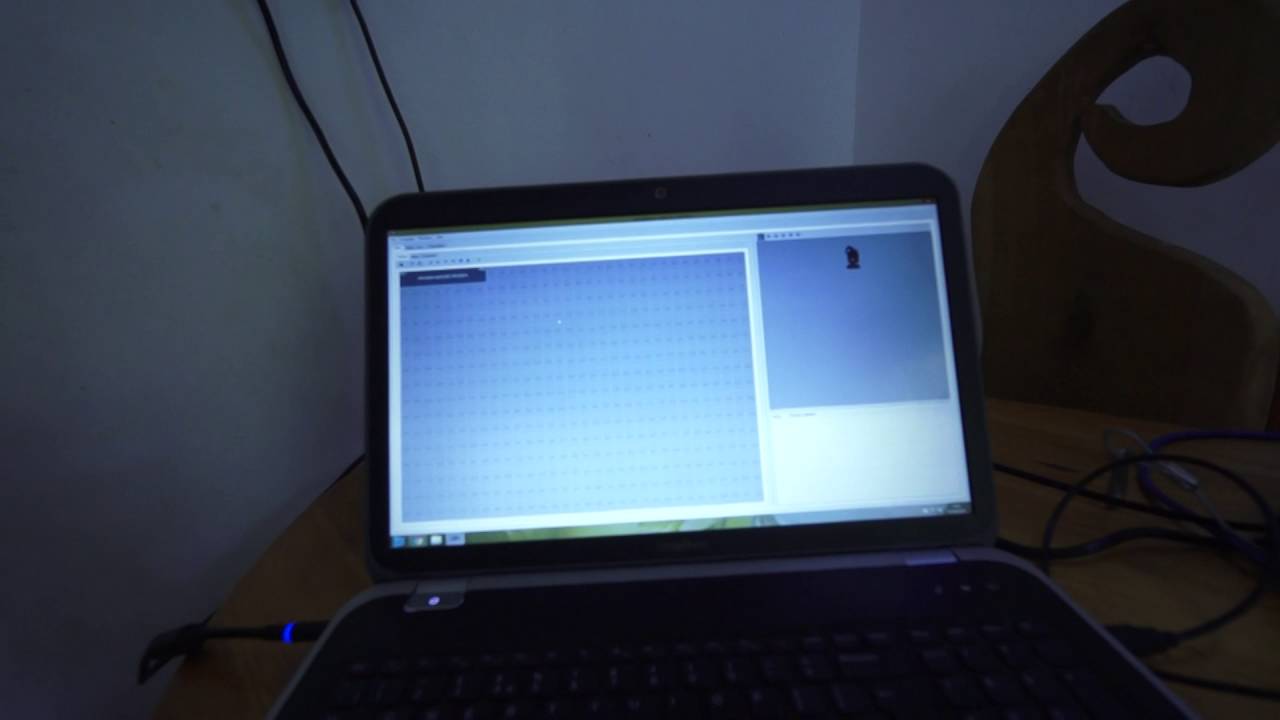
Alright guys, behind me I have Showbay DJ, Show Express, the software along with the interface here. I've got a Showbay DJ Intimidator Spot 350 and I have set that up on the Show Express program. So I'm going to run you through very quickly how I did that and within an hour or so pretty much where I am. The Shovey DJ Express first, well not the first page exactly but this is the page that you'll need to get to if you want to let's say import a fixture. So I'm going to go to this icon here it says add fixture so press there and what you should have is pretty much any fixture that's out there. If there isn't don't quote me here but I'm pretty sure that They would update the software. So of course, you know, we're with Chauvet DJ. I've got a Chauvet DJ 350. So we go to C, where's Chauvet DJ? Chauvet there, so I'm going to click there. Now we have a choice of the Chauvet DJ, Illuminac, I think it is, and the Pro. So of course we went to DJ, so click on that. And then we have there...
1:24 All of the Chauvet DJ products at present
All of the Chauvet DJ products at present. So, of course, what I did was I went to the Intimidator Spot 350 and made sure that I patched that in. OK, so, I'm just going to close that. Now, at the moment, the 350 is set to 8 channels, so I've gone from 1 to 8. So if I had another one of these, the next one I would go... From 9, 10, 11, 12, 13, 14, 15 up to 16 and so on. And of course we can see the fixture over there in 2D. Now again, this is not a tutorial on how to use this software. This is just a very basic overview on what I've done. So I'm going to go to the steps now and just show you how I set this up. If I click on the icon here and move that around, we can see now that I'm moving the head. Now I haven't made any shows, all I've done is I've told the program that it has a piece of hardware through the interface and now they're talking to each other. I haven't made any shows yet, that's the important part. Now you'll notice as well that while I'm moving that icon...
I'm also moving the two virtual sliders on the left, which of course is X, Y, also known as pan and tilt. The second from far right is focus, so if I move that slider all the way down and back up again you can see that going into focus and so on. A very simple video here showing you what I've got to so far. And all being well, I'll be using this at the Lakefest Festival that's going to be taking place in August of this year. And I'll finish off with practice and enjoy. Thank you very much. Someone at the door.
This transcript was produced automatically from the audio of the video and may contain mistakes.





