 18:06
Connecting Pioneer XDJ-RX to Virtual DJ 8 Demo
Contents of the video
0:00 I've got a mate of mine, Rob, who works
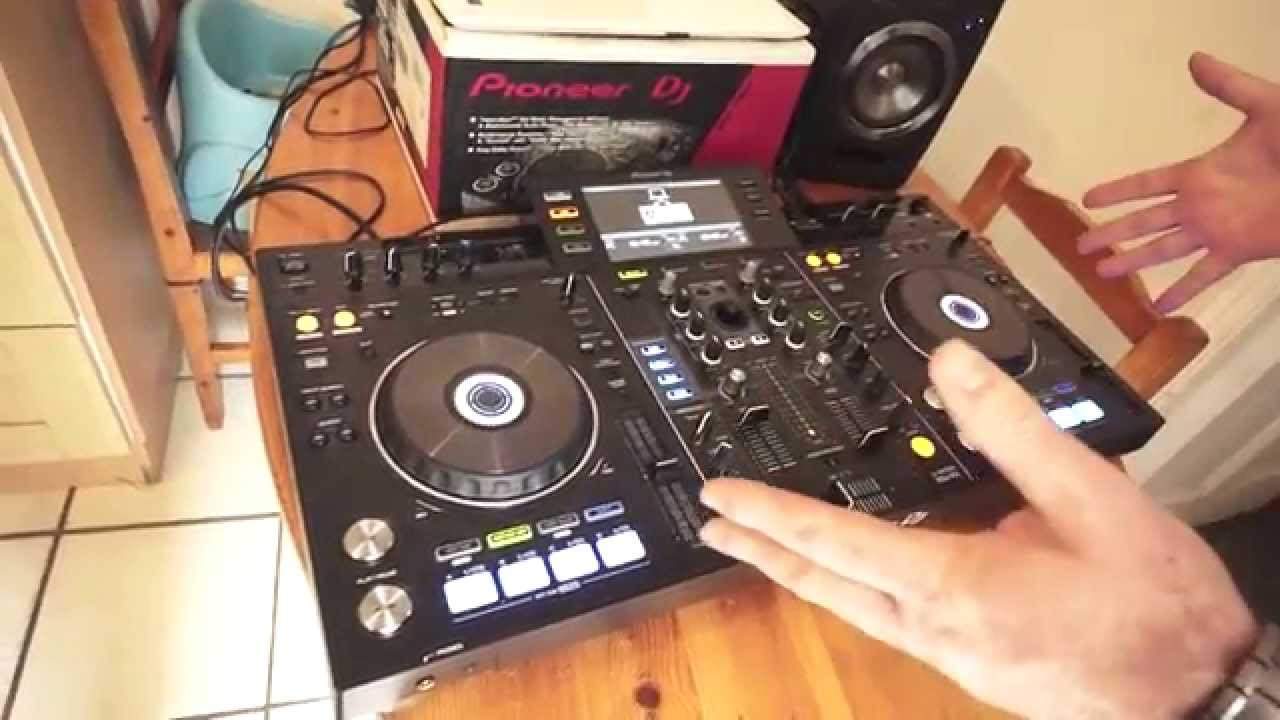
All right, ladies and gentlemen, we're in the kitchen. I've got a mate of mine, Rob, who works... Where do you work at? You work in Harley's, is that right? Harley's, yeah. Yeah, what nights are you there? Thursday, Friday and Saturday. Okay, and you do VJ set? Yes. All right, cool. Well, what Rob has done, he has single-handedly mapped the Pioneer XDJ RX with VirtualDJ. So what he's going to do now is just run through the setup and also show you what he's done and have a little bit of a mix in this video as well. We will have a look at the RX, we'll have a look at some of the functions, what you can do and can't do with the software. There's a lot you can do. There's one part where he hasn't mapped yet which is the effects but then what you have, what you can do with the software is you've got exactly the same on the software but there's more effects but I'll shut up and Rob take it over. Let's have a look mate. Right okay um there's been a lot a lot of confusion about the RX people saying it's not
Let me just run you through how you set it up, start it off. Switch the RX on. What you will need to do is download a mapping file from VirtualDJ. From their website. I have been working on the mapping. In the meantime, VirtualDJ have, the development team there have brought out their own mapping. What I've done is create a skin which integrates very nicely with the RX so you can see on screen how it works. So the RX is on to use the software you need to put into MIDI mode and you can see there you've got choice of A and B decks. We'll put both of those on so load. Midi into both decks. The RX is now ready to use with whatever program you're using. Just very quickly as well, what you could have done is you could have, if you wanted to, just had one side on MIDI, which means the other side then you could still use via USB, yeah? You could and indeed if you just switch onto USB there, you can load your standalone tunes from rekordbox into either deck. So even while this is MIDI integrated, press USB and then you can...
Yeah, if you switch onto USB 2.0, obviously I've got my own music there which I'm not going to play, but you can load that into either deck and then switch back to MIDI and they're already connected. Great, so even while, let's say for example, you've got a track playing on VirtualDJ, on this side just switch over and you can go straight into USB. Right, right, exactly. So what we're going to do now is load up VirtualDJ.
2:54 We don't really want to update at the moment or go into that
We don't really want to update at the moment or go into that. It says there once you've loaded in the mapping file and the device file, it says it's detected the RX, we'll use the sound card, yes, click on OK, and hopefully that will work. So what we need to do, we'll just put something straight into that deck. Okay, track we're using by the way is a track by Lenny Fontana. how we do this i will put a link in the description to the tracks that we're using and you can see now without touching the mouse i'm actually scratching the first beat using the rx okay but this is the normal skin this is the normal skin for virtual dj there is one thing which we need to do before we before i show the other skin yeah so we can see that
The jog wheel works, which was a big issue for a long time. And the play and the pause on the RX works as it should do. It's doing the business. Okay, so that's very basically, and the sliders, the crossfade, etc., are all mapped. So I'm using the RX to control the VirtualDJ. Now, what you will notice is... With VirtualDJ, when I'm scratching on the RX, it's very sensitive on the program. So for instance, if I turn the platter here one revolution, it actually turns the platter on VirtualDJ about five times, more than five times. So if you do a lot of scratching, I dabble, you'll find it's very difficult, you can't really see. The scratching. Yeah. Very quickly, I don't want to get bogged down in the technical details in this video, but if you go to the settings... Right, let me just turn the light down on here. Alright, fire away, go on. If you go into the settings on VirtualDJ, controller, sorry, options and then controller. Controller. You'll see there that jog sensitivity scratch is set to 1.
5:17 You've just highlighted it now
Which is a default setting. We're going to change that. So you've just highlighted it now. Highlight it, change it to 0.15. Now I know that figure because I've been experimenting, save a bit of time. And close that window. And what you'll find now. Much better. As we say, it's on the one. It's on the one. Or the 1.5. For one revolution on the screen, you've got one revolution on the platter as well. Which makes it a lot easier when you're scratching. Okay, so we can see VirtualDJ is connected. You're using the RX to control the software. That's the default skin. It looks very nice. The only difference or the only difficulty the RX has at the moment is Pioneer have disabled the use of LEDs which means although the hot cue for instance if i click on the hot cue you can see the hot cue is working with VirtualDJ yeah it's mapped but the rx isn't switching it on and off so the rx is not responding it is responding but the program isn't changing the leds on the rx okay
Which is a bit of a pain because you can't see whether that hot cue is assigned. You can delete it, but it doesn't go off. The LEDs don't change. So part of the reason why I've developed my own skin in the way I've done it is so that we can skirt around this issue. So let's go to settings. We're going to change the skin if you're familiar with Virtual DJ. Let me just turn... The light down again. OK, so settings. So we're going into settings again. Interface. And you can see there, Pioneer XDJ. Click on that and you'll see in the background. There it is. There's my baby. In all its glory. Nice one. Very good. Now, you were mentioning earlier on, which is a fair comment. Now, we're not going to say who, why or when because I don't really know. But someone was a bit anal saying, well...
You know what's the point in having a skin when if you're going to use the rx what's the point in having a similar skin well you said a good point was if people haven't got the rx then they can use that skin and it's as though they've got it in front of them which may may give them a good reason in the near future to get an rx definitely definitely so it's aspirational yes more than that though i mean a lot of people do use If you're doing a gig and you don't really want to take the whole controller, you've got the features that you're familiar with from a standalone point of view or using VirtualDJ. You've got a familiar layout so that you can use it on the screen. The other thing is, which I've just mentioned slightly briefly, if you notice when you're clicking on hot cues...
On here, they don't change. Let's delete that. So we've got no hot cues in there at the moment, but all the buttons are lit. If you look on the screen there, there's no buttons lit. That's because I haven't assigned anything. So let's just hit pad one. If you keep it on the screen now, click on pad one and there you go. So it's lit on the screen. That's how the RX would behave if you were in standalone. So if I click on that, it's there. Okay? And then just delete that now so we can see that. And if I delete it, on the RX you press shift and the first one and it's gone. Yeah, but of course they're still there. But you can't see. Now let's take this a little bit further. If you go onto Beatloop there, okay, again you can see there that on the RX here,
10:13 Click on second pad, it extends
You can see that they're all lit. Well, there are no loops. They're not all running at the same time. It's not displaying what it should, the RX, because it's in MIDI. So if we go back to the screen, you can see there that while we're in loop mode, none are lit. And you can see there are no loops. The track is playing. So if I press on the RX, the first pad, so we'll have a one-beat loop. Yeah, you've got it. And it works. Click on second pad, it extends. Yeah. Okay? On the RX, if you click on shift and pad two, you get to one eighth of a beat. Got you. Okay? Click two again and you're back on. Yeah. Okay, so that actually follows what you're doing. Like it. Okay, and then press it once more and it's off. Yeah. You mentioned as well... No, go on, sorry, carry on. So that is...
The reason why that layout is very similar to this, that particular reason, at the moment, hopefully it'll be sorted out with a firmware release, but fingers crossed, Pioneer have disabled the communication with the LEDs. Very quickly, you've used the RX a few times now. What features do you like about it? The overall package, it's fantastic. It's not as complicated as the SZ or X. It's well laid out, it's typically Pioneer. I'm not personally that keen about the SZ and the SS. The layout's different. They haven't got that typical Pioneer layout. It's very, I don't want to say basic, uncluttered. I agree with you. It's classic Pioneer design and I love it. What I love is if you're familiar with the fingerprint, the overall look of any Pioneer kit, the CDJs, the DJM, they've done that with the RX. You open the box and if you're familiar with the 350s or the 400s or the 850s, you can look and think, well yeah, it's pretty much the same. So you know where all the buttons are. You can see here at a glance, yeah, you know that these are for loops.
Start and stop, the pads here, yeah, hot cues. And again, I think the crazy thing is, is you can spend more money on one CDJ-2000 Nexus and you've got three hot cues, whereas here you've got four. Yes. Yeah. And in fact, the skin at the moment, it's still a work in progress. It's not actually available on the VirtualDJ website. Hopefully it will be soon. Okay. If there's a need for like eight pads... We can change 8, we can make it into 8 pads with the skin. So you can add functionality that you haven't got with the RX by adjusting the skin. Now just before we finish the video there's one other thing. You'll notice on the Pioneer, on the skin itself, the beat effects down here match the beat effects down here. Now the mapping...
13:07 Skin, the skin there, all
I'm sure they do work, but for some reason I can't get them working. But if you look at the skin, the skin there, all the effects do work on the skin. So what we can do, we can actually use the skin with the mouse And we can actually get these effects working. So although you're working from the screen, they do work like the Pioneer effects do work. But you've got more effects though, haven't you? We've got more effects because of course we're using the VirtualDJ program. If we click on the effects next there, you've got all those effects and you could get more if you downloaded some more as well. Okay. As an aside, with VirtualDJ we are talking about the integration with VirtualDJ and the RX. But from a VirtualDJ point of view, VirtualDJ also plays video. So you can use the RX to play the video content on it. If I click on that show video button, you'll see a black window comes up there. There'll be another window there.
When you load in a video into the deck, you have a preview screen there. Obviously all the stuff I've got is copyrighted so we can't really show that. The other thing very briefly with the skin, you've got browser facilities so you've got a full browser there, you can see what you're doing. If you want to use the browser but mess around with the effects at the same time, you've got a mixer browser there which splits it up nicely. You've still got your wave window with all your functionalities you can switch on. For instance, you can go back to your cue. Yeah. Okay, you've still got all that functionality there, but the decks have been taken over by the browsers. Mm-hmm. Okay? I like it. Show decks. Very quickly as well, if you're interested in the RX, I have put information on where you can get one of these from, so go and check out that link.
15:24 I've been using all different kinds of kit
And I've, again, I've used, as you know, if you've been watching my videos, loads of kit. I've been using all different kinds of kit. I've had, I've still got, you know, the best Pioneer kit you can get. And I'm tending to use this more because it's compact, it's very simple to use, very intuitive and it's very, very professional. It is, isn't it? It's not... This is not a toy and I think that the main feature with the RX, alright we do have this running now with VirtualDJ but what Pioneer wanted to do they wanted to make a controller where you didn't have to use the laptop. But if you remember at the beginning of this video what we talked about was you can have your laptop but if you want to You could, with the press of a couple of buttons, go straight over to USB. Also you can go to CD or vinyl. Now on the back of the RX there are two RCA inputs for each channel. Next to those inputs is a switch line. I think it's either CD or line or vinyl. So you can have the likes of a CD player or vinyl plugged in. Switch over so you can...
Go from your program. Alternatively, you can switch over and go to USB. And then within the flick of a switch at the back of the RX, you could go to vinyl as well. So you've got all the functions of any format. And also it's not just CD. For example, let's say you're at a wedding party and someone says, can you play this track? I'm sorry, I haven't got it. Oh, but I've got it on my iPhone. So long as you've got a mini jack to RCA cable, you can play their track. So you are covered on all formats. So there you go. Anything else, Rob, my friend? One more thing. I've just been playing here. Take the speeds off. A feature which I'm very chuffed about. Speed adjust. Let's go on this deck. We're playing this deck at the moment.
If you look, typically CDJs will have these. We can do that on the screen as well. So let's put it up just a little bit and if we press that... You've got it here. Practice and enjoy. Practice and enjoy. Nice one Rob.
This transcript was produced automatically from the audio of the video and may contain mistakes.





