 6:59
Demo of the Pioneer XDJ R1 Remotebox Soft Wear Video 1
Contents of the video
0:01 Mainly the software so if I
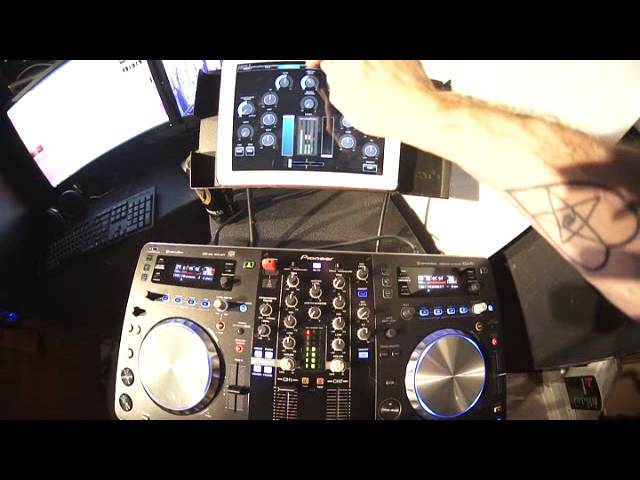
Alright ladies and gentlemen, video number one on the Pioneer XDJ-R1. In video number one we're going to look at mainly the software so if I just press there, there it is called Remote Box and it's downloadable from the App Store. It's a free download so just press that back, you might get a little icon coming up there just to reconfirm that the software or the app should I say is talking to the hardware which is the R1. This video we're going to mainly look at the software. Now the first screen you can see, or the skin, is the mixer. Now two things I like about this is the simplicity of it. It hasn't got loads of flashy lights or buttons where you look at it and you think, what the hell am I doing? If you want to just play a track, do a bit of EQing, turn your headphones up or down, then you're sorted with this. That's what you can do. Oh, my lights have gone out. There you go.
Right, so what have we got on here? Very simple. You've got your faders, you have your crossfade in the middle, you've got your LED area, you have your booth monitor, master level, trim, high, mid, low, auxiliary level, microphone bits, headphone bits, cue bits, that's about the bits you've got. A quick view, you can tell that there's something going on here. There's nothing going on there. All right, admittedly, there is with the low, mid and high because when they're at the 12 o'clock position, they're on, but they're as they should be. But for example, the booth, we can see now that our booth is virtually turned all the way up. So if you do that, you're probably gonna blow your eardrums. Also master volume. So at a glance now, if you had your uppy faders up
2:21 Skins in the first video
And there you go, we've got something playing. You think, damn, why haven't I got any volume? You can see because that isn't highlighted in blue. Turn it up and there you go. Simple, it's so simple but it works. That's the main thing, it works. Track I'm using by the way is by Mr Danny J Lewis. So that's your mixer. Deck one exactly the same as deck two. And we have effects, by the way, deck one and deck two. Okay, so what have we got? Very quickly, if we have a look, let's turn the master level back up. And again, I'm just going to show you the skins in the first video. Other videos will go more in depth into functions. We have auto beat loop, an area there that gives us an idea of the track that's playing. We have got some form of an image that pretty much should come up at that point there.
He also covers the pitch, that's the pitch control there, auto beat loop and hot cue sampler and cue and play pause. Okay so effects area again we're looking at it now next few videos we'll start having a mess around this is our effects area level depth we can see here all the time very good how much of the track has been played and also how much of the track we've got left Now that's quite important really when you're going from skin to skin because you need, that's the important bit, you need to always find out how much of the track you've got left. Because if you do, let's say want to disappear from the hardware and go to the toilet or something like that, you'll know that you've got X amount of time left. So back to the mixer, go to USB browse. Now just for this demonstration I've only got a few files and they're in a couple of folders so there we go.
4:28 I'm sure you can follow me there somehow
Press there and there, and those are the tracks I've got so far. So that's all I've got at the moment. Now we do have one playing on the left-hand side. So for example, if I want another track, I can just tap that track and then load the other side. At the moment these tracks are processed through rekordbox. So press play, put the trim up. The trim was down on the hardware, so of course if I'd have gone to my mixer, I'd have been able to see, oops, no trim. So if I was at that point, I'd have known, mind you I had to get the track anyway, but there you go. I'm sure you can follow me there somehow. So there you go, USB briars, very simple. Effects 2, again exactly the same here, we've got our effects area 4, the deck over here now on the right hand side, deck 2, now we have auto beat loop.
So we can loop the beats. We can quantize as well. Turn that down slightly. Alright, video one, you know, a pretty much sort of overview of software and in future videos we'll have a look more at the hardware etc. Who's going to buy this kind of thing? I have had a few questions from Facebook. To be quite honest, I would say it's a sort of piece of kit. The DJ Tutor is suitable for the mobile DJ, the bedroom DJ or someone who is into DJing but doesn't want to spend a vast amount of money on a separate mixer and CDJs. You see bearing in mind the mixer here works with the two players, works with the software but also on the back you can if you want to plug in other CD players He also covers vinyl turntables as well. So if you are an old school DJ and maybe you have got a set of vinyl turntables at the back somewhere and you're wanting to take that step into modern day DJing and perish the thought, use software as well, then the option is here with the R1. So again what I'm going to do is future videos we're going to have a little bit more of a look. I'm going to be doing a gig log tomorrow night.
And I'm going to take this with me and I'm going to use this at the gig, so expect to see this being used with hopefully a few people jigging, alright? So I'll put some information in the description on the XDJ-R1 and also I'll give you a link to Mr Danny J Lewis who knocks out some shit hot house music. Practice and enjoy, thank you.
This transcript was produced automatically from the audio of the video and may contain mistakes.





