 9:24
Denon DN-S1200 and DN-X120, Video 1
Contents of the video
0:00 Time, plugging, pieces
Alright folks, video number one for you on a couple of pieces of kit here from Denon. What I'm going to do, a couple of things in this video is first of all give you a rough outline of the features on these two pieces of kit, then I'm going to do a little mix for you. By the way, look in the side of the video in the description for the actual track names. So without further ado, I'm going to bung the camera about there and then we'll have a look. I did do this earlier on but I was holding the camera and it was going all over the place so at least this way it's going to stay relatively still. Right, the actual CD player is the DNS-1200, the mixer is the DNX-120. Now first of all what I want you to imagine is let's say for example you have just bought pieces of kit.
What you need to do and you need to remember is that, you know, you're going to be really excited, you're going to be opening the boxes, you're going to be plugging them in and just shaking and then, oh God, I need to use my kit, need to use my kit. You're going to do a bit of a mix and then you're going to look at all of the buttons and think, oh, I can't use it. Now, the reason I'm saying that is because as time moves on, items like this are very intricate, there's a lot to them. So what you need to do, you need to just move back a bit and say to yourself, alright, I'm going to give myself a bit of time. Now here's some advice. Let's say on this guy here, we've got filter, flanger, echo and loop. So we've got some effects. Why don't you, instead of just going all over the place the first day, why don't you spend a day using the effects? And then maybe a day having a mess around with looping. And then another day maybe plugging a USB port in the back and seeing how that works.
In other words, just over a week or two weeks, look at different facets of your piece of kit so eventually you'll get to know how to use it a lot better. As opposed to opening the box, plugging it in and thinking, oh I need to know everything about it. You won't be able to do it, so spend time, that's very important. Alright, again, like I said, this is video number one. So what I'll do, I'll give you a basic outline of what we've got on here. Alright, your normal cue, play, pause. That guy there, disc eject. You've got break, dump, reverse. Now, don't get me wrong, I will explain all of the little bits in future videos. We've got a button here, if we press that, we've got a different mode for the actual platter. So in other words, if I play the track now, it's almost like vinyl mode in a sense.
2:43 Press that again so the light isn't shining
Press that again so the light isn't shining. Now, watch what happens now. Now what we've got, we've gone from using that like a piece of vinyl or being able to scratch onto it to almost like a pitch bend which is exactly the same as it's down here. Right, I'll pause that again. OK, we've got a key lock. Now what that does is I can increase or decrease the speed but what will happen is the sound of the track will stay exactly the same. So in other words... If you've got some wonderful woman singing in a lovely high-pitched voice, if you move that down, she'll still sing in a lovely high-pitched voice as opposed to going like that, which sounds awful. Alright, now this dial here is not dissimilar, let's say, to a mobile phone. You're probably wondering what on earth has it got to do with a mobile phone? Well, most mobile phones have got one button and it does near enough everything. It'll help you along the way.
4:40 Here we have high, mid and low, which is basically your EQ
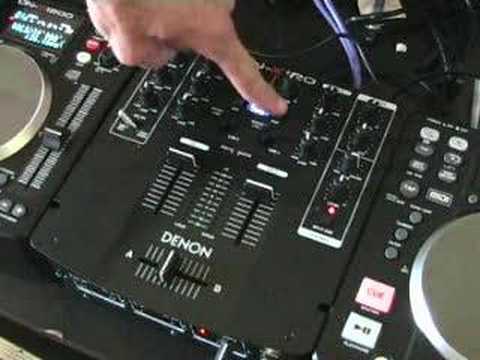
A basic two-channel mixer. We've got phono, we've got the switches here. So we go up for phono. Which is vinyl turntable and also there's a switch at the back so you can have line 1 and line 3 as well. If we bring them down, we've got line 2 and line 4. Now right above here we've got the cue. So in other words, when those are pressed and the light's shining, it means you'll be able to hear the actual tracks through your headphones. Gain control. Now these are for each individual channel. So in other words, on this side here... The gain control, which is above the cue, that will increase and decrease the volume for this channel. Here we have high, mid and low, which is basically your EQ. The low is the bass, the boom sound. The mid is like your vocals and the high is like your hand clap. Right next to program 2, just here, is the master. Now this is exactly the same, near enough as the gain control, these two here.
But there is one difference. This control here will increase and decrease the volume of the whole entire mixer. Balance, so in other words, when it's at R, you will only hear music through the right hand side, through your right hand speaker. L, you'll only hear music through your left hand speaker. In the centre at 12 o'clock, you'll get a proper stereo sound. Now a lot of people have been emailing me saying, you know, what's wrong with my system? The right hand side speaker seems to be slightly louder than the left hand side. Always check your balance because if it's slightly off, can you see there, it's just going towards about 1 o'clock. That means now that I'm going to get more sound that side as opposed to that side. So make sure that's dead centre. Right, the next one here is cue and master. Now this is for your headphones. When it's on cue...
You'll only hear the individual side you want to hear through your headphones. As you go through to master, you'll start getting a mix of what's actually going through the speakers as well. Here, you've got your level. So in other words, when it's at 10, it's full volume through your headphones. Zero, you won't hear anything. So again, if you're not hearing anything through your headphones, check the level. Turn that up. But also, be very careful as you go quite high. Just watch your ears. Split cue. When you press that, what it basically means is you can hear one side through one side of your headphones and the other side through the other side of your headphones. And bearing in mind this is just a very, very basic video here. There's your crossfade. So if I just put the camera down just a tad. We'll have a look under here. You've got contour here for your actual crossfade. Reverse so anyone out there wants to do a bit of the old hamster, fire away. Crossfader start.
6:54 Of this track
And fader start as well. Alright, there's the other unit. Now what I'm going to do is, I'm just going to put the camera, see no editing here which is mad here. Right, I'm going to put the camera there like that and I'll do a bit of a mix. So what I'm actually going to be doing, I've got the crossfade dead centre, I've got the volume up on that side, I'm going to play the last part of this track and I'm going to bring in the beginning of this track just to make sure it's cued up. Yeah, let's put the other speaker on as well I think. Right, I'm going to be probably messing around a little bit with the lows as well. So we'll bring channel 2 down, I'll press cue on channel 2 because that's the one I need to hear through the actual headphones. So volume down, if the volume was up then you'd be able to hear what I was doing as well. So we need the volume down, I can cue it up, I can beatmatch it through the headphones and then you'll be listening to this track over here and then I'll bring the volume up, crossfade over
And then we'll have the second track coming, so here we go. In the near future, and in this one we're looking at a couple of bits of kit from Denon. It's the DNS-1200 CD players and the DNX-120 mixer. Practice and enjoy.
This transcript was produced automatically from the audio of the video and may contain mistakes.





