 7:41
DJ Tutor at Getinthemix in Colchester
Contents of the video
0:00 Chris, now, we had a bit of a conversation about DMX
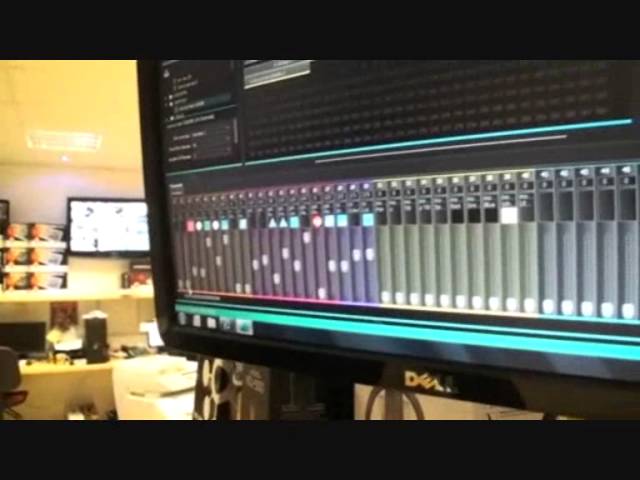
All right, guys, we're at the Get In The Mix HQ. And what's your name, sir? It's Chris. Chris, now, we had a bit of a conversation about DMX. Yes. And we both agreed that DMX is... it's not a pain in the arse, but it's something that is a bit elusive and people seem to sort of stay clear of, don't they? They're scared of it. And to be quite honest, you know, I need to get into it more, but you've shown me something that's very interesting. That, first of all, is the interface. So, from there into your lights in your just daisy chain, from here USB I presume into your PC and the software. First of all, what's the software called please? It's MyDMX 2.0 from American DJ and this is the little American DJ interface. It looks a bit like Apple TV. Just show me now how simple it is. Well, what we've got here, if you look over there, we've got an array of lights.
Here we've got our DMX address bar, going from channel 1 to 512. And that's the amount of addresses you can have in here. Now, let's just take this one off. What we've got here on the left hand side is we've got a list of lighting manufacturers and it lists literally every single type of light you can get. And every single manufacturer that make them. And like we said earlier on, if all of a sudden a manufacturer makes new light, it will be updated automatically? There's regular updates on the American DJ website. I was on there yesterday and there were three new updates already yesterday. So they're constantly updating their lights. In other words, they're on the ball. On the ball, yeah, definitely. Sounds good. So it's as simple as this really. If you've got a light...
All you're going to do is open up the manufacturer, it's a moving head, so say I've got the moving head 256096. I grab that light, I move it across the address bar and I drop it. And then what happens here under your channels is it opens up all of the channels on each address. That you have just addressed it to? That I have just addressed it to. Now obviously we've got ones that are already addressed in our bank and what you can see I've got a couple of moving heads running on here. I'm just going to stop them from moving around like they are at the moment and jittering. Sorted, they've stopped. We've got hand... Oh sorry, beg your pardon. Right, okay. Controls here. I can control the lights. We've also got the colour that we can pick and choose. The flower type that we've got, the Gobo 7, Gobo 6, you can see it changing here.
3:07 You've also got strobe effects in there as well
And various other controls in there, including the dim. You've also got strobe effects in there as well. The dim of the light so you can dye it right down. So what you can do is go in there and actually pre-program a show for that particular light. You know what? I'm going to have this. It is amazing. I'm going to get it. End of story. Absolutely amazing. But once you've dropped the address into here... And what you can see now is I've got various lights in here on the address bar. And if I click on the EL200RGY, which is the laser I've got running up the top there, I've clicked on that and then it will tell me what address to actually locate on the light. It will tell me physically what address to put that light on the dip switches. This is the difficulty some people find is how they switch the dip switches. So of course this will tell you. So all you do is you transfer that onto the back of the unit. That's correct, yeah.
And then also you've got the X-Move, you can see again the address is now changed. Now with the lights we've got there are LCD screens so you've got to go over there and physically change the address. It's not a dip switch system like you do on the older lights. But you can see that on the address there we're starting at number 11. So all we will do is go over to the light itself and on the back of the light, if I just set it back down, I've just killed the light.
And then you can see on the back of the light, we press menu, it says address, ADDR, we press enter, it flashes, so now we can go to the address which is 11 on this case, press enter and that's now set. So we've got the software telling us it's address 11, we've got the light which is going from address 11, so it now talks to the software and it's as simple as that. Fantastic, that's brilliant. Again, where getting the mix is concerned. How can people get this? Thank you very much.
5:50 We've got this lovely little Pioneer controller here
We're at the Get The Mix HQ. We've got this lovely little Pioneer controller here. It's the XDJ Aero, quarter inch jack and mini jack. Right, so I'm going to now turn this guy up. And there you go. From Pioneer, known as the SDJO5W. Yeah, I'm alright, I'm fine. Alright, it's a bit cold out there but it's all good, yeah? Alright ladies and gentlemen, in this video we're looking at the iDJ Pro from a company called Newmark. 400 from Newmark, it's a tabletop CD player. We have gain, to the left of gain on the deck on the left hand side we have effects. Pioneer DJM700K. It's a control S4 from Native Instruments. It is a four deck controller. Happy Thursday! So you're the tuck shop aren't you? Yeah.
Hang on a minute, what are you doing in your throat? Oh, it's before nine o'clock. That's not a bad price, is it? That's a bargain, Rob. Oh, it's a great price. Nice one. From Denon DJ, it's known as the MC2000, two-channel controller and it comes with Serato DJ intro. Keep it very basic. Yes. Crossfader, two-channel faders, pitch control, nice size jog wheels. And now for something completely different. Practice and enjoy. Nice one.
This transcript was produced automatically from the audio of the video and may contain mistakes.





