 4:00
DJdownload Video 1, Listen to your music.
Contents of the video
0:00 Video number one for you on this website here
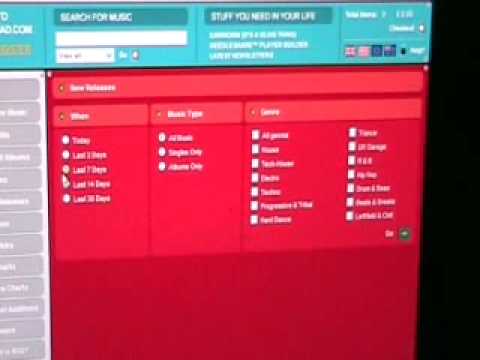
Alright folks, video number one for you on this website here. It's known as djdownload.com. In video one I'll give you a basic outline of the website itself and run you through how you can get to certain pages and listen to certain genres, styles of music that you like. By the way, look in the description and I will give you a clickable link to DJ Download. Now once you get to this page, on the left-hand side, you will see these icons. Home, Browse Music, Top 100s, Top 40 Albums, Albums, New Releases, Promos, Hot Picks, DJ Charts, Genre Charts, Latest Editions, Software, What Is, RSS. What I'm going to do now is pause the camera and we'll have a closer look at this area here. Okay, for this video, I'm going to click on the icon New Releases. So I'll click on that and let's scroll out.
0:58 Music type, as in do I
And we get to this page here. On the left hand side we have when, next to that music type and next to that genre. Now what I can do here, I can either click on today, meaning the tracks out today from this guy here, in other words the new tracks they've had on DJ Download. The last 3 days, 7 days, 14 and 30. Also then I can go to music type, as in do I want to listen to all the music? Or singles only or albums only. Then I can get my search even smaller by clicking, if I want to, OK, all genres. I can go to just house, just tech house, electro, techno, progressive and tribal, hard dance, trance, UK garage, R&B, hip hop, drum and bass, beats and breaks, or left field and chill. So what I'm going to do for this demonstration, we'll keep that icon there clicked.
2:52 It's the part of the track that I'm listening to
I'm going to click here, singles only. I'm going to click techno and then over here I'm going to click the icon that says go. Okay what's happened now, that's taken me through to this page and I've got all the relevant tracks on this one page. What I can do now if I want to... There's a small little icon there with a speaker. I can click on that and have a soundbite listen to a tiny amount of that track. The one I'm going to listen to is Expansal and Massey, I think that's how you pronounce it, Massey DL. Do beg your pardon. Here we go. Let's click on that. Right, what I've got here is a small little screen with a wave format of the track and that area highlighted... It's the part of the track that I'm listening to. Right, if I want to get rid of that track, I can press the cross like that. OK, also what we've got here is we've got buy. So if I wanted to, if I like that track, I can buy that track. Now in video number two, I will go through the way in which you can buy the tracks and also download them onto your hard drive. So again, let's just do another one. Let's scroll down.
And we'll click on this one here, the Black Dog on Soma Records. So we'll click here. Again, when I put the mouse over the speaker, listen to this track in the player. So click and here we go. Alright, video number one on this website, djdownload.com. In video number two, I'll show you exactly how you can again listen to the tracks but more importantly, put them into your basket, download them and then once you've downloaded them, Listen to them on your own PC. Practice and enjoy!
This transcript was produced automatically from the audio of the video and may contain mistakes.





