 8:54
How to Upload a Video to Youtube Its so Simple
Contents of the video
0:00 Top right hand corner we can see the upload icon
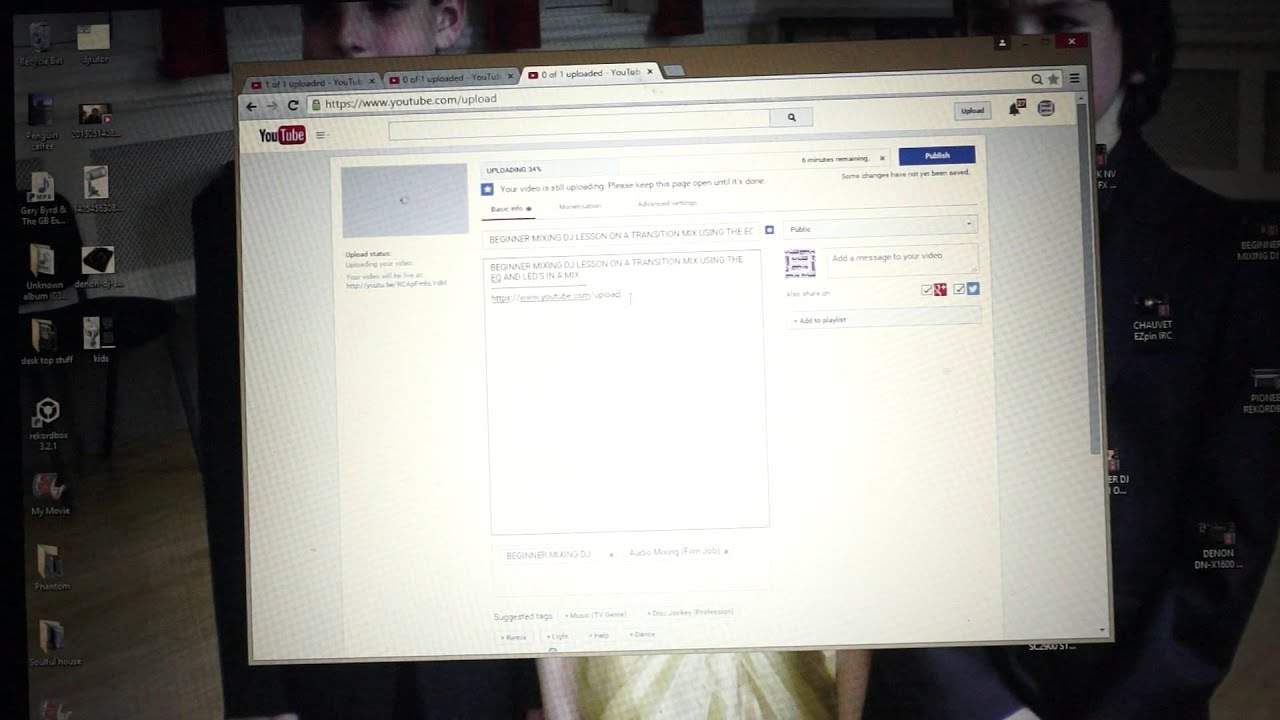
All right ladies and gentlemen in this video I'm going to run you through the very basics of how to upload a video to YouTube. So first of all of course we need to go there and if you are logged in then of course it's very straightforward and you should have a similar page like this where you'll have your Google icon top right hand corner or of course the icon, the avatar that you'll have on YouTube. Now first and foremost you need to of course be of an age where you can legally upload videos to the web. That's very important. Okay top right hand corner we can see the upload icon. I'm going to click on that and we should go to the next page that looks a little bit like this. Again this depends on when you're watching this video. There are two ways of dragging your file to the upload page. One is you can pretty much reduce the size of the page here and you can then depending on where your video
Is if you want to do something like this it's advisable just put it on your desktop and I can go over here. You can see just on the left hand side I'm just going to now left click on that and bring it over and then drop it there and that's it. It's done. Alternatively as you saw earlier there was that small icon where you click on that if I just show you now. If I just go back leave this page we can do this again anyway. So go to upload there and we can see select files to upload. So what I can do click on that and now I've gone to desktop and I can go to anywhere on my computer depending on of course where the video is. So I'm just going to go back to desktop. I'm going to click on an icon there like that. That's now highlighted. Left click and now I'm going to left click open which is just out of video there and now that's it exactly.
2:30 It's there to put as many tags relating to what your video is about
Exactly the same as happened before. Right beginner mixing DJ lesson. Now first and foremost this is really important if you want to get your video seen and also you want it picked up more by Google. I highly recommend you do this. You copy and you paste the title in the description so it's the first thing that comes up in the description and also copy and paste the first thing that comes up in the tags. That is really important. Now depending on what your video is about the tags are there for people to find your video. You could have someone coming up to YouTube and wanting to know about fishing for cod so they may put cod fishing, fishing cod, fishing for cod and haddock. So you need to make sure you put fishing cod, fishing for cod, fishing for cod, sea fishing, river fishing, anything you can think of that is related to your video.
To cod. Put it in the tags. Use this box as much as you can. It's there for a reason. It's there to put as many tags relating to what your video is about. What you will find as well is underneath there suggested tags so as soon as you put one in it's highly likely that there will be others coming in of the same sort of style. So you could see fish, fishing and all you need to do is put your mouse over the tag that you like, click on it and that will automatically drag into that box. Now the description again is really important. You notice there on the bottom left hand side if I right click here I can get the box bigger or smaller. Now this is here for a purpose for you to put information in about your video. So for example if you're demonstrating a cod alright it's highly unlikely
But you're demonstrating a cod and there happens to be a cod website and there happens to be the specifications of the cod that you're demonstrating. What I would recommend is you maybe you would like to go to that website copy the hyperlink so the www.cod so copy it make sure it's over blue so for example I'll give you a demonstration here so if I highlight that in blue right click copy and now if I go then to the description right click and paste there you go. So I've now pasted the icon where we're on but we're not going to use this anyway and then what you can do as well is you could go to that website I'm just going to cut that out and if there's specifications on the particular cod that you happen to be having the video about then you can copy and paste all of the specifications into this description.
5:00 The important factor with monetizat
This box here is there for a reason to put written information in about your video. The more information you can put in about your video the more chance there is of people finding it and also Google finding it okay now imagine that you are you're able to monetize your videos and again I'm not going to delve into that subject in this video but if you are able to monetize your videos the next icon from basic information info will be monetization click on that click on money monetize with ads and then that has now enabled this video to go for monetization. Okay the important factor with monetization though is you have to know 100% that the content you have uploaded in the video you are loading is all your own work or you have legal rights to put that content on in other words if you've used someone's music they have given you some
6:30 I always leave my all because I like freedom of speech
Written consent to use their music if you're at a festival and there's a band playing the band are like yeah that's fine you can use the music but it's not as simple as that because it has to be the band's own music as well it's likely that if they're doing a cover version that possibly can be found out as well so make sure that all of the content you upload is all of your content okay advanced settings I'll only look at this very briefly. Comments all so for example again you want the public to interact with your videos so I advise you to let people comment underneath your video if you don't want them to comment or you're a bit concerned about the comments that people may leave then click there and you can click to approved what that means is that you can approve the sorry the comment prior to that being public as soon as it is has been approved by you.
You then that's it, it will go public prior to that no one can see it except yourself. I always leave my all because I like freedom of speech. One here which is really important is category so again, what was your video about was it about vehicles cars and vehicles we want holiday. We can look here and we've got sort of people blogs but also we've got travel and events, maybe you went to a football match sport. Maybe it. something to do with a video game you have gaming maybe you are you like doing caricatures maybe you like doing outside shows maybe you need to go to entertainment this one here is for education so the video I'm actually doing now will be under education so that's it all right so at this point you
Can see this bar here uploading no this will take time depending on a the size of your file and be the speed of your upload now that's important it's not the download it's the actual upload speed that's important so I'm going to go back to basic info I'm not going to click publish because I've already uploaded this video so hopefully that's a help no again I can click publish whenever I want to as I said earlier I'm not going to click publish I've already uploaded this video there's no point if you want to as well you can add a message here and this message then will go through to anyone who's maybe subscribed to your channel bang they see new video and they can see a small message all right I hope that's been a help it's a little bit of an insight into the new way YouTube have
Set the uploading for your channel and for your videos thank you very much for watching and practice and enjoy thank you
This transcript was produced automatically from the audio of the video and may contain mistakes.
Related videos
-
How to Get a Better Fee for Your Mobile DJ Services
He disclaims it as not financial advice and notes that everything depends on where you are. Taken as a checklist of what justifies a higher…