 6:03
It's Easy to Upload to Youtube How Too Video 2019
Contents of the video
0:00 How easy it is to upload
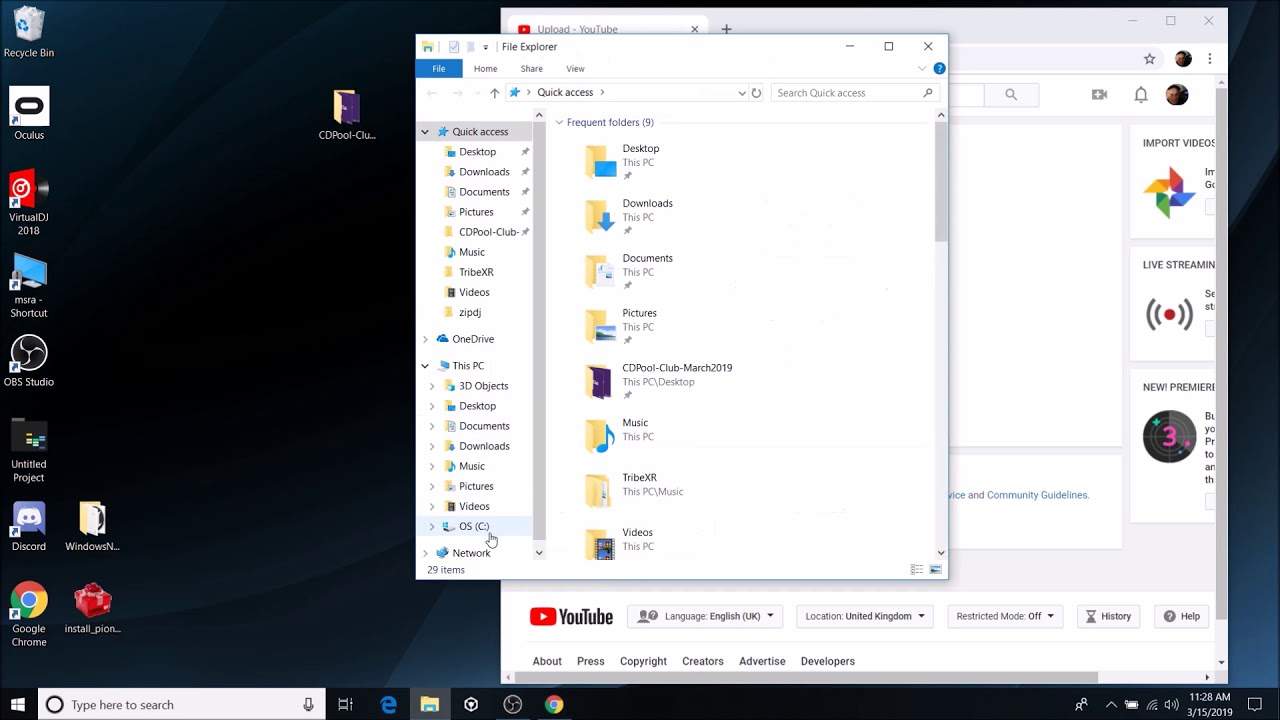
Right, so I'm going to show you how easy it is to upload a video to YouTube. Now very quickly, I'm using OBS, Open Broadcast Software. It's free to download and it will let you record via webcams, you can record stereo or just as I'm doing via your laptop. Okay, so let's have a look. This is the video I'm recording now and this is the one I'm going to be uploading. So this... Video in itself will be in two parts because of course I've got to stop the process to show you the video I'm going to be uploading. Okay, so I'm now going to stop. Right, so this is the second part of the video and we need to look at the original recording I made. So I'm going to go to my folder and this video is the one that's actually recording as we speak. This is the one I've already made, so if I double click on it...
1:55 Said video, videos, there it
There you go. All right, so that's that video. So what I need to do is I need to upload that video to YouTube. So how am I going to do that? Now, what I'm going to do first of all is I'm going to rename it. I'm going to rename it. Let's have a look. Let me... Happy Day. Okay, so there you go. So that is called Happy Day. Right, so let's... Close that. Let's reduce that and now let's go to YouTube. So click on YouTube and now if we look at the top, we can create a video. So we have three options, create a post, go live or upload a video. So all I need to do now is to click on that and we go to a new screen here. There's many ways of doing this. The simplest way, again, we can set the privacy, but I find the easiest one is to reduce the size of the screen and then go to said video, videos, there it is, happy day, and I can drag that over and now I can start to upload that video. So there it is, happy day. Right, so it's called happy day. Now we need to look...
At this area, what can we do? Now I have monetization so I can monetize that with ads if I want to. I can have overlay ads, display, sponsored credits and so on and so on. But I don't want to do that yet with this one because of course you're seeing the process. Basic info. Now what I suggest you do is fill in as much as you can here. Happy day isn't enough because it's what is a happy day? Happy day is nothing. So I may want to call my video happy day at the farm with the family 20th of September. Now, what I tend to do as well, which is great, is I will then copy the title and put that in the description paste and also in the tags. Now, the tags are very important. Because let's say if you're a DJ and you are doing some sort of tutorial on a turntable or you're just doing a set, then what you would do in the tags is you would write little words like tutorial, techniques, set, mixer, DJ, mixing, house music and so on and so on. Monetization, again, you can only do that if you have, I believe, over 1,000 subscribers. Advanced settings, okay.
3:50 Category here, we go into education
So category here, we go into education. You can set your category, recording date if you want to, allow viewers to contribute translated titles. So in other words, if someone wants to come along and translate it, then they can. Right, standard YouTube license, pretty much stick to that. Caption certificate. To be quite honest, I have never used that. I've left it just completely blank. What else have we got? Allow embedding. So I'm pretty sure what that means is that if you want someone to take your video and embed it in a website, you can do so. But I'll be honest with you, you know... You're watching this video now, which means you're on the web. And if you don't want to be on the web, you don't want people to see you, hear you or whatever, then I highly recommend you get rid of all your laptops, computers and phones and you start hugging trees. Right, what else have we got here? Something quite important. If we go back to basic info again, we can set, this is quite cool, we can set to public.
Unlisted or private. Now if we set that to private, what we can do is we can share the video. So here we can enter an email of somebody or people we want to share that video for. So for example, just cancel that. The other side of the world to see the video, you can put their email address in, share it and then of course that person will be notified via email and they will only be allowed to see that video, no one else. Great feature. And again, it is pretty simple to upload to YouTube as I've shown you. If you want any more information, please don't hesitate to get in touch, contact and I'll finish off with practice and enjoy. Thank you very much.
This transcript was produced automatically from the audio of the video and may contain mistakes.
Related videos
-
How to Get a Better Fee for Your Mobile DJ Services
He disclaims it as not financial advice and notes that everything depends on where you are. Taken as a checklist of what justifies a higher…