 12:49
KAM DIGI TWO DJ Controller with Virtual DJ LE
Contents of the video
0:01 Prior to this one they had the Digi Mini, about half the size
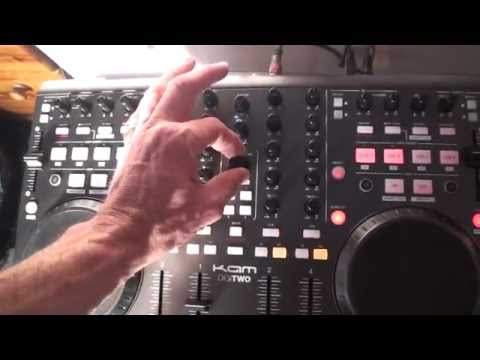
Alright guys, bit of a video demonstration and an overview on this piece of kit controller from a company called Cam. It's the Digi 2. Prior to this one they had the Digi Mini, about half the size. This one next level, we've got four decks, it comes with VirtualDJ LE, and I'm going to do this. I bow down to you. I don't know whether it's because of the controller or the software, or me. Could be me. But for the first time in my life, I have put some software into the PC. I've let it do all its thing, you know, very basic sort of follow through clicking certain icons. And then the program's up, I plug the controller in, I've gone to the correct settings and bang! It's worked like in sort of, took me four minutes. So whether I'm thick or maybe...
But it just, it did it. It was like, wow. And that's one of the issues, one of the issues about a lot of controllers and software. Do you have problems? Have you had a controller and all of a sudden, not all of a sudden, five weeks later, you're still trying to work out how to get the software running, this doesn't work and that. Seriously, I swear, I plugged it in, put that in, the software, plugged it in, and it was like... I don't understand this. I thought there must be something wrong because there wasn't anything wrong. Happy days, eh? Right, so here it is. We can utilise four decks or two decks or three deck or just have a play at one. You can do video mixing with this but I'm pretty sure you've got to update your software and get the pro version. So what I'll do, I'll take the camera off the stand and we will have a look.
At the unit. There it is in all its glory. Cam Digi 2. Four decks. We'll go through some of the features at the moment as well. Got it plugged in. External power supply. We have USB 3 and I've got one monitor plugged in at the moment so you can of course have stereo. I'll show you the back, very interesting and takes it to the next level as well because a lot of controllers have just got RCA out. This guy's got XLR. Four decks, 1, 2, 3, 4, we can do two decks if we want to. Got a bit of Mr Danny J in the background there. Alright, what else have we got? We can change... The settings to go on the crossfade. So for example, we could have this one here, deck 1 on the right side or deck 1 on the left side, deck 3 left or right. So it's very good if you're a scratch turntablist and you like to do that. I think it's called, I mean, I've been a bit ignorant here, the hamster scratch where you go the opposite way. Filter. So each channel has got its own filter.
3:23 Booth means you can have your own speaker system for your personal PA
Bass, mid, high, also known as low, mid and top, individual gain for each channel, master volume, booth volume, track search. Little things like the booth volume take it to the next level because of course we can utilise this I don't know maybe in a club environment or if you're doing a rather large house party or a big event. Booth means you can have your own speaker system for your personal PA. All right, loading view, very straightforward. If I scroll there, we can see scrolling through. Hold on, let me just shut that curtain a little bit so we're not getting any glare from the window. That's a little bit better. All right, pitch. We can, if we want to, if I just go over to the icon there, we could have plus or minus six. We were on six, now we're on eight. Ten, 12%, 20%, 25%, 33%, 50%.
4:57 This one here, device 800
100. So, yeah, you can do what you want there really. We've got that sync button now again. That is great to use if you're using four decks because you can start to be more creative. I'm going to go more in depth in future videos on four deck mixing. For example, acapella on one, maybe bassline on the other, maybe a drum beat on the third and maybe some percussion on the fourth. Use your head! At the end of the day... Four decks, massive sync, it's a must and then you can be more creative in the mix. Alright let's have a look, we can do video if we want to, scratch feature, let's go back to the mixer. Alright what I did is when the program was first on the PC I went to configure. That's sure enough the sort of screen you'll have and this is the important part, the sound card. You need to go to...
This one here, device 800. And of course once you're there, which we're there anyway, so click on apply and you should be good to go. Make sure of course you've got your USB plug plugged into your PC. Very important as well, alright, when you're using programs like this it is highly advisable, highly advisable not to put your head Thank you for watching. A lot of people think, oh I've got Skype on my PC and it's only on when I talk to someone. Quite often you need to check the settings because it could actually be still working in the background which is using up a little bit of RAM. You need to make sure you've got all of your RAM there for one purpose which is this, especially if you're going to be say utilising a program like this on the road. My advice is simply this, make sure you have your PC for your program
For your DJ program, and try not to use anything else. Try not to like when you're at your gig and you think, oh just chat with me mates on Facebook or something like that. Don't, because you could start to slow the PC down, which means there's less space for the music program to do its thing. So it's so important. Alright, if we go up to this area here, we have some effects features. So I can, if I want to, I can select. So while I'm pressing there, if we go to the effects, we can see that I'm going through the effects. Also down here, the sampler. So if I click there, we will go to the sampler. Now there are certain samples in here already. Your normal put your hands up and all that sort of...
7:34 There's the sampler, the effects
All right. But you can, if you want to, you can add your own or please do just copy those and yeah, get rid of them. Hmm. Right. So there's the sampler, the effects. Again, we've talked about those and record. You can start recording, start recording, put your file in there. Of course, once you've got your file loaded on your PC, if you've got SoundCloud. You can upload it to, let's say, your SoundCloud account. So we'll just go back to browse and there it is. Hold on, where are we? Press play. Hold on, how come we haven't got anything working? What have I done? I've broken it. There you go. Okay, we can loop again. Ah, cue point already got on. Alright, what else can we look at here? Yeah, another nice feature is key. Have a listen.
9:15 Town with stuff like
Again, four decks, so you can do quite a few nice remixes on here. Remember over there? Down here, acapella, bassline, maybe you could have a drum beat or maybe some percussion, so you can really go to town with stuff like this. You know, gone are the days of a DJ having to spend an absolute blinking fortune on some kit. Something like this, relatively cheap to buy and you can start. Producing, think about it right this is the important bit you can start producing music on the fly all right to produce proper music you need certain programs like Ableton etc but something like this you know if you grab a load of samples you can start producing and making your own tracks on the fly what does on the fly mean that's just like there and then you're in a nightclub at your mate's house you're doing a house party and all of a sudden you think you know
I've got loads and loads of samples and whatnot on my hard drive. Let's bung one in here, bung one in there, chuck it in there, and away you go. Think about this. You've got a tune playing. All of a sudden you think, I'm going to bring just a drum beat. You've got a 4-4 drum beat. You bring that in over the tune you're playing. Then you take the tune away. You've just got that drum beat. Bam, bam, bam. And then you could maybe... Bring the vocals in, or maybe a sample, or some sort of sound you've got in the background. Loop it. Yeah, you know where I am. Okay, thank you, hopefully. Silly. There you go. Right, hot cues, we can loop. So again, whatever we're doing here... Oh, camera's getting a bit hot now. Hold on, that's better. Right, is it me or is there that bit sort of foggy over there?
Yes it is, I'll try and have it like that then. Okay so everything you do here of course you're going to be doing there. Alright? Main part about this really important is when you do put the program in configure up there and go to the 800 which again I'll show you up there and make sure you're on the device 800. Alright what I'll do I'll put a link in the description Take you to the CAM website where you can get more info on this. If you have got a program like that, VirtualDJ or you've got a controller, let's see your mixes. Put them as video responses if you want to. Let's see people who have got this kind of program, who are happy to use the sync button with four decks or three. Alright, if you want to use sync with two, that's entirely up to you.
But again, I did say in a video like a couple of days ago, I would first of all consider learning how to beatmatch first using your ears. Then when you're good at that, then of course, then start to use the sync button if you want. Don't think, oh, use the sync from day one because like I said in that video, there could come a point where it will just not happen or you'll go to a venue where they haven't got that kind of facility Good. So, there we are. Cam Digi 2. Check out the link in the description and a couple more vids on this to come. Sorry about the fluffy bit there. Practice and enjoy. Thank you.
This transcript was produced automatically from the audio of the video and may contain mistakes.





