 6:50
KAM KPM1750 USB 19" Professional Audio mixer
Contents of the video
0:00 It's the KPM 1750 USB
Alright folks, bit of a video for you on this guy here and some of the features. It's from a company called Cam and it's known as a 19-inch rack mount mixer. It's the KPM 1750 USB. To give you an idea of size, that is a 12-inch single, so it'll give you a rough idea. That's a 12-inch, so there you go, that's a 19-inch rack mount mixer. It's pretty big, you can use it for mobile work but ideally... I suppose in a sense, it's better for install purposes. But then again, if you're a mobile DJ and you demand a lot of outputs, then possibly for you. Right, what I'll do now, I'll pause the camera and we'll start to have a look at it from the right-hand side through to the left-hand side. Top right-hand side, we've got this button here, ASCII on-off button. Make sure you press that in and it lights up. Then it's ready to rock and roll. If it doesn't light up, make sure you've got a mains lead plugged in at the back.
And make sure the plug is plugged in at the wall. If it still doesn't light up, then just make sure it's switched on at the wall because we've all done it, believe me. Okay, balance number two, master number two. Balance number one, PFL through to output. Basically when the PFL is set here, in other words you've got this slider and it's just above where it says PFL, that means you'll be able to hear and only be able to hear everything through the headphones. From each individual channel. As you move this over to the output, it means you'll be able to hear the output as well. Cue level, that's your volume control for your headphones. Crossfade curve, that will enable you to change the curve feature on the crossfade. Here we've got assign. So what we can do, we can actually assign the crossfade and we've got one that side so we can assign it on any channels. So what I'll do now, pause the camera and we'll have a close look up here.
2:24 We've got here gain, that's your master volume for each individual cha
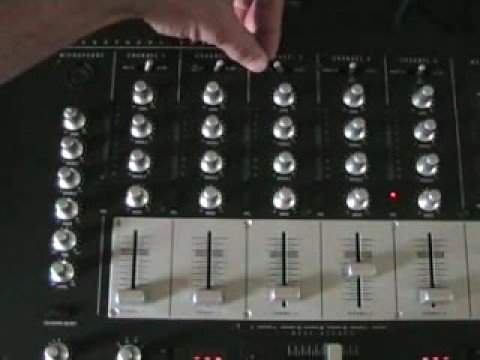
Channel 5, channel 4, 3, channel 2 and channel 1. Channel 5 and channel 4 are slightly different because when you put the switches over to the right hand side you get line and CD. So line on channel 5, CD on channel 4. But CD and line are near enough exactly the same thing anyway. When you switch them to the centre position, then they're in USB mode. So in a future video we'll actually be looking at the USB feature on this mixer. We've got here gain, that's your master volume for each individual channel. We've got treble, mid and bass. Your volume control, this guy here is the master volume control. This button here will go from stereo through to mono. Here we've got BPM readout, we'll be looking at that in a future video. We've got fader start and again like I said earlier, that's your crossfade assign. Now if I just put the camera like that. Right, channel 1, 2, 3, 4 and 5. On channel 1 we can use either microphone 2, I'll show you in a second why it's microphone 2 and not microphone 1, and line. Channel 2, we can have CD1, microphone 3, switch it over or we can have line.
Channel 3, on the left hand side, phono 1, which is a vinyl turntable, switch over, we can have CD. Channel 4, we can have phono 2, on the left hand side, switch it over, into the centre, like I said USB, then over again, we can have CD. Same with 5, phono, middle USB and then across line. Three vinyl turntables as well, so that's pretty cool. Okay, why is it that we've got mic two and not mic one? The reason being there's three microphone inputs. This is number one, this is number two, and this is number three. I'm just going to put the camera steady for a second, I'll show you. Now very quickly, on this particular mixer, and with a lot of mixers now, if you see something that looks like that, if I just go a little bit closer, in fact I'll pause the camera and we'll just have a closer look at it.
4:11 Microphone, input, known
There you go. Now I've known a lot of people who've looked at a plug or an input like that and thought, my goodness, I can't plug my microphone in because I've got one of those. Well guess what? You can put it in the centre, like that. Alright, I'm using this just for demonstration purposes by the way, but you can put your microphone in there like that, which is a basic jack input. Alternatively, you can use this. Which is known as an XLR or Canon input and you've got three pins there. Nine times out of ten, the small, well when I say the small pin, the pin by itself will be almost closer to you and that will slot in like that. So in essence, microphone one, microphone two, microphone three. On microphone one we've got a feature here known as talkover. What does that do?
A lot of DJs, what will happen is they'll have the volume up, the track will be playing and then when they want to talk on the microphone, they'll have to bring the volume down using the finger, talk and then put the volume back up. What you can do with this guy here, when you press that button, talk over now is engaged. So what will happen, the way you set this is dependent on how much the volume will dip and it will dip. As you move it to the right, you'll only have the sound out of your voice through to the right speaker. Move the pan to the left and you'll have your voice in the left speaker. Bass, mid and treble and then gain control. So that's your input. OK, another good thing about this mixer is let's say you're a DJ and you like to do karaoke. Well guess what? You can have that microphone there and then the people singing or should I say trying to sing can have these two. And of course the beauty about it is...
You're in control of the volumes. Marvellous. OK, there you go. A basic look at the features of this guy here. It's from a company called CAM, 19-inch rack mount mixer and it's known as the KPM 1750 USB. Practice and enjoy.
This transcript was produced automatically from the audio of the video and may contain mistakes.





