 15:13
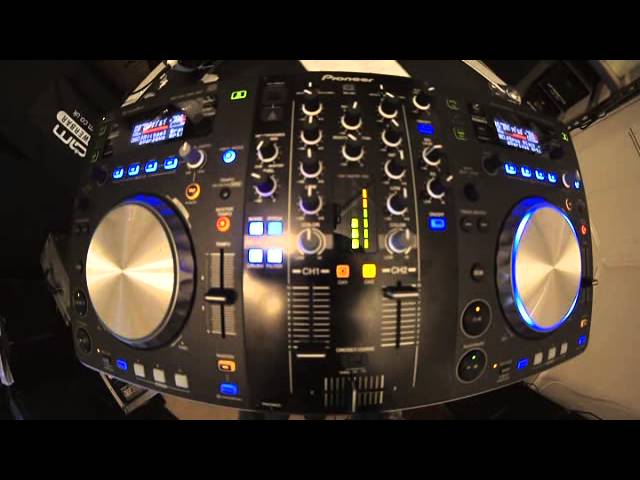
New Releases CD Pool Club December 2013 and Short Demo Pioneer XDJ R1
Contents of the video
0:00 Another new releases for you from CDPool
Alright guys, another new releases for you from CDPool. In this video we're looking at the club releases, December 2013. Also a little bit of a review on the Pioneer DJX-R1. Mainly, well I'm only going to be using CDs in this particular sort of demonstration, but the R1 is compatible with the likes of an iPhone and iPad. Also there's MIDI compatibility and you can plug your USB In there and use files, normal files, alternatively if you want to, to get this to sing and dance a little bit better is, turn that down a little bit, we're in red, is to put your files through the free program from Pioneer called Rekordbox. This one here is track 1 from disc number 1. As ever, don't ask me, follow the link in the description, it'll take you directly to CD4 where you can get more info on this CD, thank you. That was called a talkover.
I remember going up in a balloon and singing this. This one here is track number 1 from disc number 2. Do a little bit of a review on this as well. We do have vinyl mode and we do have jog mode. Vinyl mode is when the two platters either side will act pretty much exactly like a vinyl turntable. We're on vinyl mode at the moment, put my hand on the top, there you go. What I've done as well, I've taken two pictures that I'll put on my Facebook wall and you can check out how close this camera is. I'm using really wicked fisheye and it's amazing so, I mean the lens is probably only about seven inches from the player and it gets the whole thing in so I'm well impressed with this. Take it out, vinyl mode, we're now in what's called jog mode. Clockwise, slow it down. Clockwise, speed it up. Back into vinyl mode.
2:44 This one here is track 4, Afrojack
Again, the club tracks, more vocals, a bit more uplifting and 99% of the time extended versions so you do have lots of areas where you can bung in loads more tracks, acapellas. Quite often you've got instrumental breaks, there's a good intro and a good outro as well. Okay this one here is track 4, Afrojack. I'm not trying to do any harmonic mixing here, I'm just bunging the damn things in. The mixer This area here at the centre of the R1 is almost completely, or it can be completely separate to these two decks. So if you just pretend these two decks do not exist either side, you've got a mixer there where you can plug in your vinyl turntables or if you want to, your external CD players. So you can take along a third entity, for example let's say another CD player or your vinyl.
Because you can switch over here, phono line on the back of here, there's a switch so you will switch from phono to line. And make sure if you do switch to phono and you've got a vinyl turntable plugged in and you're thinking it's not working, probably because it's not switched over on the back there. So we're on deck one is for the left hand side, deck two for the right hand side, master volume, booth monitor so that's for your own little PA system, trim which is the designated volume control for that side, high, mid and low. Which is full complete cut. So again, all the way across to the 7 o'clock position and you can hear jack zip. I'm not allowed to say shit. So if we go to the middle there, to 12 o'clock, pretty much how you should have it set up. I'll be honest with you, the R1 definitely not for scratch turntablists. Just stay clear of it. Because you can scratch on it, but then...
4:56 From disc number one, we just click over
Track 4. From disc number one, we just click over. What number should we have? Think of a number... Five, okay. Okay, we're going to track five from disc number two. Now, in the centre as well, we have four colour effects that are normally associated with the high-end players or mixer, should I say. And these effects, again, will work with external inputs. So even if you plug, say, an iPhone in there... You can get some effects from your iPhone and again iPhone you have to have a mini jack into RCA, into the line input at the back and you're good to go. You wouldn't be able to mix of course because you wouldn't be able to increase or decrease the speed unless of course you have got an app on your iPhone enabling you to beatmatch. Think about it. But if you've just got normal tracks that start and stop then
7:22 Track five, dis number two
You can just press start and stop, really. So, let's do filter. This one here, track five from disc number two. This is Opus Black. That was filter. This is crush. Check this out as well. Move it to the high. And noise. Sorry. And pitch. Pitch is wacky, is mad. Use it, but if you abuse this, it can sound terrible. Another good way of using pitch... Check this out now. Okay, so it's on-off. Engage, disengage, engage, disengage and while you're doing that, you're slowly turning it up or of course you could do it the other way for example, up to the high and here we go. Bang, straight in. Okay, track five, dis number two. What was that? Eight, all right. I'm really doing what you're telling me to do. Happy mixing there, never mind. Okay, trans is short for transform. So press the button associated with the effect you want
10:15 Let's go to, again that's track 8 from disc number 1
And by moving the beat dial, you can increase or decrease the amount of that effect. There is a slight difference between the level depth. I'll explain that in a bit. Flanger. Okay, how does the level depth come in? Very simple. That's about the amount of effect you want over the audio that's already playing. So, for example, we've got roll, we've got it on... We can't hear Jack because we've got level depth to minimum. Turn it up, just pause that. This is really, really important. A lot of people, when they use Roll, they find that it seems to go out of time or they don't exactly know at the right point where to start it and where to stop it.
Now if you're like that and yet you're a bit wary and scared about using Roll, if you listened to that demonstration just then before I started waffling, you'd have been able to hear. 3 quarters. Listen. Anyone who's partially sighted what I'm doing, I've got it on minimum, which is 7 o'clock and I'm moving it to around about half past 8. Listen. There you go. So another little tip for you there. Alright, let's go to, again that's track 8 from disc number 1. Play one more from disc number 2. This one here is track number 10, Promise Land from disc number 2.
Again, if you're using USB, of course what do you do? You press USB. CD, we're on CD. Or MIDI, you press MIDI. If you do have the R1, always check out on forums or go to the Pioneer website just to make sure you've got the correct updated firmware. And you can do that by pressing down info utility and then you can find the, again I'll do this in a future video when we get slightly more in depth about firmware software etc., I'll give you an idea or it will tell you what firmware you've got and then of course you go to the website and if there's an updated version then what you'll have to do is download that onto a small thumb drive. Make sure when you do update your firmware there is nothing else on your thumb drive, you just need that one file and then it should update it automatically. There's a few steps to go through and I'll run through those in future videos okay. This one here like I said
13:30 We can hear that starting off quite nicely
What have I done now? God knows. Pressing buttons all over the place here. In fact, I'll tell you what, we'll play one more on this side here. Think of a number. Double it by 5, minus 7, add a half. What did you get to? Oh, 11, well done. That's what we're going to play. Now the pitch is pretty responsive, I'm quite happy with that. We've got tempo here, plus minus 6, 10 and 16, or wide. Now, if I were you and you are a bit of a beatmatcher and beatmixer, then stick to either plus or minus 6, plus or minus 10. If you have got tracks that are quite away BPM-wise, then, you know, go to 16. But if all of a sudden you find it's not beatmatching, it's like all over the place, it could be because you're on plus or minus 100. Plus or minus 100 is great to get some kind of wacky effect. Now check this out. Right.
Now we can hear that starting off quite nicely. With master tempo on, have a listen. I've got this quite slow, pitch down to the minus position, I'm slowly bringing it up towards me. If you see or listen to that, listen. Alright, this one here, plug releases, CD full December 2013, finished off with track 11 from disc number 1, practice and enjoy. Blank forward a bit. Nice.
This transcript was produced automatically from the audio of the video and may contain mistakes.





