 2:47
NEXTBEAT The Instrument for creative DJ's. CUE POINT
Contents of the video
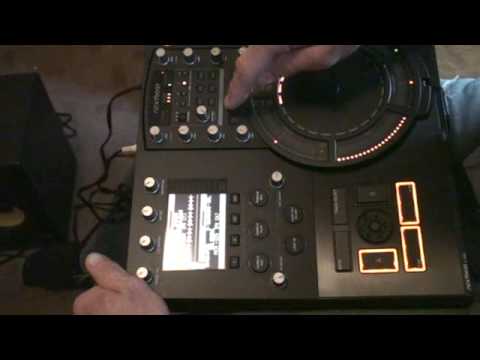
Alright guys, another video on the next beat. Just want to draw your attention to that area there. Now can you see a white line and then have this orange area? Well that is the wave format of the track. And I don't know if you noticed but that white bit is when I say the start of the track, that's the start of let's say when you press Q. There's a tiny delay there. Alright now what's good about this is as well as being visual You can actually set the cue point. So, if I just bring the camera back out again, like so. Alright, what I can do now is with my finger here, I can set that cue point. So, set it there, press cue. Now, still off a tiny bit, I'm going to bring it back a tiny amount. Tiny again. There you go. So, it's precisely at that point. And one thing...
I think someone commented that the cue buttons are a bit small. Well, to be quite honest, at the end of the day, there's your finger. Now, you know, alright, some cue points, cue buttons on CD players are huge. Well, yeah, alright, fair enough. But, the point of your finger isn't really that big. So, and that is very responsive. And again, it's exactly the same as a normal cue point. For example, if I press play pause, I'm counting in time now, 1, 2, 3, 4, 1, 2, 3, 4, 1, 2, 3, 4. If I was to hit that cue point on the count of one, it would be off beat, 1, 2, 3, 4, 1, because we've got no sound so I need to hit it slightly beforehand to get it in beat. You'll see what I'm all about now. One, two, three, four. One, two, three, four. There you go. Practice and enjoy.
This transcript was produced automatically from the audio of the video and may contain mistakes.





