 8:02
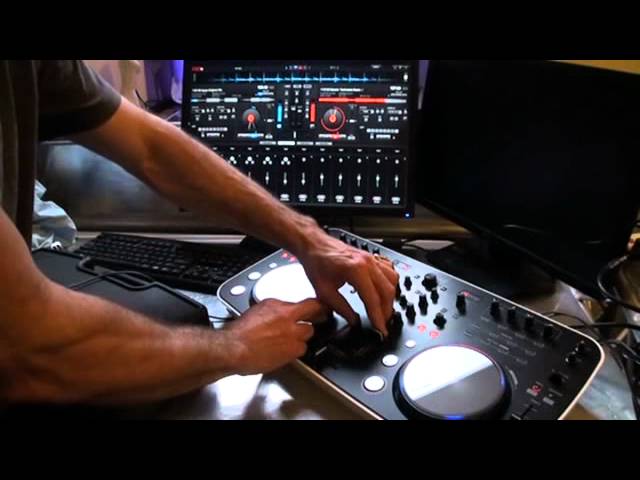
Pioneer DDJ ERGO with Virtual DJ DEMO. SHIFT KEY
Contents of the video
0:00 Another video on the DDJ Ergo from Pioneer, it's a DJ controller
Alright guys, you asked, you get. Another video on the DDJ Ergo from Pioneer, it's a DJ controller. Yeah, loads of you know exactly what it is, but for the people who don't know what that is, that's near enough exactly the same as a couple of turntables and a mixer in the middle. Slight difference though because we can have four decks here. We have C, A, B and D. Depends on the skin. A lot of controversy here about a little button down there known as the sync button. There's one there as well. A lot of DJs do press that and it'll mix for you, which is fair enough if that's what you want to do then it's entirely up to you but I prefer to use my fingers right so Press this guy here. A couple of pointers we're going to look at in this video. I'm just going to bring that down very slightly and get the camera a little bit closer. Right, over there to the left-hand side of the left deck is a small button shift. Press that, you can see a couple of lights go on and off. Let me show you something. Right, what I'm going to do is I'm going to set some hot cues. So, there.
3:31 There you go, you're right back now to folder search
You can hear we've got a hot cue down there. Let's do another one on the high. Now, how do we get rid of them? What we do is we press down shift, press those guys and those will get rid, rid, not writ, rid of the hot cues. Just twiddle around with the volume on the ergo and that's controlling the software which is of course what it should do. Bring this back. We've got an area Where we've got a few samples, we can plug in a few more samples in there if we want to and you can drag those in from your files from your folders. You'll notice at the moment I'm on that area down there where we've got the samples or we could bring a few more in. How do we get rid of that? There you go, you're right back now to folder search. And out of the few videos that I have done on controllers and software, I always try and make sure
We incorporate this area because that's the most important area. That is your PC, that's where your music is. So if you do plug in, let's say an SD card, a hard drive or thumb drive as people know it, sorry, a thumb drive, a stick drive I beg your pardon, or an external hard drive with your music on, then you'll need to go here so you can see computer, my local, discs, also the hard drives. Click on one of those, eventually you will get down to your folders. You click on the relevant folder, drag it over and there you go. It should be then inside skin ready to use. What we can do then is if you notice while I'm doing that, we're going through the tracks there. Many ways of dragging them in. Once we get to a track, we can load it up. Now watch if I hit that one. I've already got a track playing there.
5:45 Picking a random track here
This is really important if you do make a mistake. Right, the song is playing on this deck. Are you sure you want to stop it? Of course, the answer should be no if you're doing a live set. If, on the other hand, you do want to, press yes and guess what? It will stop the track that's playing and it will load up the new one. So just press play and we've got the next track playing and we can do exactly the same now with the other side. Scroll through the tracks. I'm going to load up. Picking a random track here. You'll notice at the top here, we're not right there on the wave format. We need to get to that sort of peak there. So what I'm going to do, I'm going to move the jog wheel like so, and I can get up to that point, stopped it, there it is. What I'm going to do is hit cue. Now that cue point is set. Bring the volume up. I don't know what it's going to sound like. Simple. A lot of people, as I've said...
Also, this guy doesn't just work on VirtualDJ. If you go and check out a video I did, I'll try and link it up. Where I was in Frankfurt, Music Messe, had a chat with Mr. Rick Parkins from Pioneer Europe and he gave an explanation then, not now because things can change, as to the different styles of, sorry I'll start again, the different formats of software you can use with this. At the moment I've got it plugged into a home PC but of course you can fit a laptop underneath there.
Go and check it out. And yeah, as well, what I'm looking forward to doing in the near future is video mixing on this. Yes, you can video mix. Of course, if you've got the pro version of VirtualDJ. Go and check it out. Practice and enjoy. Thank you.
This transcript was produced automatically from the audio of the video and may contain mistakes.





