 13:18
Pioneer DDJ-T1 Video 3
Contents of the video
0:00 Video number three on the Pioneer T1
Alright guys, video number three on the Pioneer T1. Okay, so I think the important thing about the DDJ-T1, the important aspect to drive home about this is it's perfect for the home setup. For anyone who's starting DJing or perhaps thinking of moving from a traditional style of DJing to a digital style of DJing, so using DVS software, this is the perfect solution. You're basically bringing the professional club setup into your home. So, you know, you've got the setup in every club in the world will be two CDJs and a mixer. Without going out and forking out the amount that you'd spend on the whole professional setup, you can get an all-in-one unit which essentially brings all that to your house. So, twin deck setup and a mixer.
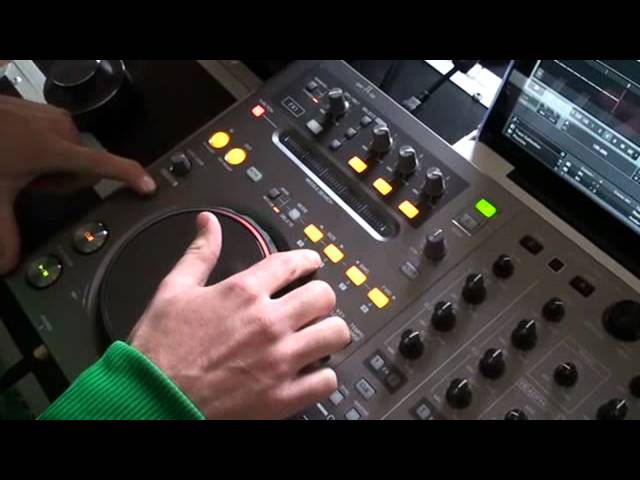
And it's basically giving you the best of both worlds. You know, you can control this software using a number of controllers, but this one gives you the ergonomic Pioneer feel and you actually feel like you're DJing on a real DJ system instead of DJing on a toy. So let's look at some of the features in depth. Okay, I'll just take the... It'll go blurry for a second. I'll just take the fish eye off. No worries. Way to go, sir. So yeah, if you get this unit and you're using it at home, All the features that have been made accessible. So obviously anyone who's ever used a CDJ before, you'll understand you've got the rotary jog wheel. So this gives you a vinyl feel. Can you have it into what's known as CDJ mode as well? This is set to vinyl mode on the DDJ-T1. It's set to vinyl mode.
2:20 Speed it up on the side as well, yeah, like it
And it's always set to vinyl mode, is it? Yeah, it's default set to that and you can't adjust it. But then that's because the majority of DJs, you know, the vinyl mode to CDJ mode rarely gets used so it makes it, you know, less confusing, you know. Bogstand is set to vinyl mode, you know what you're getting. Then if you press play... Hold on. Yeah, so you can still slow it down as you normally would. Speed it up on the side as well, yeah, like it. Yeah, the jog wheels on this unit are, they look very similar to the CDJ-400 but there's a newer gear technology inside so smoother sounding if I turn the music down you can hear very little sound there and very smooth to feel. It's also super accurate and super touch responsive now so it takes less pressure when you touch the top of the wheel to actually engage the vinyl mode and it's more accurate for when you're pitch bending. Got ya. So yeah,
Illuminated jog wheel, 6-inch. You've got transport controls in the same place as a CDJ. But if you scroll up on the traditional CDJ, you'd have hot cues over on the left, which is now replaced with the looping feature. So you can loop your track in the same way you would on a CDJ. So if I punch in the loop on the fly, in, out, we've now got a two-beat loop running there. And that's what I mean. You've got the best of both worlds. It's engaged the loop using Traktor's... Analysis, so a seamless loop punched in. Again, that's where we've got that guy there. Yeah, so the snap and the quantize engaged, it's always going to be perfectly seamless every time. Really a key benefit of using DBS moving on to digital vinyl systems. Then below the hot cues, below the looping, sorry, so to punch out of that loop, I literally unactivate the loop. If we are in a loop as well, we can still do it.
We can reduce and increase the loop size how we would have done before on a CDJ. If I hit the out point again, we then can adjust the loop using the jog wheel, you know, really cool performance tool. Now we've also got the auto loop and rotary button here. Now this works in conjunction with the software as well so if I scroll this to the right or to the left, you can see on the software, in the looping section here, it's scrolling and you're deciding the length of loop that you want to set. So I'm not using Pioneer's orange looping buttons now. I'm going to select, say, an 8-beat loop and then depress the rotary button. Press it once, loop instantly engaged. And you can reduce or increase that size on the fly whilst the loop is engaged. Nice. Again, really cool performance tool. Punch it out, unactivate the loop using the active button. You bang straight back into the track. Right. Like it?
4:59 On the hot cues you've got an additional 5, 6, 7, 8
Beat grids can be adjusted on the fly, so Traktor's pretty good at analysing the files to give it a specific beat grid. However, if they need to be adjusted manually, you can use the subsection of controls, so you've got a shift button. Using the shift button on the CDJ lets you activate a whole host of new controls which are all the writing that's in white on all these controls, so you've got move grid here. On the hot cues you've got an additional 5, 6, 7, 8. To activate then all the controls that are in white, you simply press shift. So now when I press shift, if I press stop for a moment, if I press shift and adjust the auto loop, it's going to move grid. So it's going to adjust the beat grid on the fly. It's quite subtle but you can see them white strokes, the white lines on my beat grid, they're moving from left to right. So if the analysis is slightly wrong,
If you're beatmatching your tracks... In the traditional sense, using the rotary jog wheels, then you're not going to make as much use of the beat grids. But it's important that the beat grids are perfectly on the transients of the track if you're choosing to sync. So yeah, if you're doing that, it's important to go through and make sure that your beat grids are perfectly in time. Another feature we've got, so I've pre-assigned on this track eight hot cues, I think. Yeah, there's eight cues pre-assigned, so I can jump to four preset points in my track. Wicked for jumping to dramatic breakdowns or exploding drops. Let me jump into any point of my track. Now if I hit shift, it gives me my additional four. So I've got one, two, three, four. Press shift and then I get five, six. Jumping to the end of my track now. You can see right up to the end of the track and track is flashing indicating I've only got a minute left of this track. So let's get a loop going. Using the auto looper.
7:35 Deck, filter, highlighted
Really cool performance tool again, you can jump to any point in the track and really get creative in your mixing. Nice. We've also got a filter control so I've explained the needle search already with function highlighted this is disengaged with it unhighlighted we can jump to any point of the track like so always quantized as well provided his settings are on the track bar but we've now got filter control on the CDJ itself So this corresponds with Traktor's filter, which is a nice filter. If I get the track running. Engage filter. Engage the filter. Or left the low pulse. At this point as well, this is a controller for a four-deck digital vinyl system, as you know. We've got four channels, but there's only two CDJs. So anyone who's wondering why aren't there four CDJs, it would simply be too big. What we've done, we've got each deck controls two of the virtual decks.
The left deck here, the left CDJ section, will control decks A and C. So at the moment this is controlling deck A. Should I press C now? And they're clearly highlighted to let you know which deck you're controlling. That is then going to control deck C, as you can see below. So it's just layered, so in other words, as soon as you're on deck A, all of that will function for deck A. You hit C... All of the settings will stay the same for Deck A, but then now you're able to do a completely new set of settings for Deck C. And same with this side here. Spot on, yeah. And the reason they're quite, you know, nothing else on the unit is highlighted or lit, illuminated green, sorry, that's simply so you can, you know, clearly see which deck you're manipulating at any one time. Cool. Well, I'll tell you what, we'll clash this.
10:27 The speakers, so this is our SDJ-05s
As video number three, we'll get this one uploaded. Don't forget, if you want any information on any point relevant to this video, then leave it in a comment and hopefully we'll get to you. Also, if you know anything as well, then have a look through the comments and maybe help other people out there, alright? So, as ever, on the T1 from Pioneer, and also we've got these nice little 5-inch units here. Just tell us something about these guys. The speakers, so this is our SDJ-05s. First speakers that we've been sort of produced by Pioneer DJ. They're basically, I mean you can see they look the part from looking at them and you can hear, I don't know how clear the sound is through the camera but you know they sound very high quality but they're used for studio production and for DJ monitoring. So they've got a whole host of features that most monitors don't have.
You've got four inputs, so you could run the DDJ through input 1 like we are today. You could also run your iPod into input 2, then run an additional setup. So you'd have a CDJ setup over on your right coming into channel 3. What I like is, I think Martin told me, he said this is called the big knob, isn't it? Or is that a bit of a quirky name for it? This is the controller. No, I'm going to stick to calling it the controller. Yeah, no, it isn't called the big knob, it's just this thing. It's the big controller! You've got volume control, you know, so I can be standing over here, I can control the volume of the speakers, I can also engage an EQ, so if you're producing music in the studio, I've got these set up in the studio, you want to hear a flat sound, you want to hear a true sound of what you're actually producing, so you're going to leave these as they are, standard.
...settings that have been, you know, standard frequency response. But, should you want to DJ with them, say you want a bit more of a kick, a bit more bass response, all you've got to do is hold down, you see we've got an EQ section there. If I hold... I've just turned it off. If I hold down the mute EQ button for a second, slight silence and then the EQ's engaged. And I've set this, preset it at the back to give it a 4 dB boost. On the bass, so now there's more of a kick. Yeah, there is, yeah. More of a punch when you're DJing, you know? You can also scroll through all of the inputs as well, so if you come round to the front of the speakers and I hit the input selector. Selector! You've got one, two, three, four inputs, you know? Saves you jumping to the back of the speakers every time you want to pull something else in. You can control it all from the front of your desk.
Cool. Using this slick big knob. And the big knob, and these are the fives and you've got the eights as well, haven't you? Yes, there's the SDJO8s for if your studio's a bit bigger, you know, you want a better bass response in your studio, get an 8-inch driver on there. They're 8-inch bass cones instead of five. Alright, sorted. Right, video number three on the T1, practice and enjoy. Nice one.
This transcript was produced automatically from the audio of the video and may contain mistakes.





