 10:24
Pioneer DDJ-T1 Video 4
Contents of the video
0:00 It's the last video now on the Pioneer T1
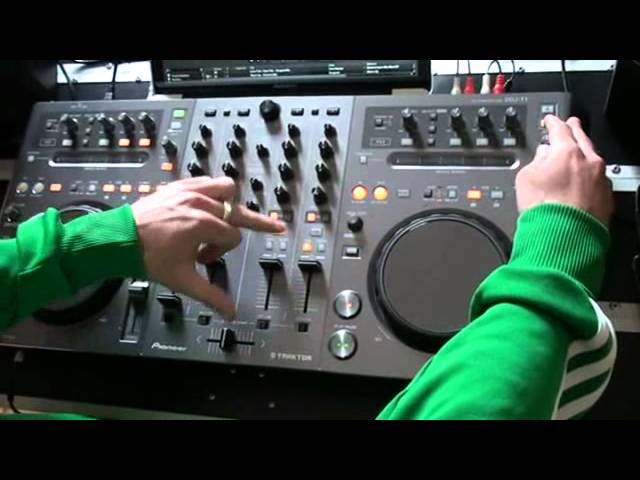
All right, ladies and gentlemen, it's the last video now on the Pioneer T1. And this gentleman here is going to do a bit of a mix for us. He'll talk you through the mix as well. I'll do my little bit of a spiel. It's going to be a four-deck mix. Now, bearing in mind, mixing, beatmatching four decks, well, it can be done, but it's exceedingly difficult. What it means, if you actually by your ear beatmatch four decks, you haven't really got much time to do anything else. When you hit the likes of the sync button... You're more inclined then to snap it in straight away, which gives you more brain power to form a few loops, add some effects. So do you reckon we could give a demo, sir? Yeah, of course. What I'm going to do, I'm going to beatmatch Deck A and B, like I mentioned before, and then use the sync function to bring in some samples and bring in some loops from other tracks. So start things off, jump into our browser, scroll down a tree. What are we going for?
2:19 I'm introducing the next track, Bass Killed at the moment
Right, choose your first track, so... Deck A. Right, so get your volumes right. I'm going to use this first track, get another one. Beatmatch the first two in a traditional sort of DJing sense. You can see deck A has been set to master. I'm going to set that into a loop and just use this percussion that's running at the moment, just run continuously. Just going to take the wide-angle lens off. So now I'm introducing the next track, Bass Killed at the moment. Now while these two are running, percussion I introduced at the start on deck A, I've killed the bass and it's still literally a loop just running. But no bass, you've just got mid and top there, haven't you? The track that I've just introduced, which was initially killed the bass, I've brought that one in. So this one's playing now. Making sure all the time, using the jog wheel, that they're in time. Then, I'm going to throw in...
Go to deck B, whilst these two are running. I'm going to use the SIG feature for this one. I'm going to get this one going as well. We've got three decks going. I'm going to leave that running. I know it's going to stay in time because the SIG feature is on. Concentrate on the two that I'm mixing. Maybe get this deck right in the effect. But you know, unless you're doing something spectacular effects-wise or looping-wise, there's no reason you should be using the SIG feature, to be honest with you. Unless, like you said earlier, you've got three more decks. Yeah.
7:37 And eventually worked back down
Demonstration of how I put, you know, well three tracks together. So I've started with one, introduced another one, introduced a third one and eventually worked back down to the last track playing on its own. So using a very basic use of effects as well, you know, I've only used the delay there. You know, you've got 26 or 28 effects to use to utilise in your creative process. Another feature I didn't mention though as well is on every fader... On every fader, we've got this option which is fader start on off, which is a really cool feature. What it does, let me load up a scratch sample. This is a cool feature for scratch DJs especially. If I load up into deck C some scratch samples with fader start on, every time I bring this fader up, you'll see on the software it starts the track like so.
So, you know, if you're using that in conjunction with the pitch, you can come up with some cool sounds. You know, that's one way of implementing it. If you're a mobile DJ as well, fader start is really cool. If I turn it on on every channel... Yeah, just... It gives the mobile DJ the option of holding the microphone and talking and then you're like that, as opposed to pressing play, volume up and trying to do the same thing, all that while you're holding the microphone. Small point, but any mobile DJ out there will know where I'm coming from. All right, well, thank you very much indeed. No worries. It's been a pleasure. And again, if you need to get a hold of this guy, you can check out any information in the description, the likes of your Facebook, your YouTube account. Twitter, SoundCloud, YouTube, it's all up on the thing, right? It's on Jonathan's, The DJ Tutor's YouTube page. Any questions, yeah, feel free to contact either of us.
Thank you very much and practice and enjoy. Easy.
This transcript was produced automatically from the audio of the video and may contain mistakes.





