 4:15
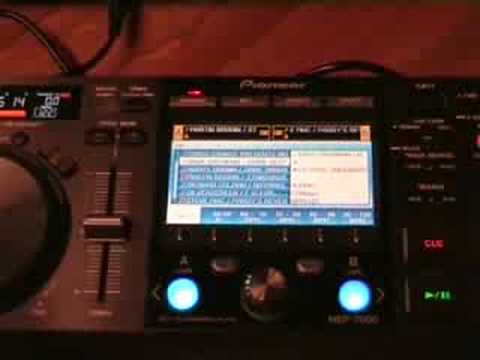
Pioneer MEP-7000 with DJS video 1
Contents of the video
0:00 This unit by itself working
Alright folks, another video for you showing you a bit of software. This piece of software here is from a company called Pioneer, it's known as DJS. Now I have shown this guy here in a few videos, it's the MEP7000 but I've always shown it in a video with the CD tray as well. Now in this video I'm going to show you this unit by itself working in conjunction with that software there known as DJS. Right, so what I'm going to do, I'm going to click on browse. So if we have a close look here, what I'm going to do now is use this wheel to browse through the tracks. You can see I can browse through them and when I come to a track I want to play, I can either click A or B or A and B to load that track. If I want that track inside A, click that. If I want the same track inside B, all I've got to do is click side B. Now the one track is loaded in both sides.
1:42 This is almost the hardware for this PC program
So let's say, for example, I want this track here in side A but I want another track inside B. I can just scroll up and down again until I find the track I want, press B. Now that track is loaded into side B which is different to track A. So if we press play, I'll pause that or cue it up and then we go to B. OK, I'm going to cue that as well. Right, let's go back to scrolling through. Now this is where it gets interesting. Because if I now carry on scrolling, I don't know if you can see top left hand corner, I'm scrolling through here. So now this is almost the hardware for this PC program. Alright, now again bearing in mind this is a very basic video and over a period of time we're going to be going into more depth into what this piece of kit can do. So if I just go a little bit closer to this area here. Now at the moment we're just in browse mode so I'm browsing through the tracks.
2:42 We can change as well the intensity of that effect
Going to mix, what we can do here now, this can be used now as the crossfade. So if you can see me moving backwards and forwards, you can see that small icon going backwards and forwards. If I go to the PC and we look at the crossfade feature there, you can see that's moving as well. Right, what I'm going to do in this video is go to effects. And master, so we can have effects just on channel A, effects just on channel B, and effects on master if we want to. So if I press play here again, what I need to do is to select B. That's delay. And again at the moment there's no point putting pan on because I've only got one speaker, so what would happen, the sound would cut in and out. Let's go to filter. We can change as well the intensity of that effect. Let's get a reverb.
A very basic video showing you this piece of kit. If we go back to browse, I can see now this guy here, this track you're listening to is Richard Coleman, a track entitled Haymake. And this particular song was from the CDpool Underground releases for September 2008. So there you go. So basically what we're looking at now is we've got a piece of hardware that we can use With the software. So one more video on this guy, loads more to come in the near future. Practice and enjoy.
This transcript was produced automatically from the audio of the video and may contain mistakes.





