 9:56
Pioneer XDJ-AERO Look at wireless connectivity. Wi-Fi compatible
Contents of the video
0:00 You have before you the XDJ Aero from Pioneer
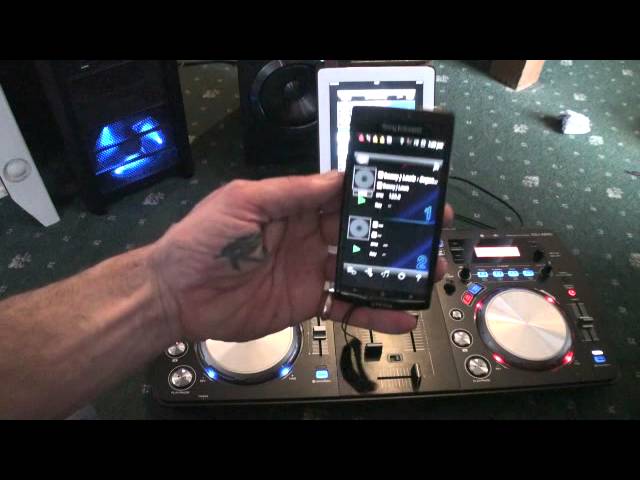
Alright guys, you have before you the XDJ Aero from Pioneer. It's a wireless DJ system and it's rekordbox ready. Now this guy here is a controller but it's a controller that takes controlling music to the next level because it can control your music from your Android phone or the likes of a suitable tablet wirelessly as well as USB and of course your PC. Right, so at the moment there's not much going on there but I've got my little USB thumb drive here and I'm gonna put that in there. We just move the camera over the top. You'll notice now we've got a little green LED there, that's telling me we're good to go. Press the USB, Pioneer Rec which is short for Pioneer Record. I'm just going to turn that till we get to the icon highlighted folder, press down
And I've got one folder there and what I can do now if I want to, I can scroll up and down to view the files. So we just hit on Danny J Lewis Organic and away we go. Now in future videos or in future one or two videos I'll be doing step-by-step tutorials on how to make this guy literally sing. But in this video I'm going to show you... What it can do big time. Now, there may be a few people watching this with their jaws opening and flies going in the mouth because it's quite amazing. So, that's playing. Volume up. Oh, it's not playing. It is playing now. Right, where we go? I've got to try it playing. So, it's actually being played from that thumb drive. But what's it got to do with my phone? Completely separate. You can see there's nothing attached at all.
2:20 Little bit more about the talking
Now I have got installed here rekordbox software which is free to download for your Android. So I'm going to press the icon there, it's like a three bar circle with a triangle facing to one side, which is really a play icon. So we'll notice now that we have Danny J Lewis Organic and we have that green icon there. If I press Q, there it is, it's queued up. So they're talking to each other. Genius. They're talking to each other, which is great. And I will explain a little bit more about the talking to each other and how you and your mates can have some wicked fun. So press play again, and away it goes. So that's my phone. Let's put that to one side. Let's bring up my iPad. Right, back, we've got artist, album, track, playlist, history, tag list. So again, if you formatted your tracks correctly in rekordbox, which I haven't really done everything at the moment,
Then you will see the title, the artist, the album, the track, the playlist, the history, tag list, the key, whatever you want. Right, so we just go to tracks. So we've got one track playing at the moment which is Danny J Lewis and we can also see if I press there, I think that was cued up before. Now if we have a look, we've got a couple of icons here. We have green and amber, they look like decks but they actually are. In the middle we have our virtual mixer. So what I'm going to do now, I'm going to press on the right hand deck and what's happened there is it's loaded up the track on that side. Now if I put my iPad down and bring my phone up, we can now see that the phone has recognised iPad. Alright, now I'm just going to bring it down for a second. I want you to picture this. Oh yeah, first of all before I do that, top left hand corner we've got a couple of blue LEDs, one and two. That's telling me that I have two Android, well not two Androids, so I have an Android phone and I have my iPad connected or two separate entities connected wirelessly. I can have up to a maximum of four.
Now, just imagine this. Let's say there's you and three of your mates around the house. You've all got your phones or iPad. You've downloaded rekordbox. You've put your tracks through the rekordbox software. What you can do now is you can have a mess around and start chucking tracks back from one another but the beauty about it is that you will know if there is a track playing on a deck so you won't get into a situation where all of a sudden you bung a track in accidentally because If we go over here, we can see that there are two tracks playing. If I go back and back, let's have a look, we'll go track, we'll go maybe, I don't know, backstroking. This is Fatback Band Backstroking, I don't think I'll play it, but we can see two tracks playing there. Now, if I didn't want to interrupt the DJ, I wouldn't do anything, but if I thought, no, I don't like that track, I could actually just tap that icon.
5:16 There, there it
Bang, away you go. Now that's cued up. Now that track is there, ready to play. So if I take the camera off and show you there, there it is. So again, this is sort of a brief idea of the connectivity in relation to the likes of an Android phone or an iPad. But also, the iPad Touch Find using your fingers so you don't have to use the small dial. Virtually everything is there. Again, you've got your mixer, you've got your effects, etc. So what we'll do now is we'll have a look at this piece here, which is the hardware. This is the Aero itself. Two virtual decks. Mixer is I would class as a box standard DJ mixer for the industry. Crossfade, we have crossfade. Curve little icons here, so through means we've disengaged the crossfade completely. Where you've got like, almost like an X, it's a bit like that, that's great for a DJ who likes to mix because what happens, you get a nice smooth transition from one side to the other. Where you get this sort of icon, it's a little bit like the pie icon with two lines going up and one across the top. What happens there, as soon as you move the crossfade over from one side very slightly to the other, the other side will come in
7:16 Deck deck, normal mixer, line phono
Up-faders, filter, we can auto mix as well, I'll show you in a future video. This little button here is for your level, so you can either have the level of master or the level of the track that's playing. You'll notice that's quite high, so we need to bring that down a little bit. Normal mixer, what you would find on your everyday normal mixer is your low, mid, high and your trim which is a volume control for that specific channel. We have a master level volume and then we have small little switches here so we can go from deck 1 or deck 2 which are deck 2, deck 1 or if we switch over line and phono 1, line and phono 2. So again if you want to you can as well add your CDJs or your vinyl turntables.
So, if I just put that down there. Right, quite a nice little feature here. If I press sampler launch, cool eh? Jog drum, there you go. Also we've got some effects. So, bring it over here and we have trans, flanger, echo and roll. Icons here, this is telling me now that we're wirelessly connected. We can go MIDI or we can go USB. We've got a button here for utility, time auto cue, again very very similar to the CDJs. In the front of the unit we can have quarter inch jack or small jack for headphones and if I just lift it up not much else on there except a rather nice logo and then on the back I think what we'll do in a future video I'll run through things like that because it's more of a tutorial this particular video
All you need is an iPad in front of you showing you, for example, the tracks you're playing. You can use the iPad, scroll through them and away you go. Great piece of kit. What I will do, I'll put lots of information in the description. Have some fun and watch out on my channel for future videos giving you step-by-step instructions. Practice and enjoy. Thank you.
This transcript was produced automatically from the audio of the video and may contain mistakes.





