 3:36
Pioneer XDJ R1 Great TRUE Mobile DJ tool
Contents of the video
0:00 Another random video here on the Pioneer XDJ-R1
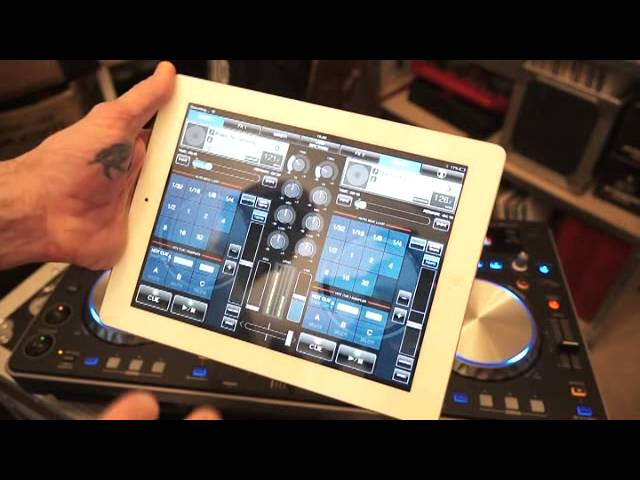
Alright ladies and gentlemen, another random video here on the Pioneer XDJ-R1. First of all, the software I'm using is known as RemoteBox. I have not got any files through the other Pioneer software called Rekordbox. I'm using files on my USB stick which is plugged in to the XDJ-R1 at the moment. Now let's imagine this particular video is mainly targeted for the party stroke mobile DJ who wants to Maybe get on with the crowd more. Interact with the crowd. Get away from sitting behind the decks. Get out there and have some fun with them. So here's the deal. Alright, go to USB Browse. I'm at my folders. All of a sudden someone wants a new tune. What we can do, and by the way, bearing in mind now, this can be done away from, which I'm showing you, away from the actual hardware, the R1. So I'm going to load that track, and I'm now going to go to my mixer, and just check, make sure crossfades in the centre, we've got the volume up, and again, you don't have to go to the mixer, you could go pretty much directly to deck one, press play, and away you go.
1:17 Imagine now that's playing
All right, so imagine now that's playing. We're walking around the crowd. What would you like, sir? What would you like, madam? You go to browse. Oh, you want etc. They want another soccer tune. Soccer, I beg your pardon. So I'm going to go there, load deck two and then go to my deck two. Now imagine all of a sudden this one is slowly finishing. It's finishing. Thank you very much. And away you go. So there you go. You've actually now got your tracks ready. We've got them playing through the hardware while you're walking around using your iPad, so it's a great way of interacting with the crowd more. And don't worry about it if you feel that you need to be at the hardware to find out if the track is finishing how long you've got because you do have the time here. You've got a small icon which is easy to see that can tell you how much longer you've got of that track. So again we'll go through that again. I'll put that in the centre there
2:46 Go back to deck one, press play, crossfade over, down there
Of course, we don't want to hear the first track we played. Go back to Browse. If I want to, I can go back to... I can, sorry, press... I just touched that icon there, the arrow, and go back to Folders, have a look through the folders. Maybe, what have we got? Commercial House and Other. So let's have a look. We just do Afrojack there. And then again, I can either go to Deck 1 if I want to, Deck 2. I could go to my mixer, just check. Levels, etc. Go back to deck one, press play, crossfade over, down there. Bearing in mind when I put the crossfade over, of course, because on there I've set it to through, means that I will have to put the up-faders down or up. Put this on. I'm not going to edit this. Do apologise. Hold on. There you go. Oh God.
The wonders of the web and the wonders of being able to do this and getting away with it. I'm sorry. Honestly, I didn't know that I was going to say that but it's quite funny. Practice and enjoy.
This transcript was produced automatically from the audio of the video and may contain mistakes.





