 15:18
Rekordbox DJ Video 1 by Ellaskins The DJ Tutor
Contents of the video
0:00 It's known as rekordbox DJ
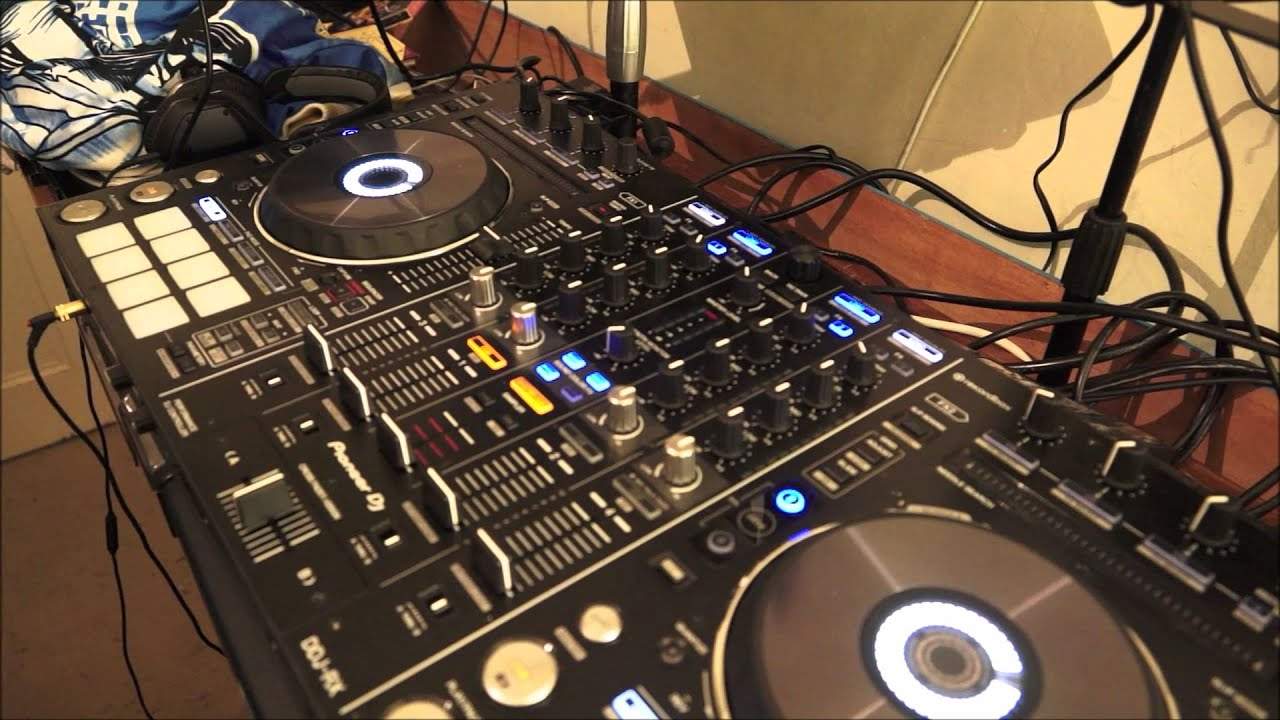
Alright guys, this video is in a way sort of a complete beginner video looking at the software from Pioneer. It's known as rekordbox DJ. Now first and foremost this software is free to download and also free to use for a limited time. I'm not going to say an exact time on this video because that potentially could change over time. The best thing to do is check out the link in the description it will take you directly To the Pioneer rekordbox DJ website. Now, also there is another software called just rekordbox that is downloadable for free and you can use that indefinitely. The two programs are very similar. The only difference with rekordbox DJ that we have on the screen This is predominantly there for mixing purposes for the hardware from Pioneer, the likes at the moment I have the DDJ-RX. So what I'm about to show you on the software, you can do practically everything on the hardware as well. Now this video is targeted for someone who let's say has just uploaded...
They haven't got the foggiest what any of that is and they want to start mixing. Now we're not going to look in fine detail at all the ins and outs, the loops, the cues, how to do effects etc. Let's just have a look at the very basics, how to get two files, drag files into your virtual turntables press play and away we go. Now on most of the Pioneer controllers You've got what I would class as the brain dial. It's a little bit like reception in a hotel. Everyone goes there to find out where they're sleeping, where the restaurant is and whatnot. Now on the RX which I will show you after we've had a look at the software, I'll show you this dial. And on the RX it's right in the centre. of the rx at the top what i'm going to do i'm just going to move that dial and you can see while i'm moving that we have a bar straight across the center of the program and as i move it to the right as i'm moving it clockwise it's going down anti-clockwise it's going up now i'm just going to press back now what's happened is we've now gone to this area on the left hand side we're scrolling through collection playlist sampler explore
2:53 Import, I've got an option
Explorer, sorry, histories and so on. Now I'm going to go back to collection and press down. Now the long bar is highlighted over the tracks. Very simply as well. If you want to drag in tracks into this area here without going into great detail, all you need to do is a couple of things. We can go up to file, top left hand corner here. And if I go on to import, I've got an option of importing track, folder or playlist. So of course, if you want to import just one song, you would of course click on track and then you'll go into your PC, find where your music is and then drag that track, click on that track and it will be dragged into this area here in the Pioneer DJ program. Alternatively, folder.
5:09 I'm going to load it to the right hand deck
Alternatively calls playlist that's as far as I'm gonna go here the other option which you can do is you can reduce the size of the program like so and for example I could go into a folder open that up I can see a few tracks there all I'm going to do is I'm just going to highlight all of those tracks and I'm going to drag them over into the box there. Now what's happened is from dragging here across to there, I've seen a small plus and if I let go those tracks have now been imported into the rekordbox DJ software. It's as simple as that. Once they have been imported they will then start, the program will start to analyze those tracks.
The analysation is about making sure that all the tags are correct from the initial folder where they were and now the tags are the same inside the software. But also what the rekordbox DJ will do, it will also give you the BPM of the track and it will also give you the key of the track. Now those are quite important if you are a new DJ because maybe you're not sure about BPM mixing keys and mixing in key. Now, mixing in key is very, very important. All right, so I'm not going to play any music, by the way. We're just going to go through the very basics of how to get a couple of tracks. Well, I might just press play, but I want to put revenue sharing on this.
7:24 Two options, well actually three options really
And you know what it's like on YouTube. If you play any kind of music, they'll just slam you for it. So let's imagine now I want to choose a new track. Now, I've got the option now of that track loading it to the right hand deck or the left hand deck. I'm going to load it to the right hand deck. Now, I'm going to press load on the RX and now I've got a new wave format so I've now loaded that to the top bar. There's a really large squiggly line there. I'm now going to move that dial on the RX again. I'm going to go down to another track and I'm going to load now on the other side and
On the lower, underneath the first one we've now got a new squiggly line. I'm going to bring the volumes down, I'm going to move the platter by myself manually and we can see that that line is moving along across the screen but I have my finger on the platter. As soon as I take my finger off it will go back to the beginning. That is because I have not pressed Play on the RX. If I press play, now that's moving by itself automatically but at any time I can put my finger on the platter and turn it back. So really the objective here is to show you how simple it is to load tracks to get files into the software once you've got files into the software to load them in to the DJ tutorial by Ellaskins, The DJ Tutor.
I have 124. Now, I'm just going to make sure that is... Yeah, we can see that's not blurred. So what is 120.9 and what is 120.4? Well, that is telling me the BPM beats per minute of the tracks. And I can change those BPM by moving the pitch on the RX. So what I want to do, I want to get them both the same BPM. Two options, well actually three options really. One is to take 120.9 bring that up to 124. That's number one. Option two is to take 124 down to 120.9 or option three that not many people think of is maybe reduce the 124 to 122, the 120.9 up to 122 so Let's just do that. So I'm now going to, on the left-hand deck on the RX, slowly move the pitch away from me till we get to 122. On the right-hand side now, I'm going to move the pitch towards me now. So away will decrease the speed, towards me will increase the speed. So as you can see, I'm now creeping up to 122. I've gone a bit too far. There you go. Both on 122. Now that...
10:26 It's got a tiny echo there, that's better
It tells me now that they are the same BPM, which is short for beats per minute. So in every single minute I will hear 122 beats in that minute. Now in the centre of the rekordbox DJ software we've got a virtual mixer. We can see this sort of... That is the crossfade there and I'm now moving the crossfade on the RX And my movements is coinciding with the movements on the software, so I'm going to put that to the centre. I'm now going to move the volume control on the right hand deck and we can see that's going up and down if you can hear that as I move the dial on the RX. The same on the other side. Now you'll notice just above the right hand side we've got CUE highlighted in a sort of like an amber colour.
A yellowy colour. Now that is because cue is engaged on the RX. Again, I'll go over cue very shortly in future videos. I'm going to press the cue button above that slider on the RX again. Now that light has gone off because I have now disengaged headphones on... I'm now going to press the other side and we now have that side highlighted with CUE. That tells me that I'm now able to monitor the left hand side even though both volumes are down. Alright, so what I'm going to do is pause the camera, talk a little bit more about the software and then I will show you exactly what I was doing on the hardware. Okay, so here we go. Here's the DDJ-RX and what I'm about to show you, the moves on the RX will pretty much correspond exactly to what you saw on the software. So if I move this dial here, this is the centre dial. This is pretty much like, it's not the brains of the RX but this will be able to take you to folders, to files, to load, to go back, forwards and so on.
13:05 I'm just going to press OK on the screen
So when I was searching for my files, I was scrolling using this dial. When I wanted to load a file, in other words that long line that you saw, let me just unplug because I've got a small monitor on. It's got a tiny echo there, that's better. When I got to a file that I wanted to load, all I had to do was either press one of these blue buttons and that would load it to... Now we also looked at the cue feature. Now the cue is about cuing up a track ready on your headphones. So let's have a look at that in greater detail. Now let's imagine we've got the crossfade over on the left hand side, the volume is up on the left hand side and the crowd are jumping around listening to that track. They love it, they think it's fantastic and you want to keep the vibe, keep the energy.
Just in brackets here, it's always a good idea if you want to keep the vibe and the energy try and mix in key because you will undoubtedly keep the vibe and energy but of course that is dependent on that the track you're going to mix into the one that's playing has got the same feel, the same genre style but that is another video believe me. So by actually having cue engaged on the track that's playing is no good really, because we don't want to hear that one. We can hear that one through the main PA. What we want to do is we want to be able to hear the track that the crowd can't hear. We need to cue up and make sure that we get the track ready that the crowd can't hear. And that is the one on the right hand side. So I'm going to press Q on there and I'm now going to press Q on the right hand side. Now even with the volume down and the crossfade over
I can now hear that track. Now, I'm not going to go too far because you do, again, have to make sure headphones are plugged in, headphone dial is turned up. That's for a future video. But by engaging cue now on the other side means that I can now hear that track without the crowd listening to it. Volume up, press play, move the crossfade over and now the crowd can hear the other side. Okay, so that is pretty much what we did. I'm just going to press OK on the screen. Alright, so while I was moving the crossfade, we were noticing that the icon representing the crossfade on the rekordbox DJ software was moving. So while I was doing that, the icon was moving. While I was moving the up-faders up and down, so too were the up-faders moving.
On the rekordbox DJ software, I'm just going to point the camera down there. This is the pitch control here. So while I was moving the pitch, the software was moving. And again, just to show you very basically, if you move the pitch away from you, the speed of the track will decrease. So for example, let's say at the centre point. The track is 120 BPM, which it actually is. If I start to move it away from me, it will reduce 119, 18, 17, 16, 15, 14 and so on. Bring it back to the centre, it will be at 120, the original speed that the producer made it at in the studio. If I then start to bring it towards me, the speed of the track will start to increase. So it'll go from 120 through 121, 22, 23 and so on. But you will notice, as you saw when we looked at the rekordbox software, it won't just be 120 and 21, 22. It'll be 120.1, 120.2, 120.3 and so on. So it's a little bit more precise than just 121, 122, 123 and so on.
Okay, so a very slight insight into the rekordbox DJ software and also how that interacts with the hardware. Hardware I was using was the Pioneer DDJ-RX. Check out the link in the description to rekordbox DJ software and I will finish off with thank you very much, practice and enjoy. Nice one.
This transcript was produced automatically from the audio of the video and may contain mistakes.





