 7:07
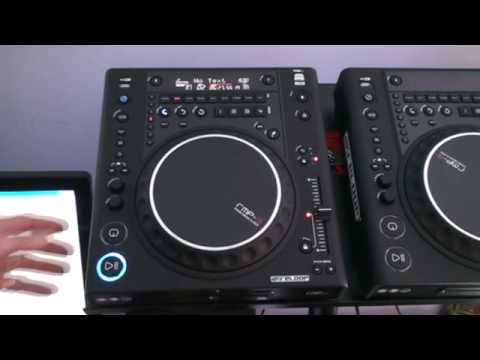
RELOOP RMP3, Cross Media Player REVIEW Video 1
Contents of the video
0:00 First proper review on this guy from Reloop, the RMP3 Cross Media Play
Alright folks, first proper review on this guy from Reloop, the RMP3 Cross Media Player. I'll put a link in the description to take you to the Reloop website and also another link that will take you to the track I'm using which is by Jeremy Sylvester, a track entitled So Addicted. Now this guy, first of all, on the back you've got a USB port for the function, let's say, of MIDI and also logically you can use this in conjunction with the likes of Traktor. Top left hand corner, we've got a USB port there. That is for your storage device, the likes of a hard drive, flash drive, etc. You'll notice now just below that we've got this small circle shining, looks a bit like a CD. That's purple at the moment. Excuse me, I've got a fever. That's telling me now that we're utilising the CD in the player. If I press that and it starts shining red, what it says now is please insert a memory device.
So I need to press that again, and it will take a couple of seconds for it to start to recognise the CD again, but once it has recognised the CD, it's less than a second when you search for tracks that it will find, you know, less than a second to find the next track as it were. So what I'm going to do, I'm going to go to track number two and press play. What we're mainly going to be looking at in this particular demo are all of the effects at the top. Now the scratch effect is very, very good. There's no movement when you touch the platter. Some players, you put your finger on the platter like so and you're almost moving with the track. This one, finger there, jigger it about and it stays there. The sound that you're scratching will stay exactly where you started off scratching.
2:18 At the moment I'm on 3 quarters of a beat
Okay, so we'll give that a demo first. Press scratch. Then if you can see, I've still got the same sound and I'm not moving at all. In other words, I'm not doing this. Still there. Go backwards. Still there. It's exactly the same place. Now that is the scratch feature. Okay, we'll go to skid. Now what that does is... In a sense, it's almost like it winds down the sound or winds up the sound. At the moment I'm on 3 quarters of a beat. Have a listen. It's better explained and you can hear more of a difference if we go to 1 over 1 which is 1 beat, 2 over 1, 2 beats, or 4 over 1 which is 1 bar. We'll go to 4 over 1. Press play pause. Okay, if I press that particular button again then that particular effect stops to work.
4:48 Track number one, and this one
I'm just going to press Q up again, and you can check out how fast and how responsive that button is. Press play. If I press Q, track stops. If I press it once. If I press it twice, then the track will start up again. Keep my finger on it, continues to play. Take my finger off, it stops. Oh, don't get hay fever, it's horrible. OK, let's press play again. Okay, go on to filter. Four over one. Two over one. Phase. We can hold as well. Echo. Now the echo feature, you can have some fun with this. I echoed one bar. Have a listen to this though. To get the best sort of effect from the echo, try three quarters. Now this is good. What's actually happening? We're getting almost like... It's not just a steady 4-4 time beat, but we're getting beats inside the beats. Now this can be more apparent and you can hear it a lot better if you have just a steady house beat. So what I'll do, we'll go to track number one, and this one here is a track entitled Move Your Body by Jeremy Sylvester again. We'll take the echo off and we'll press play. We've got that steady beat. Right, what I'm going to do, just use the cue, we're going to hit echo.
And we're going to go three quarters, three over four. You can hear that. Okay, we go to flanger, go to trans, which is short for transform. What basically happens here is the sound will cut out. And we go to pan. What happens here is the sound will move from right to left on the speakers. Okay, down here we have track search and then we can search through the actual track itself.
Take the panel off. Reverse. The buttons are very, very responsive. Alright, one quick video on this guy. Don't forget, if you want any more information, go and check out the ReLoot website where you'll get a lot more information on this and the other items from ReLoot. Practice and enjoy.
This transcript was produced automatically from the audio of the video and may contain mistakes.





