 7:14
Traktor Kontrol Z2
Contents of the video
0:00 I'll just put the camera a little bit closer like that, right
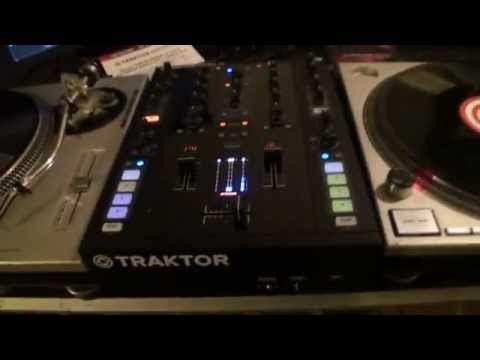
Alright ladies and gentlemen, this is video number one and a basic overview on the Native Instruments Traktor Control Z2. There it is, that is the mixer, it's a two channel mixer, also comes with the program Traktor Scratch Pro. So I'll just put the camera a little bit closer like that, right. At the moment I've got plugged into the Z2, I've got two Technics SL1200s and virtual vinyl ready to go. Two pieces of virtual vinyl. Also comes with some virtual CDs, so you can use the mixer with CDs, vinyl and all the program. That's quite important. So within the flick of a switch, you can go from a normal CD to virtual CD, but of course you have to change them. You can go from virtual vinyl or you can go from normal vinyl. But again, if you're using virtual vinyl on the right-hand deck...
If you need to use real vinyl, then of course all you've got to do is take the virtual vinyl off the other deck and switch it over and press the button. Bang, away you go. Also comes with this card which is very, very important. Do not discard this card. Go to that website, native-instruments.com forward slash go dash z2 and underneath here there are two codes. One code to activate The hardware, the other code is to activate the software and you will have to register in the Native Instruments website as well. Alright, this video basic overview and a look at the mixer itself. So two channel, crossfade, a couple of trains here which are near enough exactly the same as the likes of a CDJ. We can have some hot cues so we can form hot cues if we want to. I'll just give you a demonstration there. Oh wrong one, on B sorry. If I want to get rid of that press shift
2:54 At the front here, oh god, I'm going to leave that down
And there we go, so I can now form another cue, or four if I want to. Filter, which you just saw, and low, mid and high gain. At the top here, this is where we can switch from virtual vinyl, CD or normal vinyl if we want to. The mixer itself, what they've done is they've set it out so it's exactly the same near enough as a normal conventional mixture. Mixture. I'm going to leave that in. Hey, hey, you show your mix with my mixer, boy. At the front here, oh god, I'm going to leave that down. At the front we can, let me just turn that off, we've got X-fade which is short for crossfade, reverse and curve. So if you do like to do the likes of a hamster scratch, just switch that on to reverse. At the back, let me have a look, I'll tell you what, if I just take the, do my punk kind of thing there, take the camera off the stand, we'll have a look at the back.
I mean in future videos, what we'll do very shortly as well, we're going to have a more in-depth look at the software in conjunction with the hardware as well. So we have our input so you can see there you can plug in either your phono or your line. These things here are the binding posts for your earth cables so if you are using vinyl and you seem to have like a bit of a buzzing sound it could be possibly because you haven't got them earthed. That is really important. Your output, there are three outputs. There is booth for your monitors, there is RCA out, but if you are going to use this on the road professionally I highly recommend you use XLR. Your USB into PC, this is for the software to enable it to talk to the hardware. On off power supply and here you can see a couple of USB ports, great because you can use other native instruments.
4:22 Two completely different things
If you have a look yourself, you'll see it's pretty similar to a conventional mixer. The difference is that if you imagine a human being And you imagine a computer. Two completely different things. Well what we've got here is we've actually got now a human being, but it's like a bionic man human being. The human being being the original mixer and the computer being the original computer. Well now this is the bionic man. This is a real bloke or a real woman but with computerised gizmos inside them because this talks to the program and the program talks back to it. So I know this much so far and hopefully over the next couple of weeks I'll get to know a little bit more about this. But it's a good way of using your files and going back to basics of Real Vinyl. In fact, it may be a great way of you realising how fantastic Real Vinyl is.
It's, it's just beyond comparison to be quite honest. And I do find a lot of drum and bass DJs still to this day use vinyl. So of course virtual vinyl at the moment, if we just put that back down there. Don't know if you can hear, if I just bring the volume down, what I'm going to do, I'm going to just turn the camera in a really awkward angle and put the microphone near the needle. That is the sound of virtual vinyl.
That is pretty much it for this video ladies and gentlemen. As I said, there'll be more to come but you're looking at the Traktor Control Z2. Very simple sort of video showing you what to expect to get. Not what it can do because what this can do is probably completely beyond the scope of what I know but I will endeavour to try and give you as much information on this in future videos. Traktor Scratch Pro, which is one of the better softwares out there. Alright, thank you very much, practice and enjoy!
This transcript was produced automatically from the audio of the video and may contain mistakes.





