 6:25
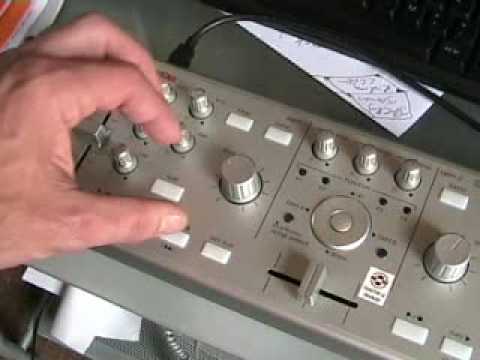
VESTAX VCM-100 usb midi & audio controller
Contents of the video
0:00 This piece of kit from Vestax
Alright folks, in this video we're going to look at this piece of kit from Vestax. It's known as the VCM100. Basically you've got your piece of hardware here. Now this comes with Traktor 3 LE and that is the software. Now first up, you can actually use Traktor 3 in two ways. One, you can use this by itself with a mouse. Alternatively, you can use it with... The actual VCM100 as well. Right, what I'll do now is just place the camera there and I'll just show you all this area. Right, one important factor and that is this is not dissimilar to a conventional DJ mixer and let's say a set of CDJ turntables or a set of vinyl turntables. Alright, you know, it does look slightly different but the actual functionality is near enough exactly the same because you've got a pitch control so if you move this it will increase
Down that way, towards the back of the unit, it will decrease the speed of the track. If you bring it towards you, it will increase the speed of the track. You've got here, pitch bend, so you can actually fine tune the actual speed, minus and plus. Low, mid and high, bass, mid and treble, exactly the same as a normal DJ mixer. Balance, right and left. Trim, that's basically your gain control for each individual channel. You've got your usual play, cue, fast forward rewind, cue set here and also another cue. I'll show you that in a future video. We have level here which is exactly the same as the volume control on your normal mixer. It gets slightly different this area here but that's your crossfade. Master level, monitor select and monitor level. Now this piece of kit as well has got an internal sound card so you can basically
2:18 How we can start to load
Install Traktor 3, plug this in and away you go, full stop. No need for external sound cards. This centre area here, what you can basically do once you've got, and I'll show it to you very shortly, once we've got some music in that area there on the actual PC screen. What you can do, you can scroll up and down the tracks, you can load into side A or load into side B, press the middle and away you go. Right, that side is exactly the same. Now what I'm going to do, I'm going to show you how we can start to load tracks. So if I just have the camera slightly closer to this area here. Now I've got all my music, now I may have to click a few times but bear with me please. Right, I've got my music in the D drive so let's click the D drive. So we've got MP3s so what I'm going to do now is click here. Right, there you go. There's all the tracks. So what I can do now, I can do one of two things.
I can either use the mouse and then click on a track and drag it over, like so. Press play, move the crossfade over on that. It's wavy-davy on one of these drops. OK. Or alternatively what I can do, if I just move the camera out now. The trouble is it's rather difficult to do this because I'm moving cameras and goodness knows what all over the place, but it'll give you a general idea. Now what I want you to do... If you can, if you can watch this area here where I've got my finger and also my finger here. If you can see as I move the crossfade over, the crossfade actually on the screen is moving. So what's happening now is this is actually controlling everything on the screen. So in other words, I've now got the equivalent of a DJ mixer and two turntables but I'm using the music from the PC.
4:17 Press play, hold on, get to the right tracks, alright
Now again, this area here, watch what happens. Can you see the bar moving down as I press down in the centre of the actual hardware? Up. And then let's say we want this one, this track here. It's MIC Perry. Welcome aboard. So what I'll do, I'll click load A, press over. Now that track is ready on that side. I can do a couple of things. I can either use the mouse to press play or I can just press play here. Now have a listen, if I decrease the speed, increase, crossfade, crossfade over that side, nothing at all. Also what we can do is I can actually load up exactly the same track now on that side. Press play, hold on, get to the right tracks, alright. This is live but I don't give a monkey's, this is how it is, this is real life.
There you go, so we've got the two tracks on both decks now. Now also what we've got, if I just pull the volume down, I'm going to go to this area up here, if we just fit it about there. Okay, we've got key here, now this is key lock and also sync. It's got nothing to do with a hot and cold tap by the way. If I press that... What's actually happened now, even though it's the same track, it's now matched them beat for beat. So if I come down here, volume down, that's that side. Down.
Okay, another bit of an insight for you into this guy here. It's from Vestax, it's the VCM100. Over a period of time I am going to be doing more videos on it but here's the deal. If you've got that or if you've got Traktor then do me a favour and do everyone a favour, post any videos as video responses to this even if it's just you having a mix or maybe you can do a tutorial as well, alright? Show a whole bunch of people out there. Thanks a lot, practice and enjoy.
This transcript was produced automatically from the audio of the video and may contain mistakes.





