 8:28
Virtual DJ Video. Pioneer Ergo
Contents of the video
0:00 Screen, bring, images
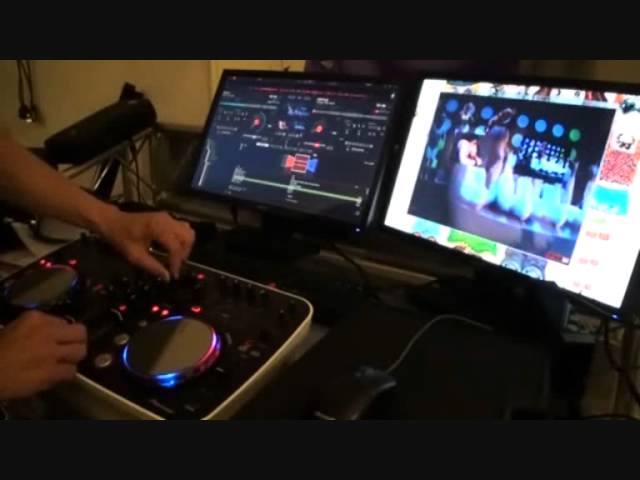
Alright guys, what we're looking at here is VirtualDJ and we've got the video icon on at the moment and we're using video. We've got a screen over there with the video footage and this one here has got the VirtualDJ software on it. I'm just going to reduce the size of this because if you've just got the one screen, You'll have a very small box appear, well theoretically should appear bottom right hand corner. Something like that. Alright, if you've got a couple of screens then of course you can drag it over to another screen but of course if you've got say the likes of a projector or television then of course you can drag it over to there as well. So I'm just going to make that a lot bigger, a bit like that and shove it over there.
And away we go. Alright, with the video, exactly the same. With audio, we can do different effects. So we've got here transition and we've got effect. So if I go over to this area here, and the area I'm going to go to is you have the video icon, below that you have the main screen, you have right and left. So the main screen here is what people will see. Right is... What's on the right deck left is what's on the left deck. At the moment there's nothing at all. There's Robin Ash, Show Me Love. So you can see even with the volumes down on the ergo we can still see what's playing. Those are your little preview screens. Bring it up. We've got that up there. Across there. Right, what I'm going to do, I'm going to go to the transition.
And we're on the default. Turn that down for a second, let me just... Turn that down and that volume down. Right. I don't know if you can see here but what's happening is all of a sudden we've got the two images crossing over but at the same time we have got the two images of the two tracks in the main centre screen. That's because I've got the crossfade in the centre. If I bring that over... We just have the one, centre we have the two images, bring it over and we have the other one. So there's Robin S, centre is both of them with the two tracks and the two images moving simultaneously together and then we bring that across and we've just got the other track. So this is what we get with a default. I'm just going to bring the volumes back up. Also as well, we have a small icon here with a link and if we hit that...
3:41 Hit link and we're back to using that icon
At the moment now, I don't know if you can see that, but I've disengaged the crossfader icon on the screen. So as I move the crossfade over, that icon is not working. Hit link and we're back to using that icon. We can as well use some effects. We've got the sampler here. If we want to, we can add some samples to this and we can record. Again, to your browser, very simple and straightforward, exactly the same as using normal audio tracks. You go to the left-hand side and you find your files. I've got my files on an external hard drive. I have got a lot of music videos here. So for example, if I go to there, I've gone to Dance Classics from Mix Mash Volume 6. Now again, if we look at the ergo...
We have this guy here, the browse dial and I can browse through those tracks. You can see the icons going across there and at any given time I can choose another track. So for example, we'll put that on there and let's say I want to play that one there. I can load it up. Now because a track is already playing it will give me the option, do I want to stop the track that's playing and play the new one? The reason for that is, let's imagine you are in a proper environment where people are dancing. You don't really want to stop the track you're playing. This is a bit of a... It's almost like it's helping you just in case you drag the track into the wrong place. In other words, you wanted to go to the other side that you're cueing up. You didn't want that track to go onto the track or onto the side that's playing. So, for example, here I can play...
5:44 Press yes, and we're good to go
Press yes, and we're good to go. Bring that over, and we'll do exactly the same with the other side. I'm going to browse, I'm going to josh wink, higher state of consciousness, load, and it's asking me, a song is playing on this deck, are you sure you want to stop it? And I'm going to go yes, and I've stopped it. And we'll start the other one off, josh wink. Right, I'm going to be doing a lot more... On this in the near to mid future, I don't know exactly when because there's a lot going on at the moment. So I'm hoping to take this setup to the BPM show in the NEC, okay? It will be the Ergo, it will be a laptop and it will be a hard drive bunged full of music videos so everyone can have a little bit of a go with this guy as well. I'm going to pause the camera now.
And I've got my little man, Blaze, who is going to give his own demonstration and tutorial on this guy. Practice and enjoy. Blaze would now like to show you how to use VirtualDJ. And what else, mate? What do you think? Come on, press that one up there. Do that one for me. That one there. Push it up. Push it up. Good boy. Go on. That one. What is it, Mr Moo? What is it? That one. Is it that one? Is it that one there? Watch. Go on, you do it. Go on. Good boy. That one there, okay. Practice and enjoy.
This transcript was produced automatically from the audio of the video and may contain mistakes.





