 4:25
Xvive U35D Dual Wireless System for Audio Set up on a DJ System Controller or Mixer
Contents of the video
0:01 I have the receivers plugged into the controller
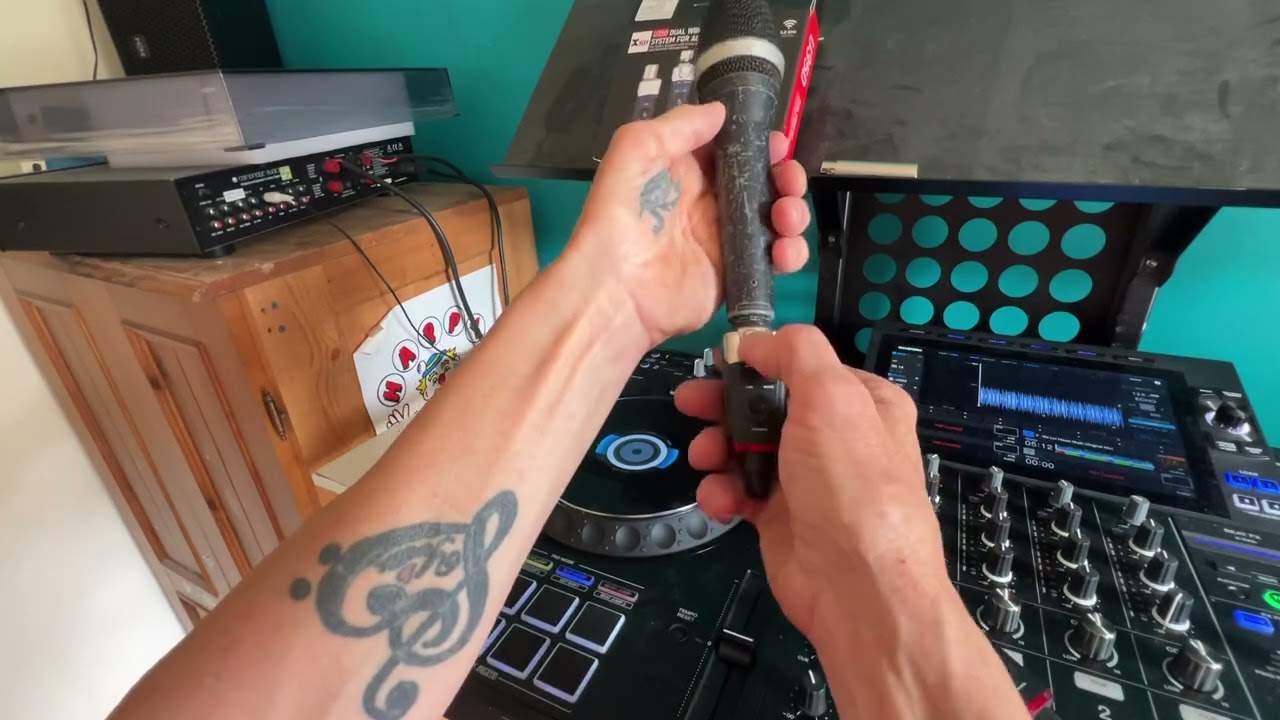
Right, ladies and gentlemen, this is the idiot's guide on how to use the U35D dual wireless system for audio from X-Vibe. So I have the receivers plugged into the controller. It's the XDJAZ. I have two channels, two XLR input on here. Now the receivers and transmitters... We'll be able to go through six channels. So what I'm explaining here is you can basically use six units at the same time. One, two, three, four, five, six. Now on each of the transmitters and also the receivers, there's a small little button. So if I press power on, we can see a one there. Or the button, should I say. We're going through channel 1 up to channel 6. Now I just need to check and make sure which channel this is on. Yep, that's on channel 2. Okay, so it's all common sense and logic. Like I said, this is The Idiot's Guide. I have two channels here, 1 and 2. So of course, logically, I'm going to go channel 1 on channel 1, channel 2, of course, on channel 2. Now, because I've only got one microphone...
1:15 In as great a detail as
I'm just going to explain in as great a detail as possible. Right, so let's have a look. We are on channel one here, which means I'm on channel one on the receiver. Now you'll notice the volume on the microphone is down. There's good reason for that. I'm going to press on and then just talk in the microphone and now we can hear audio. There you go. You can hear me talking like a nutcase. Right, there you go. So I'm going to put the volume back down like that. Press the on button again, so now that's disengaged the mic on the controller and turn that off. Again this is the transmitter, the other end is the receiver. Now to the left hand side of the power and mute we have mic and line, so you need to make sure that's set to the mic position which is the up position. Right, so I'm going to pull that out and put the second one in. So there we go.
2:53 Turn, working environment, feedback
Push that in, power on. We're on channel two here. Press on there and again, one, two, three, one, two, three, one, two, three. There you go, channel two. Turn that down, off and off. Okay, I'm just going to finish very simply with the reason I always have the volume down on the microphone before turning the mic or should I? I'll start again, sorry. Sorry. The reason I have the volume, the gain on the mic here down instead of halfway up before I turn the microphone on. Simply is, I don't want to get into a position, let's say for example in a working environment where I've got the microphone, say I've just turned up and I've got the microphone dial set to, I don't know, 11, 12, 1, 2, 3 o'clock. I turn the microphone on and then all of a sudden I get that whistling sound, it's known as feedback and that's because I haven't set the audio correctly.
So always what I try and do at the beginning of the evening when I've got all my audio and levels set, I'll have the volume on the mixer for the microphone down, turn the mic on, turn on here, and then talk through the mic, slowly increase the volume so I know I'm not going to get any feedback. Now, for this demonstration, of course, it's quite low. In a working environment, it's going to be a lot louder. Turn off there. Turn off on the transmitter. And now I know, so long as I don't touch any more of the gain controls or the volume controls on the mixer, I know now that if I just press the on there, I'm not going to get any whistling or feedback. So just to prove that, turn the transmitter on. One, two, three. Of course we can't hear anything because I haven't pressed on here.
Press on. One, two, three. One, two, three. There you go. All right. I hope that's a help. There will be info in the description on the U35D. Thank you for watching. Practice and enjoy.
This transcript was produced automatically from the audio of the video and may contain mistakes.





