 14:21
Ableton Live Tutorial video 1 with Danny Lewis From Point Blank Music School
Contents of the video
0:01 Video number one on Ableton and I'd like to introduce this gentleman h
Alright ladies and gentlemen, video number one on Ableton and I'd like to introduce this gentleman here. Sir, who are you? So I'm Danny Lewis and I work for Point Blank Online. I'm a producer and Ableton is a platform that I use a lot these days in composition. It's not something I use all the time but there are certain strengths in Ableton that I really like and so what we're going to do is we're going to do a tour of the interface on this video so you guys can get an understanding of the basics really before moving on to some other stuff. Now, what we have in front of us here is basically something called the session view and if you're coming from another sequencer like Logical Cubase, you're going to find this is a little bit strange in terms of the way it presents the information.
It's one of the reasons why Ableton is so special because of the session view. You guys might be more familiar with, if I push my tab key here, what we call the arrange view and this is a sort of traditional left to right timeline and you can see down in the bottom we've got actually it's saying the time in minutes so we can see this down here and along the top you've got bars so you've got actually there the structure would be arranged on here and that's the traditional way. Back in the day everyone would make their tracks starting from left to right in the gaps whereas Ableton, it's not so much about working that way. It's about creating some little clips whether they're audio, you know, it's like a drum loop or a percussion loop
Or programming your own loops using MIDI and then building up a selection of blocks that can be triggered you know, so you can trigger your own loops that you've created and you can record the improvised stuff that you're doing here into the left to right arrangement you know for the finished track. You know, that's the whole concept. And we've got this launch pad controller which basically these buttons corresponds to the clips in the session view you know, that's the whole concept that we can trigger those. So we get a selection of elements in the session view that we then use to create the finished track that's the whole concept. So session view is over here, we've got two tracks we've got an audio track which is designed for literally recorded sounds
2:54 Master, channels
So you've got your drum loop, percussion loop percussion loops, musical loops, they could go on there. The MIDI is if you actually want to trigger stuff so I've also got the Oxygen 8 keyboard here and I can play in information and that's going to then trigger some stuff inside Live so you know, you could do your beat programming or your bass lines So session view, tab key flips into arrange view so you've got those two windows that you're using when you're composing with Live or performing, you know, because it's been designed for live performance as well. The master section over here, what we're looking at really is like a mixer you know, so we've got here the channels on a mixer so you've got faders, you can see here I can pick up and adjust the volume
I'll bring some stuff through so you can see that working in real time So the master over here is your master output you know, that's what you're hearing whether it's a club performance or it's something you're working at a track at home you can adjust the master level but you know, we wouldn't recommend using this as a volume fader you know, that really should just be left where it is and you're aiming to keep everything under the zero dB point So when a person puts in Ableton, this is what they will see This is literally what they see It's the first thing that they'll see Yeah, it's just an empty screen with these two channels available in the session view And at the moment, we've got these return tracks
The whole window is customizable so you can take these away You can take away the sends That's where it all starts getting a bit complicated including these You can really strip it back You've got the ability to customize it But this is pretty much what you're going to see for the very, very first time Just a couple of channels in the session view Master there And on the left side, we've got the browser So the browser is where you basically navigate different sections of the computer At the moment, it's showing what we call live devices and these are like instruments or effects that you can use to make a track So if I, for example, expand this We've got a selection of different tools So Ableton The version that I've got in here
4:30 Notes, midi effects, audio effects
This is the Ableton Suite, which is the full version And that includes a large Is that the one I've got now as well? I'm not sure which one you have So it comes in two versions There's the suite And then you just get your normal Ableton Live Which is It doesn't have the operator for example Or collision Or tension and the electric It will just come with a couple of instruments like the simpler Right Do you think maybe for me it's probably a better idea just to have the live You can still get a lot done with the basic one You don't need to have the full suite You can get some really, really good stuff done with the basic package anyway But I've got a large amount of stuff on here because it's the suite So you wouldn't see that if you had the basic version of live
There are audio effects Now these are for processing sounds So if you think about the instruments That's what we use to create sound Then you send them through the audio effect So we've got things like reverb Delays EQs There's a really nice DJ style EQ there called the EQ3 Which is It's like a set of kill switches for lows, mids and highs And you can adjust the frequencies on there So I'll bring in some of these effects later on So these are the choices You've also got MIDI effects And this is another strong point for me with live If you're the kind of person who's not very good with a keyboard If you're not musically trained The MIDI effects are great for composition Because what they do is They allow you to get some musical ideas
Down without having to be musical And one of the really good ones for example is scale So this is a plug-in That basically you drop in And it corrects the notes If you're playing wrong notes It makes sure that you will then play the right notes According to the scale that you're selecting So in real music The musicians will study the theory And they know certain notes are going to work On a scale So they rehearse those They practice those They've got them all in their brains And so that's one of the things That's one of the big stumbling blocks For people when they're starting to make music They don't know the scales So this is a cheating way To get the correct musical scales When you actually perform So that's a good one
7:09 Down Is the third party products
The chord for example Is another good one And this allows you to hold one key on the keyboard And it's going to Instead of just being one key It's going to be a chord It's going to be multiple notes So it's very easy to get some Musical kind of vibes down The arpeggiator can then Create rapidly moving notes From the chord So we could chain some of those up And I'll show you how that works So on the browser We've got the choice of The instruments The MIDI effects The audio effects But then also we can navigate If you've got any VST instruments People don't just have to use The instruments on Ableton You could have a collection Of your own ones So I've got a selection here Of different third party instruments So if you guys have got
Your own favourite instruments That you want to use You can access these from over here So the top button on the browser We've got the actual things That come with Live The next one down Is the third party products Underneath this You've got three locations On your hard disk So when you're in the thick of it Like last night We were doing that Live on the live stream thing I was able to navigate Between three different locations On my hard disk So when you're doing a performance It's really handy To have those three Sort of preset locations available So you could maybe have one That's going to have your tunes Another ones going to have Your effects Another one Maybe some other audio files So this is just where You can navigate
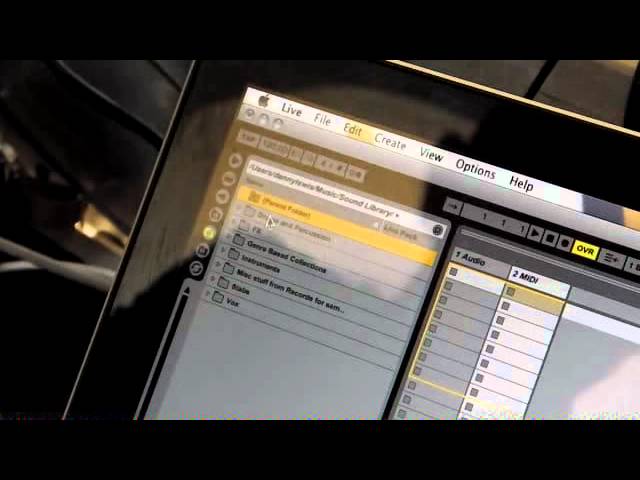
Three specific areas On your hard disk And what you do Is if you find some samples Then you can drag them over Into the session view To actually get them Into the actual track You can audition from here as well And I'll show you What I do is I've got a section on my Machine here Called sound live And I've organised everything This is what I would recommend To everybody anyway If you're interested in production Make sure you get your Sounds organised really nicely So you can build up your library So I've got here Drums and percussion If I open this up I've got drum hits Which is the individual sounds Or drum loops Or percussion loops So I'll show you If I just open up Percussion loops I can click here And there's a button Down the bottom
See when I've selected This in the browser You've got a waveform view Down here Got ya So I can click on this And it's going to Preview that And that's doing so At the current tempo So I could find something else So it's auditioning At the current tempo If I want to use that I pick it up And I just drag it over And then very quickly As well To show you Tap So you can tap The tempo That's the tempo there You can tap it For full time It's working out We've got nudge forwards And backwards So last night When we were doing That thing Where I was Working with the DJ Trying to adjust The tempo Nudge it And get it in time This has been designed If you're using Ableton Live With a band Or with a DJ You can nudge it Forwards and backwards Very quickly
9:34 Shaker, sound drag, start
A few people have said That Ableton Live Is relatively simple To use Straight away I can see That someone Can plug this in And as you've Proven that You go straight To your library And you can Drag and drop And straight away You can put these Yeah totally I mean That's not playing At the moment But if I clicked I just did Command plus R Or it's control Plus R on PC So I've named it Because when you're In the thick of it It's quite hard Especially if you had A couple of drinks You know You're doing a live Performance You need to know What these things are As we found out Last night Yeah so The bong goes Look this is The beauty of it That's running there I could look Right I've got shaker here It's actually A tambourine Is my Incorrect naming
There Just see how Things are In context Try this one Try the shaker I've actually got Some other ones Here Let's have a look At this Some other congas You start layering Congas together You know Just get a nice Little vibe On the go And then if you Like that sound Then you can Drag that over Well you would Do it onto The same one Right So there's A track That's been Allocated For that type Of sound So let's drag It over And we start A new track Got you And we can Adjust the level So how many So we can Get as How many As many As you want It will just Keep going Right So on here This is like A shaker And so What I'll do Is I'm just Going to delete The midi track To see if It can keep It nice and Tidy At the same Moment The same With the shaker As well So you can
See that So this is Where you Can actually Get in there And start Adjusting Things So say For example You wanted It to sound A little bit Different You could Pick up The loop So we're Just looping The second Part now This can All be Transposed And you can Transpose it When you're Doing that What's Happening Is That It's Using Real time Pitch shifting Technology So It's Actually Changing The tone And also The character Of the Sound This is One of The things About Ableton For Music And Within As you've Proven Within 12 Minutes They can Change That Sound Into A sound That Probably No one Else Has Ever Done Before Well Yeah I mean It depends On the Loop That they Like the Sound Of As I Said Everybody Collects Sounds These Days You Can Buy Libraries Download Libraries For Free A lot Of The Sample Library
Companies Give Loops That You Can Get For Another 30 Seconds And Then We'll Do This Video One Cool So On Here This Is Now Two Of Them But On The Other One I Could Do The Audio Loops All Right Guys Video Number One There Will Be More To Come And If You Want Any Information On This Follow The Link Danny Is From Point Blank Which
This transcript was produced automatically from the audio of the video and may contain mistakes.











