 3:15
Loading tracks on a small controller and phone app
On YouTube this video is called DDJ-200 How to Load Tracks with Wedj App
What this lesson teaches
This is the smallest setup in the course and the one that makes the point about what a controller actually is: a DDJ-200 running on a battery pack, Bluetooth to a phone, a small portable speaker. No laptop, no mains, no cables to speak of.
The hardware has no browser
The constraint that shapes everything here: the DDJ-200 has no dial for selecting tracks. There is nowhere on the unit to scroll a library.
So all of that happens on the phone, in the app, and the hardware does the playing. Which is worth sitting with for a moment, because it is the clearest demonstration of the division of labour in every controller setup - the box in front of you is a set of controls, and the software is the instrument.
Loading a track
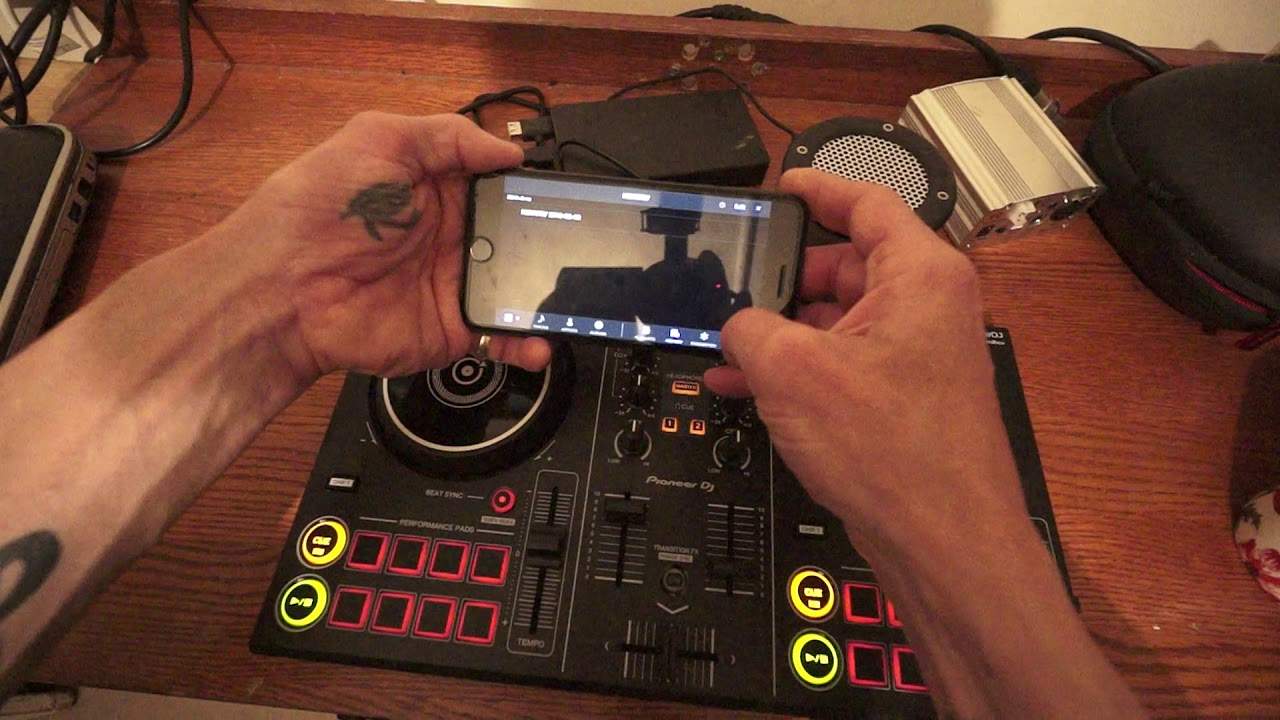
Tap the track name at the top of a deck. The library opens. Choose a track and it loads to that deck. Do the same on the other side for the other deck.
The library can be sorted by track, artist or album, and there are playlists, a history, suggestions, and a recorder.
History is the one to know about. It logs what you played and in what order, the same way the high-end Pioneer players do. That is how you reconstruct a set afterwards - which matters more than it sounds, because the question "what was that one you played about an hour in?" arrives the next morning, and without a history you will not know.
Scrubbing on the waveform
The gesture at the end is the useful one, and it works on any touch-based DJ app.
Drag your finger along the waveform under the track name and you move through the track. A long drag covers a lot of ground quickly - good for finding a section. A small nudge on the moving waveform moves you a beat or two, which is the touch equivalent of nudging a platter.
So one gesture serves as both the search and the fine adjustment, depending on how far you move. On a setup with no jog wheel to speak of, that is how you find your place.
Contents of the video
0:00 You've got in front of you the DDJ-200 from Pioneer
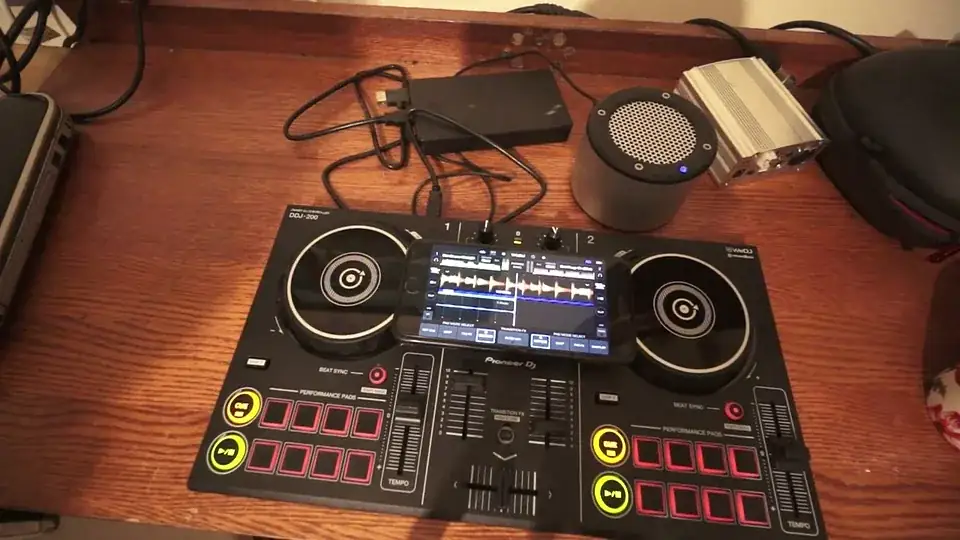
Right guys, you've got in front of you the DDJ-200 from Pioneer. I'm also using a battery pack to power it. I have the mini rig and I also have my iPhone which is Bluetooth connected to the DDJ-200 and the software I'm using is WeDJ. The track I've got on at the moment is, I'm not going to weight it, it's the club mix I believe from Karmic Power Records. There will be information in the description on Karmic Power Records. In this video I'm going to show you how to select a new track. Now very quickly as well if you just press pause there. The DDJ-200 has many features but what it doesn't have is a dial to select the tracks on the hardware. So of course you will have to use the software. If you're using WeDJ I'll show you exactly what to do.
1:03 Right deck and maybe choose what
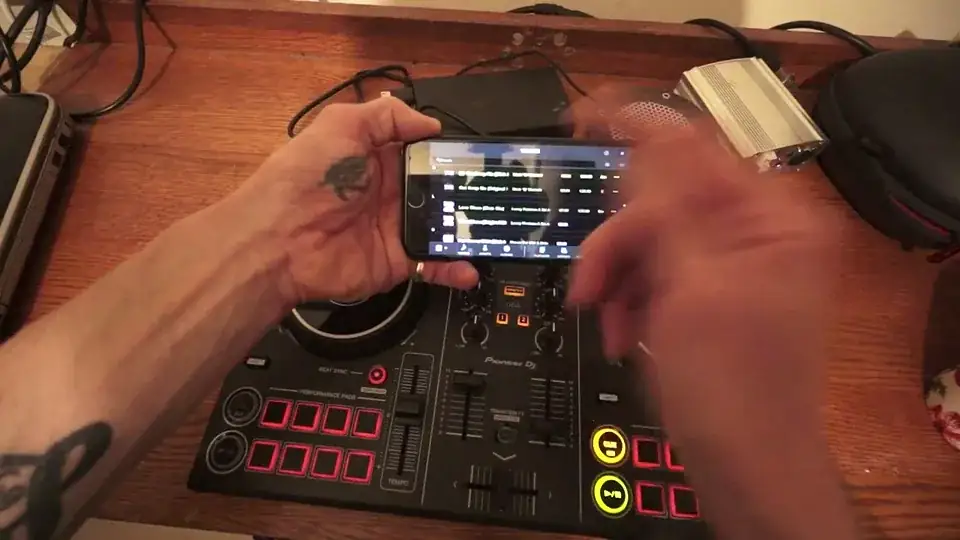
So on the icon where we have the name of the track I'm going to press there. Now at the moment we have the tracks and I have a limited amount just for this demonstration. So we can choose another track if we want to. I'm going to choose the original mix. And now I have the same track, the original mix on the left deck. I can click on it and it will take me to the next track. I can go to the right deck and maybe choose what I had on the left deck earlier, the club mix. And now that is on the right deck. If we go back now to the tracks we can search via track, artist or albums. Now of course we can add playlists. We have history as well pretty much like the high end Pioneer kit if you play a set. The set will be in the history folder.
2:12 Of course very quickly as well
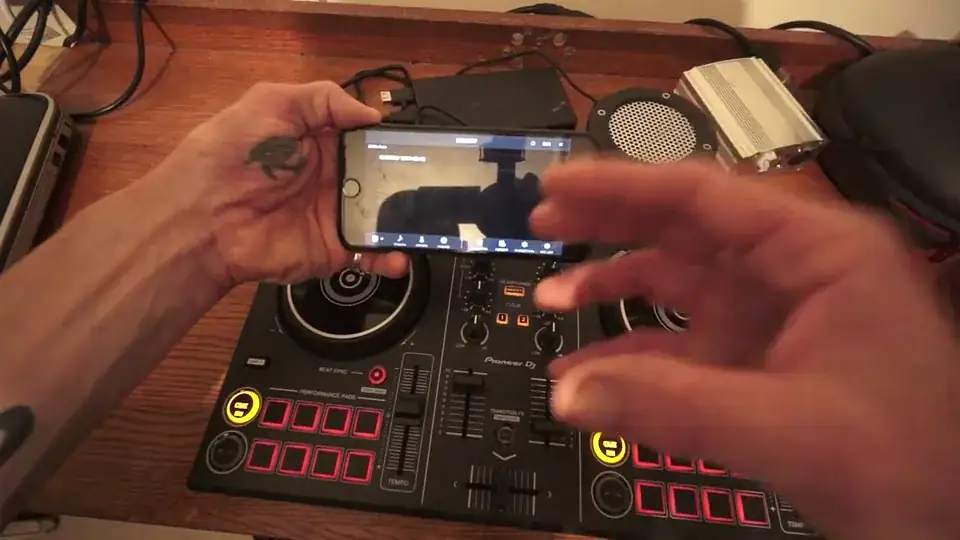
We have suggestions here and we can also record if we want to. This is a recording I did from previously. So go back to my tracks and again let's press there and it's loaded up on the left deck. And press play. And away we go. That's it. It's as simple as that. Of course very quickly as well. You can shift and scroll through the track by moving your finger up and down the wave format below the name of the track. So what happens here is you're able to skip through quite a bit of the track quickly. On the other hand if you want to just say go back a couple of beats or bars, you can just move your finger over the wave format that's moving. You can see that now. And you're able then to just move your finger.
And you can just scroll through a little bit of the track at a time. Forward or back. Alright I hope that's been a help. Once again this is the DDJ-200 from Pioneer. And I'm using the WeDJ app on my phone via Bluetooth. Practice and enjoy. Thank you.
This transcript was produced automatically from the audio of the video and may contain mistakes.
This video is part of
Related videos
-
Complete Beginner DJ Lessons Tags Key BPM Etc
A more advanced lesson folded in early, and worth doing once rather than putting off, because everything it sets up gets used for years…
-
Complete Beginner DJ Mixing Lessons Video 19 Getting Your Kit Ready for an Easy Mix
A whole lesson on getting ready, which is the right call - the exercise in the next video only teaches anything if the two decks are…