 19:37
DJ Lesson How to Mix Using the Pioneer WEGO2 and Virtual DJ Pt 2
Contents of the video
0:01 This is the VirtualDJ Pro, then follow the link for the wide angle ver
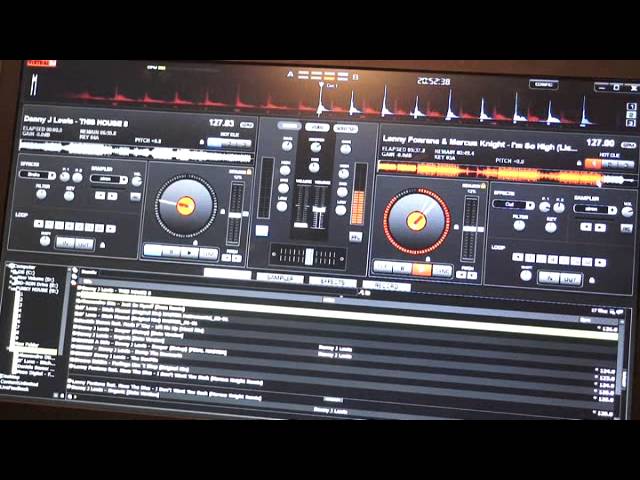
Alright guys, I'm going to do this video twice. The reason being is one video you're going to get a close-up of the program, the other one is wide angle. If you're watching this on wide angle, you want to get a close-up of the program, then check out the link in this video and vice versa if you're watching this close-up with the software which is known as VirtualDJ. This is the VirtualDJ Pro, then follow the link for the wide angle version. I'm doing this because quite a few people have been asking me to do a very basic mix. Using the Pioneer DJ WeGo 2 and VirtualDJ. The two tracks I'm using is Danny J Lewis, a track entitled This House, that's the one on the left hand side, the one on the right is Lenny Fontana and Marcus Knight, a track entitled I'm So High. What I'm going to do is put two links in the description as well of both of these videos to the two artists. Now first of all, using the WeGo 2, once you have found...
Specific folders. And then you've dragged over and you've opened those folders, you've got to the files. What you can do then is you can use the browse dial. You can also use this to find the folders as well. Once you've pulled a folder over to this area here in the VirtualDJ program, then it's just a question of moving this up and down and finding your specific file you need. Once you've found the file... Then you can load to the left hand side or to the right. So again, I'll just show you load there and you can see that now loading up. So I'm now going to find the Danny J, sorry, the Lenny Fontana track which is the next one down and I'm going to load that to the other side. So you can see that reloading. Pretty much it was exactly the same earlier on. I've just copied what I've done.
2:25 I'm going to move it back a very, very tiny amount
Now, the first thing we need to do is just to make sure that we're going to get some sort of sound. And you can see while I'm moving the crossfade on the hardware, I'm moving the crossfade on the software. The up-fader on the Danny J Lewis and the up-fader on Lenny Fontana. So let's just press play Danny J Lewis. We can see that track moving quite nicely as well. And we can hear it. I'm just going to turn it up a little bit. Right, what I'm going to do is, again, you may need to do this to try and find the first beat. You can move the platter and you can press Q at the point where you would like the track to start. So, I don't know if you can hear that, it's just slightly too far into that beat. So I'm going to move it back a very, very tiny amount. We'll try about sort of there. I'm a lot happier with that. I'm going to move the crossfader over and we'll do the same thing now with Lenny Fontana.
The next thing you'll need to look at is your BPM, that's beats per minute. And if we look at the program, we can see that the Danny J Lewis is 127.48 BPM. That means that in every single minute you will get 127.4 beats in that minute. So you're pretty much halfway in between 127 and 128. Lenny Fontana is 127. So a couple of things we can do here. One is if we want to, we could increase the BPM of the Lenny Fontana to 127.48. Alternatively, we could decrease Danny J Lewis 127.48 to 127. And we can do that by using the pitch on the controller. So what I'm going to do, I'm going to now move the pitch on the Wego. On the left hand side, which is corresponding with Danny J Lewis, down that direction. I'm going to move it away from me. By moving it away, we'll slow the track down. By bringing it towards me, we'll speed it up. So if we watch the software now, we can see those numbers, 127.18123. Oh, we've gone too far. So if I move that towards me, 127.01. Pretty much, that will do for now.
5:06 Let's start the Lenny Fontana track
Okay, so let's start the Lenny Fontana track. So again, I've moved the crossfader over. Bearing in mind, I'm doing this now without any headphones. If I wanted to, what I could do on the We Go To, we have two buttons above each of the up-faders and when the one is highlighted, the corresponding fader will tell me or underneath The highlighted LED, we can see that it's almost got like, it looks like headphones on it. That's telling me that I can now listen to that side if I want to. But I don't want to because I'm going to start that off. Now I want to actually listen to the other side. Now I'm not going to use my headphones but if I wanted to cue up that particular track now, the other side, The crossfader is over on the Lenny Fontana track.
If, let's say I move the crossfade over, we can't hear the Lenny Fontana, but by pressing Q, we can hear Danny J. Lewis. Now if I brought my up-fader down and pressed Q, I would be able to hear the Danny J. Lewis. And if I can quickly grab, I should have done this earlier, I do apologise, if I quickly grab a set of headphones, I'm going to plug them in there. What I'm going to do now... I'm just going to leave the headphones there, and I'm going to turn the headphones up like so. Hold on. There you go. What you're listening to now is the actual audio from the headphones, not from the speakers. But if we have a listen, while I bring the up-fader up, now you're hearing the audio from the speaker as well as the headphones. Just put the headphone volume down.
7:41 Another major factor about mixing tracks is make sure they're in keys
That is just the audio now from the speaker, so I'm going to turn that up as well. Okay, so what I could do if I wanted to, while Lenny Fontana is playing, I could cue the Danny J Lewis up using headphones, so I can move the volume, headphone volume up, play the Danny J Lewis and I can hear the Danny J Lewis over the Lenny Fontana track but only on the headphones, not through All right, so that's a tiny bit of it. Another major factor about mixing tracks is make sure they're in keys that work. And for some people it's relatively simple to do, for others it's slightly more difficult. There are programs out there that will help you, but also the VirtualDJ program will help you as well because it can go through the tracks and work out keys for you. For this demonstration we have the Lenny Fontana in 3A and we have the Danny J Lewis in 4A. So the Danny J Lewis being a number higher...
9:37 We're listening to Lenny Fontana
What that'll probably mean is if we mix it in the right place, the right time, it may lift the vibe very slightly. If it was the same key, 3A and 3A, you'd have almost like a bit of a constant. But it's always a good idea to listen to tracks first. Sometimes, not all the time, but sometimes certain softwares don't work out the exact keys, so there may be a slight clash. It's always a good idea to check before you do a mix. So... We're listening to Lenny Fontana. Now, you never mix a track in anywhere or anytime, anyplace. You have to mix tracks in at certain points during the other track. For example, it's not a good idea to mix vocals over vocals. It's not a good idea to mix a track over another track if there's a lot going on in it.
He's at a good point where it will be a nice gel of music. You don't want too much happening at the same time. So if we have a look at the wave format here, we can see almost a lot going on and very little. Where there's a lot going on, we have a lot of music. Where there's very little, we've got breaks. So what I'm going to do now is I'm just going to get my mouse and I'm just going to press, if I can, DJ tutorial by Ellaskins, The DJ Tutor I'm just going to press play pause. Now what that's done, that has now paused the track at that point. And again this is a demonstration so some of these parts or a few things I'm doing here you wouldn't normally do let's say if you're playing in public. You wouldn't for example stop the track.
You would of course let it play, but what you would do now is you would do what I'm doing if you were say listening through the headphones for getting the track that you want to mix in to the Lenny Fontana, which is of course Danny J Lewis. You'd be using your headphones and listening to this track to get it ready. So let's just have a listen to Danny J Lewis again. Cue it up again. Get it ready and cue it. Bring it back slightly.
12:08 Three, four, two, three, four
Okay, now then. What I'm going to do now, I'm going to start the Lenny Fontana track, but what I'm going to do is I'm going to try and find a point where I feel it's a good point to bring in Danny J Lewis. And I'm going to start to try and count bars and phrases. So, let's press play. Lenny Fontana. Three, four, two, three, four. One, two, three, four. Right. Did you hear? The DJ Tutor. A certain part of the music, a certain part of the track, and we have the beginning of another part of the track. We don't have a gap in between. It's almost as soon as one part finishes, the other part will start at exactly the same point. So if we go back again, have a listen. Three, four. Three, four. One, two, three, four. One, two, three, four. And so on. Right, so what I'm going to do...
14:16 Play the Lenny Fontana again
I'm going to start the Danny J Lewis track at that point. So again, what I'm going to do, I'm going to have the up-fader and I'm going to have the crossfade in the middle. I'm going to have the up-faders at the same positions. I may bring Danny J Lewis slightly higher. That could be down to the way the file was made. The audio on the Danny J Lewis could be slightly lower. So I'm compensating for that by I'm going to bring the faders slightly up higher. Play the Lenny Fontana again. And 3, 4, 2, 3. To get them in beat slightly because they were a little bit off, I used the jog wheel. I didn't touch the top, I used the side. If I touched the top, I would have actually stopped the track. But I moved the jog wheel slightly to the side to get it in beat. I'm going to slowly bring Lenny Fontana down. Danny J Lewis. I'm going to bring Danny J Lewis down a little bit.
In fact, what we'll do is if I just go over to Danny J Lewis and I'm just going to click on a bit of the track about there so you get an idea of the rest of the tune. Okay, so what was actually going on? Well, if you looked at the software, at one point we had the two lines, you can see two lines, you can see red and blue. Now those two lines signify the actual beats For me to match those lines together. So if we can see, as I move the jog wheel now, we can see the red line moving slightly. Now what I'm going to do is I'm going to cue that up again. There. Danny J Lewis up. Let's bring Danny J Lewis back to about there. Now the idea is for me to match those lines up. Now you can see they're sort of pretty much matched up but they're not quite
There is a difference, we can hear almost like as though the two beats aren't working together, they're off. Now if I move the jog wheel on the Lenny Fontana clockwise, can you see now those two lines are together? Anti-clockwise and they're moving apart. Clockwise and they're together. That's what I'm looking for. Volume down on Danny J Lewis.
17:22 It's a bit of a tutorial but it's showing you some aspects of beatmatc
And we're back into Lenny Fontana. So, this is sort of a demonstration. It's a bit of a tutorial but it's showing you some aspects of beatmatching. Now, a good way of using software like VirtualDJ is to make note of the lines. The idea is to match those lines perfectly together. Now, software like this will do it for you. It can do it for you. It is, in a way, it's cheating. It isn't cheating if you're a new DJ and you need to get it perfect straight away. But don't rely on it because if you do let the software beatmatch for you then you may find you could be asked to do a gig etc and they may not have software like this. You may have to use your ears and if you don't practice beatmatching then
You could fall flat on your face because you'll get to a situation maybe where they haven't got the likes of this software and you won't know how to beatmatch and there'll be nothing to help you, okay? So my advice is learn how to beatmatch first. And a good way is using software like this and matching the beats manually by moving the jog wheels. I hope this particular video has been a help. Don't forget to check out the other video to get a close-up of the software. Or if you're watching the software video, watch the other video to get a closer or a bigger view of the WeGo and the software as well. Thank you very much. Practice and enjoy.
This transcript was produced automatically from the audio of the video and may contain mistakes.











