 8:58
DJ Lesson on Mixing with Only Head Phones BY Ellaskins the DJ Tutor
Contents of the video
0:00 Use your mixer and mix
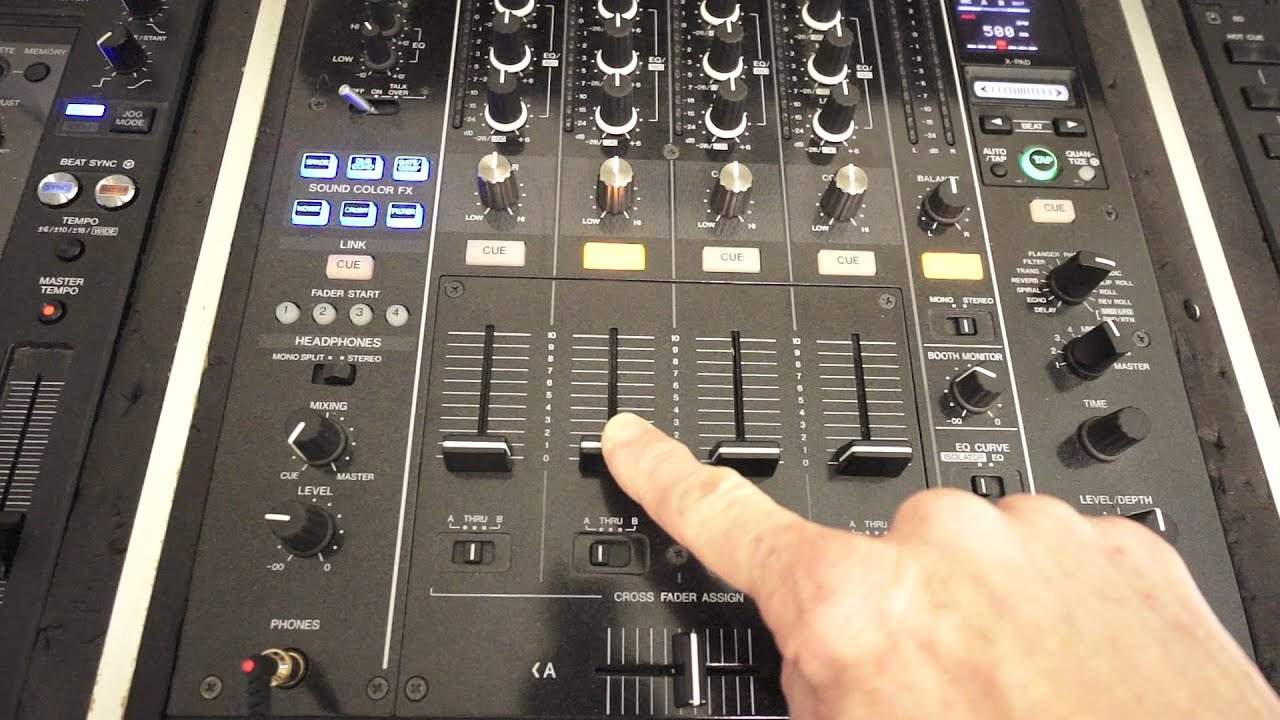
Alright guys, in this demonstration I'm going to show you how to use your mixer and mix the two tracks or two tracks without having to use external speakers. In other words, you're going to be using just your headphones to mix two tracks one into the other. Now, I'm using the DJM-900 Nexus and most mixers will have exactly what I show you. So, even if you've got a different make, it is highly likely you will be able to do exactly as I show you. Now, we're going to concentrate on the cue function for the master output, cue function for the channels, the level volume on the headphones and more importantly this dial here which is the cue mix, mixing should I say, and then master dial. And most mixers will have this dial.
There may be slightly different wording but it will serve the same purpose. Now, first of all let's have a look at the level for your headphones. Now, very important that is to increase or decrease the volume on your headphones. First thing very important, or second thing should I say, when you've got a track playing make sure that when you put your headphones on prior to even starting, the track, the headphone volume is not at full volume. Now, full volume isn't at 12 o'clock, sorry, full volume is actually at 5 o'clock. Zero volume where you have no audio at all is at 7 o'clock. So if anything make sure the volume of your headphones is turned off down completely at 7 o'clock. Press play and then start to turn the volume up.
2:08 You should have some form of cue button
This way, you're guaranteed of not blowing your eardrums. You don't want to do that, otherwise there's no point even continuing with this lesson. Okay, so we've got that on board. All right, so let's say we have started our track on the left hand deck. The next thing we need to do is we need to make sure that we have that deck cued up for the headphones and you can do that by again on pretty much any conventional mixer above each channel. You should have some form of cue button. And with the 900 when I press the button above the channel, I want to listen to that button will light up pretty similar with most mixes. Maybe not with every everyone. Make sure that you press the cue button on the channel that you want to listen to.
So I pressed that cue button now at this point. I don't even have to bring the volume up on that channel because I have set that channel so I can hear that. Channel through the headphones. I also need to make sure as well that the mixing dial is set to cue completely to queue all the way and to do that, you need to turn that dial to the seven o'clock position. Okay, so we have a track playing on channel two or channel one, channel 34. Whatever you want to do doesn't matter for this demonstration. Imagine we've got one on channel two. Okay, track playing. I'm not going to use any audio in this video. There's no need. This is just an explanation. So we have a track playing on channel two. I am now going to turn the level up on the headphones and I should start to be able to hear some form of audio,
Even with the channel down. Now, the reason for that is because when you queue up one of the channels with the channel down, you still will be able to hear that channel. The whole idea here, if you think about it, it's pointless not being able to hear the channel with the volume down because you want to be able to queue it in and it's pointless only being able to hear that channel if the volume is up because that would mean that while you're trying to queue the track up, not only would you be hearing it but the crowd would be hearing it as well. So volume down. You can now hear that channel cue the mixing master and cue dial is set to cue and your headphone volume is set to zero. You can now hear that channel cue the mixing master and cue dial is set to cue and your headphone volume is set to an audible level so you don't start blasting your eardrums.
Okay, so for this demonstration we are now playing a track on channel two. What we need to do now is turn channel two up. There's a good reason for that. I will explain later on in the video. Press that channel again and now you need to press the other channel corresponding to the deck that's plugged into the channel. Then you do exactly the same. You start the deck up, start the track, but at this point you will not be able to hear the other track. The only track you will be able to hear is the one that you've queued up. So how can we now form some kind of mix? Because well, you know, at the moment now we can only hear this one channel. What we need to do now is we need to turn the dial that has cue mixing and master up to mixing.
What that will do is that will let some of the sound bleed through from the other channel into the channel also that you're listening to. Not actually into it, but what's happening? That music from the track that you've already started will start to overlap the sound that you are listening to through the other channel. Okay, and at this point you can still have this volume down. What you need to do then is beat match it, get it set up, get it lined up, make sure it's in phrase in time and so on. So let's imagine now you have got that track ready to go in the mix. You're coming up to the end of your phrase and you're at the end of the phrase. Press play and away you go still with the volume down. Now at this point while you're mixing it,
6:45 I'm not going to start this video again because it takes a long time
You can start to bring the volume up. Very good reason I'll explain now as you bring the channel up, you're now listening to both of those channels. What you need to do now is turn the cue mixing master all the way to master. What that has done is it's now made everything you hear from the headphones will be the entire audio from both channels. So now when you decrease the volume on one side, that side will decrease. If you decrease the volume on the other side, that will decrease but also very quickly sorry, prior to doing that you need to press cue for the master volume. I do apologise. So let's just go back a little bit. I'm not going to start this video again because it takes a long time. All right, let's just go back to where we were at the point where we're mixing and
We have the cue on on the right hand side so I do apologise about that. Okay, so we've got into the phrase, we've started our mix and we're now bringing this channel up. Press the cue. You disengage the cue on the second deck and then you cue up on your master volume. Then you turn the master dial to master and now you can hear the mix as the mix would be heard if it was being played over the audio speakers, for example, the main PA or your monitor system. And now everything you do on the mixer, whether it's the effects, whether it's turning bass mid, treble down or adding effects from the right hand side, any kind of effect you do, you will hear because you've now pressed cue from the master volume. So you're hearing like I said earlier what the crowd would be hearing again.
If you need to queue up and just maybe you're not sure if one of the tracks is going a little bit faster than the other. The best way to do it is to go to queue one of the sides, turn the dial to mixing and you'll actually have more audio control over that deck. Cue again, press cue on that deck that you were listening to. Press queue on the other deck and you'll have more audio control over that deck. Right. I hope that's been a help. And this is a demonstration on using your headphones for mixing purposes without having to use a sound system or let's say a monitor system in your bedroom. I hope that's been help, practice and enjoy. Thank you very much.
This transcript was produced automatically from the audio of the video and may contain mistakes.
Related videos
-
Complete Beginner DJ Lessons Tags Key BPM Etc
A more advanced lesson folded in early, and worth doing once rather than putting off, because everything it sets up gets used for years…
-
Complete Beginner DJ Mixing Lessons Video 19 Getting Your Kit Ready for an Easy Mix
A whole lesson on getting ready, which is the right call - the exercise in the next video only teaches anything if the two decks are…