 4:15
DJ Tutorial KAM Digi Mini with Virtual DJ. How to Record Your Mix
Contents of the video
0:01 Video number four on a piece of hardware from a company called Cam
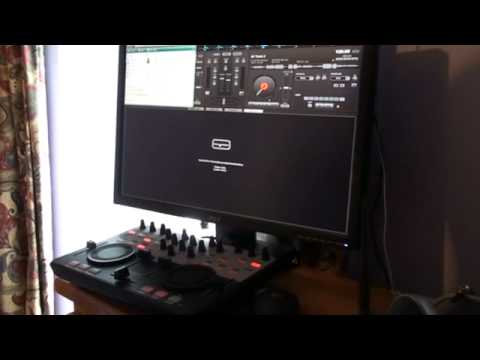
Alright guys, video number four on a piece of hardware from a company called Cam. It's known as the Digi Mini. This is used in conjunction, this is the hardware with the software here and this is VirtualDJ. In video number four I'm going to give you a basic demonstration stroke tutorial showing you how to record your mix using the software. At the moment we're on browser, we can use the sampler as well. While we record we can use some effects but mainly we're going to look at this icon here which is the record icon. So first and foremost we need to choose some tracks and we can do that by using the mouse, click over the tracks. When we've got to a track we like we can press down left hand on or left finger sorry in the mouse, drag over like so. Alternatively with the hardware we've got a dial here with enter underneath it. I can move that around and you can see we're going through the different tracks. As soon as I get to a track I like I can press load B.
1:34 You need to name your mix
To get on to the right hand side, choose another track if I want to. Load A, other side. Press play on this guy or alternatively use the mouse. Same here or here on the hardware. Right mainly though we want to look at the record function. Now we'll have a box here you can see that says start recording. Now it will not start recording as soon as you hit this because you need to name the file. You need to name your mix. So press that and we've got a small box here where we can put file name. Now I've already put ASDF in there so I've already recorded something called ASDF. It was a small preview. Now I'm going to overwrite this, there's a good reason for it. Let's say for example you already recorded a mix and you're very quick, you're not concentrating and you press save.
2:34 Do not start your mix first and then start recording
You will see a small box here coming over, sorry on the screen and it says do you want to overwrite that particular mix. And without thinking about it you may just say yes. Before you know it you've done another fantastic mix but you've recorded over your initial mix. Perhaps you didn't want to do that so always make sure you save your mixes or call them different names. So for example if I click save now I've got this file already exists. Do you want to overwrite it? Yes. As soon as I hit yes, like I said, yes or no. As soon as I hit no nothing will happen. As soon as I hit yes what will happen is you will start to record your mix. Now very quickly as well, you need to start recording first before you start your mix.
Do not start your mix first and then start recording. So this file already exists do I want to overwrite it? Yes. As soon as I hit yes it will start recording which it is now. So if I press play here using the mouse or I can press play down here on the hardware itself. I'm going to hit sync so I'm doing my fantastic mix and when I finish my mix click start recording again. And what's happened now is it stopped recording that particular mix. So I'm just going to reduce that and we're going to go to ASDF so if I double click on there. This is our fantastic mix. Here we go, give it a second, there you go, pause that, it's as simple as that. I hope that's been a help by the way if you have got one of these guys the Digimini and
You've done your own videos put them as video responses, practice and enjoy thanks.
This transcript was produced automatically from the audio of the video and may contain mistakes.











