4:28
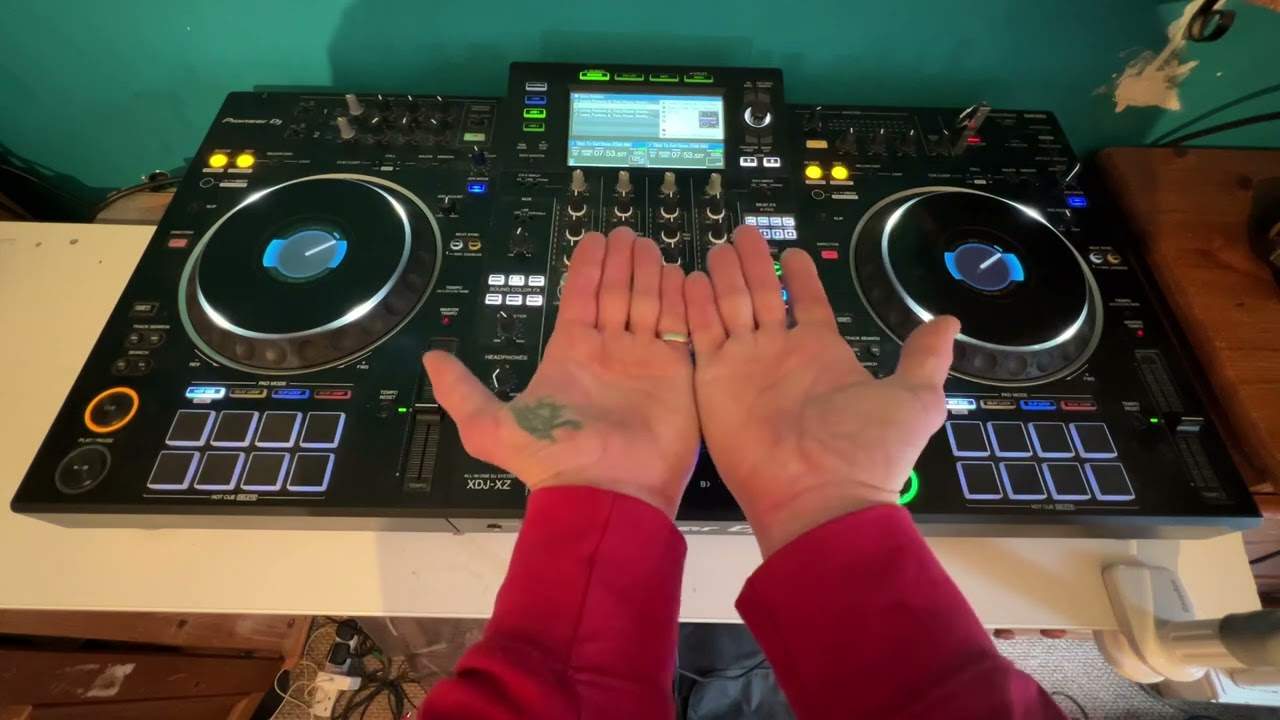
DJ Tutorial on the KAM DIGI MINI. Setting the head phones for monitoring
Contents of the video
0:01 Another video on this guy from Cam, it's known as the Digi Mini
Alright guys, another video on this guy from Cam, it's known as the Digi Mini. And this one, this is more of a tutorial showing you how to set it so you can use the headphone input which is situated there. In other words, you can PFL by using the headphones. What do I mean by PFL? Well, all it means is that let's say for example, this side's playing, what it will mean is that using your headphones you can listen to this side, cue it up, knock it over and away you go. Alright, now follow me. Bottom right hand corner of your screen you should have an icon down here which is associated with your speakers. Now what you need to do is I'm going to right click on that and what I'm going to click on is playback devices, not open volume mixer, not recording devices, not sounds, click on playback devices, click on that.
1:28 All of a sudden, what should happen
Right, if I bring this down... to the centre, what you can see here is analog connector. Now what I'm going to do is first of all you need to, if you right click on all of these, you may only have highlighted show disconnected devices. What you need to do is click on both so you show disabled devices and show disconnected devices. Now all of a sudden, what should happen... is you should see this guy. Analog connector. Very quickly as well, make sure your device is plugged in as well. Sorry I should have said that earlier. But before you do this, make sure the unit is plugged in and the lights are on. And in a sense, you saw that earlier on. It's the lights are on, ready to go kind of thing. So we've got that. Alright?
Now what you need to do then is you need to highlight over this... right click... Now you'll see there, I have got disable. Now you want to set that up. Now if I click disable... You can see all of a sudden that's gone a lighter colour. If I right click again... you will see enable. You want to enable that. You want to make sure it's working. So if you click enable... All of a sudden that will be highlighted. It'll be more apparent. You'll see green or you'll see a colour as opposed to it just being... uh... black and white. Black and white as it were. So that's near enough done. So if I move the camera out slightly... What I'm going to do now is just click OK. So I need to confirm now that that is now enabled. Click OK.
3:03 What I need to do here is make sure the outputs are headphones
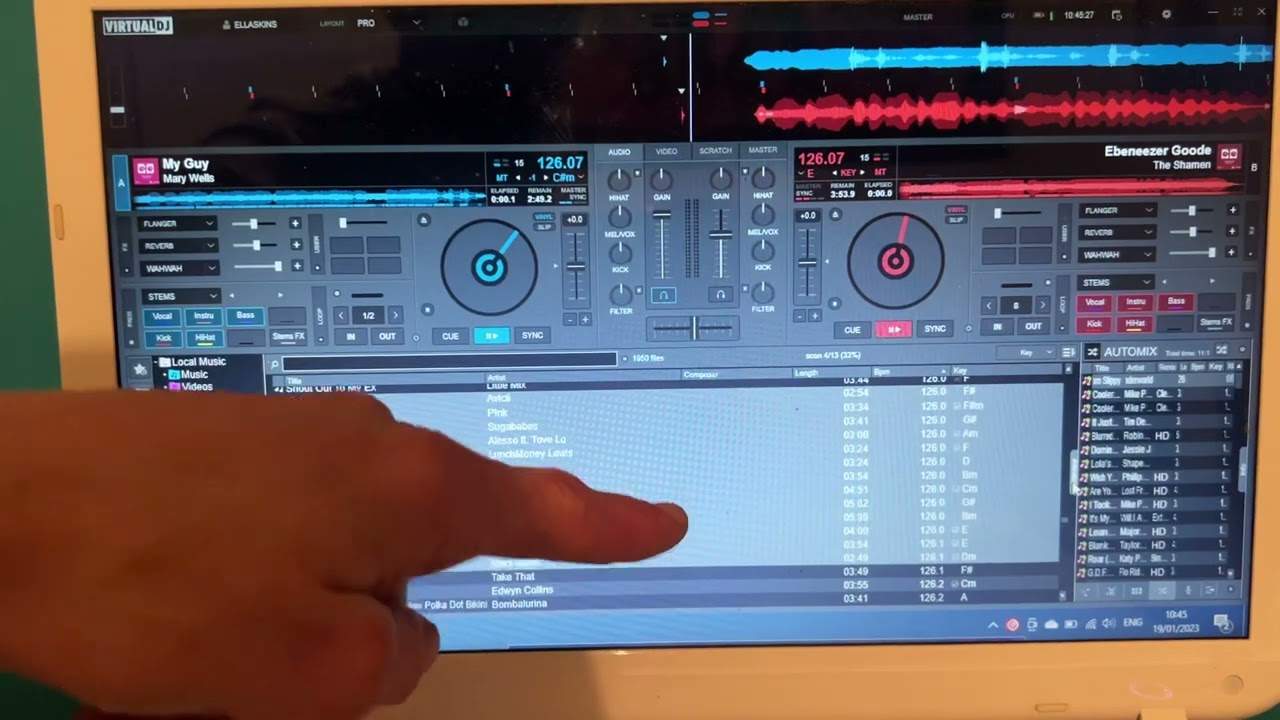
What I'm going to do now is I'm now going to open the program Virtual DJ LE. So I'm going to go over there and open it up. What we need to do now, top right hand corner up here, we've got configure. So I'm going to click on there. Now what I need to do here is make sure the outputs are headphones. You can see a small little icon and you will see your headphones and your speakers. Then if you click down here you might see a whole bunch of this. What you need to click on is the ME-100. Make sure that's highlighted when you've got all of that then you click OK. So what I'm going to do now is just grab a couple of tracks... one over there and I'm going to put that one over there... like that. Now you'll notice PFL.
Now with your headphones on, for example if we have this side playing, so if I press play here, I can use the controller as well if I want to. If I hit PFL now there and have the headphones plugged into the unit, I can now listen to this side through the headphones.
On the piece of hardware quite happily while that track is playing. So now the headphones are in use on this guy, alright? So a big shout out to everyone and as usual practice and enjoy. Thank you.
This transcript was produced automatically from the audio of the video and may contain mistakes.
Related videos
-
Complete Beginner DJ Lessons Tags Key BPM Etc
A more advanced lesson folded in early, and worth doing once rather than putting off, because everything it sets up gets used for years…
-
Complete Beginner DJ Mixing Lessons Video 19 Getting Your Kit Ready for an Easy Mix
A whole lesson on getting ready, which is the right call - the exercise in the next video only teaches anything if the two decks are…