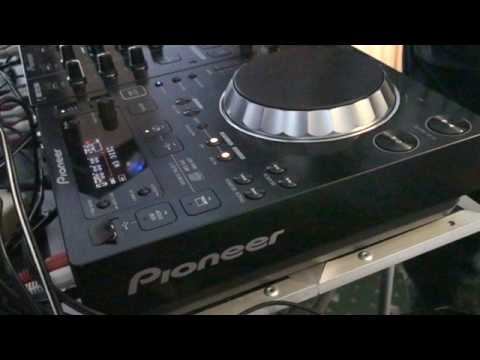
 2:49
Playing from a memory device
On YouTube this video is called DJ Tutorial Pioneer CDJ-350 Using a memory device
What this lesson teaches
Three minutes on a player's USB slot, and two of the three points are about looking after the equipment rather than using it.
Standby is not off
The red LED in the top corner means the unit is plugged in, switched on at the wall, and in standby.
No red LED with everything connected means it is not switched on at the mains - which is the first thing to check when a player appears dead.
And his practical note: standby is fine if you are using it the same day, but unplug it at the back if you are going away, because standby still draws power.
Press the button gently and the LED goes green: the unit is on.
Playing from the stick
Stick into the slot. Press the USB button - next to the CD button - and the player reads it.
Then navigation, which depends entirely on how you organised the drive: if you have folders, you go into them first; if it is a flat pile of files, you scroll straight to what you want with the select/push dial.
Worth drawing out, because it is the one decision that affects you every night: the structure you put on the stick is the structure you will navigate under pressure. Forty folders means forty folders to go through at the moment you need the next record. Organise it so that what you want is two turns away, not twenty.
Find the track, press down, cue it, fader up. Same as a CD from there on.
Removing it: USB STOP
The instruction that matters.
Hold USB STOP until the screen reads NO USB. Only then is it safe to pull the stick out.
The reason is the same as ejecting from the software: the player keeps the drive's index in memory while it is mounted, and removing it mid-write can corrupt the database. The symptom arrives later, on a different machine, as a drive that reads as empty.
And close the flap
A small thing he bothers to mention: push the cover back down over the slot.
It keeps dust, drink and whatever else out of a connector that is on the top surface of a machine standing in a DJ booth. The slot is the most exposed part of the player and the most expensive sort of thing to have repaired.
Then off
Press the top-right button until the LED is red again.
Small habits, all of them, and between them they are the difference between equipment that lasts and equipment that develops a mysterious fault.
Contents of the video
Right guys, in this video we're going to look at the CDJ-350. It's a bit of a demo stroke tutorial on showing you how you can plug in an external memory device. In other words, you've got your music on here, maybe a small hard drive etc. At the moment, this unit is on standby mode. You know it is because top right hand corner I've got a red LED shining there. The unit is plugged in at the back and then into the mains as well. If you've got it plugged in at the back and at the mains but you have not got that red LED shining, that means that it's not switched on at the mains. When it's shining red, it's telling me it's in standby mode. Now very quickly, if you're going to be using it the same day, then that's fine.
But if you're going to be going on holiday, then it's advisable to unplug it from the back of the unit because even on standby mode, you will be using a certain amount of power. What I'm going to do now is I'm going to press the button here. I'm going to press the button here where we've got the red LED very gently and you can see now that's turned to green. That's telling me the item is on. What I'm going to do now is take my USB stick, sometimes known as a stick, and I'm going to put that top right hand corner into the USB slot. What I'm going to do now is press the USB button which is just next to... We've got a picture of a CD there and then we've got this USB picture here. I'm going to press that down.
And now we're ready to go. Now depending on what you've set out in here, for example, in your USB device, you may have folders. Inside your folders, you may have all your files. You could have say 10, 20, 30, 40 folders. So you need to go to those first to get to those specific files. But if like this, you've just got a whole bunch of files on, then it's just a case of pressing select push.
Finding the specific... And then you're good to go. Press Q, put the volume up on your mixer of course, and you're ready to go. Now let's say for example you want to remove your USB device. What you need to do is take your finger and press USB stop. Keep your finger on USB stop until you can see on the screen no USB. Then you're safe to move that guy. Just make sure as well... ...that that is pushed down. If it's pushed down safely, it'll just stop any dirt, etc. getting into that hole. And then if you want to turn the unit off, just press top right hand corner till you get to the red LED again. It's as simple as that. Practice and enjoy. Thank you.
This transcript was produced automatically from the audio of the video and may contain mistakes.











