 6:25
DJAY APP. A look at the settings. How to configure.
Contents of the video
0:00 You have in front of the DJ app from Algorithm
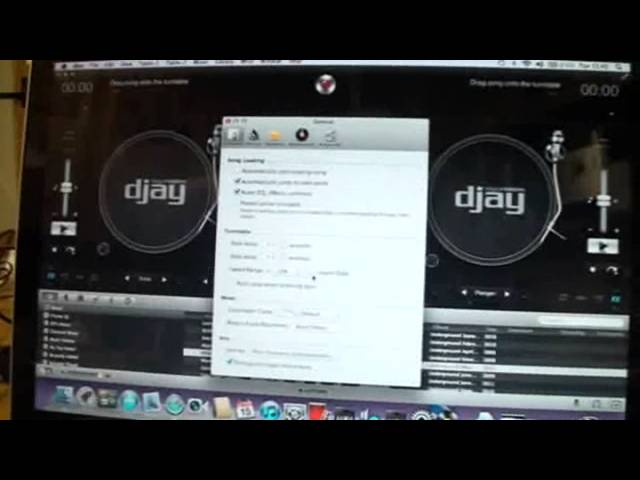
All right, ladies and gentlemen, you have in front of the DJ app from Algorithm. I'll put a link in the description to take you to the Algorithm site and also to check to see if the Android phone or the PC you've got is compatible with this software. And, hi Yvette. And Blaze, hello, have you got some dab-dabs there? Are you in the mix? Is that dab-dabs? He just loves playing with buttons and knobs. Right, okay. So there it is, that's the DJ app and I'm running this on my Mac at the moment. So, top left-hand corner we have the Apple icon, next to that we have the DJ icon. I'm going to click on there and I'm going to go to Preferences and click there. In the centre now of the screen, I've got General.
So we'll run through some of the features that I feel you should set if you are, let's say... ...for example, a mixing DJ. Automatically jump to start point, you want that. Reset AQ effect controls, you want that. You don't want it to automatically start when playing a song because what that will do... ...as soon as you drag a song to one of the virtual turntables, it'll automatically start. Really, as a DJ, you want to get it set, ready and you want to be the person starting the track, not the programme.
Start delay time and stop delay. I've set that to zero, speed range, we can go anything from eight, ten, twenty-five, fifty or seventy-five. Ideally if you're a mixing DJ, you want to stick around the eight or ten, I've set it to ten. Invert slider. Now what that will do is at the moment, without that highlighted, it means if I bring the slider down, it will speed up and up, it will slow down. By inverting it, it means if I take it up, it will speed up and down, it will slow down. Now ideally, if you imagine, if that was sort of set flat... What's he doing? He's having a poo. He's having a poo!
2:06 This is family life for you
Oh dear. Oh dear. OK. This is family life for you. Poor lad. I don't know whether to put this on actually.
Ah what the heck. Alright. So I would ideally not highlight the invert slider. Crossfade curve. You've got three ways of setting it, default, linear or cut. Default and linear if you're a mixing DJ. Cut if you're a scratch turntablist. I set it to default. And distinguish minor and major keys. I've highlighted that. Major and minor keys, right? Major keys, the way of defining them or an easy way of explaining them, they make you feel good. They're very high, they're very uplifting. Minor keys are very low, very deep. So if you do play a set in minor keys and you want to up lift the crowd, you want to get them a little bit hyped up. Then chuck a major key in and just notice the difference. Alright? So that's a general look at general.
3:26 Sorry not into your controller
We'll go to devices. Now this is when you will maybe need to look at this if you're going to plug in an external controller with a built-in sound card. If you do that and you have the correct software... Plugged... You have the correct software downloaded or the correct software that you've put into your controller, your laptop. Then once... Sorry not into your controller. If you have the correct software that you've had on say a CD or you've downloaded and you load that into your PC. Then theoretically the controller should be able to talk to the program. But of course you need to make sure that the controller you're using is compatible with the DJ app. That's very important. Now at the moment I haven't got anything plugged in here.
But if I was to plug in a controller that can be used with the DJ app, then you would see other icons appearing. So at the moment if I just click on the built-in output there's nothing else that's happening. It's just got built-in output and pre-cuing... That's it. I can split output or none. So I'm just going to leave it to none for the moment. Auto mix. What this will do... This will automatically mix the tracks together. It will mix for you. And I would say as a DJ if you're going to take this out on the road, you don't want to do that. Unless of course you are let's say going off for a drink or a pee or you just want to leave this for 20 minutes. Then by all means use auto mix. Appearance there... The next one is down to the appearance of the skin and advanced.
Little bit more advanced here but we can look at auto gain. Automatically adjust song playback volume to the same level. Remote control... Look for iPhone, iPod touch remotes. The DJ remote app lets you control DJ via Wi-Fi. So again if you are in a Wi-Fi area and you have compatible Androids that are Wi-Fi suited then you can play tracks from them as well. But of course you've got to make sure everything you've got is compatible. I would say that's about it for the very basics. Of looking at the preferences. And again just to confirm we go to the DJ on the top left hand corner of the screen and go down to preferences. Also there we have register DJ. You can provide feedback, learn about DJ accessories.
DJ for iPhone, iPad, services... So everything is there. If you are on the web while you're having a mix and you have problems. Then you can with a few clicks go directly to the information that you'll need. So I hope that's been a help. This is a very, very simple DJ app to use but it's very clever. It's very simple and it's a fantastic way of mixing even if you're not a DJ. You could have something like this and just mess around with your tunes with your mates at home. Alright so check out the link in the description and I will say practice and enjoy. Thank you.
This transcript was produced automatically from the audio of the video and may contain mistakes.
Related videos
-
Complete Beginner DJ Lessons Tags Key BPM Etc
A more advanced lesson folded in early, and worth doing once rather than putting off, because everything it sets up gets used for years…
-
Complete Beginner DJ Mixing Lessons Video 19 Getting Your Kit Ready for an Easy Mix
A whole lesson on getting ready, which is the right call - the exercise in the next video only teaches anything if the two decks are…