 6:29
Djay video 5 The FX
Contents of the video
0:01 Below those we have the pitch
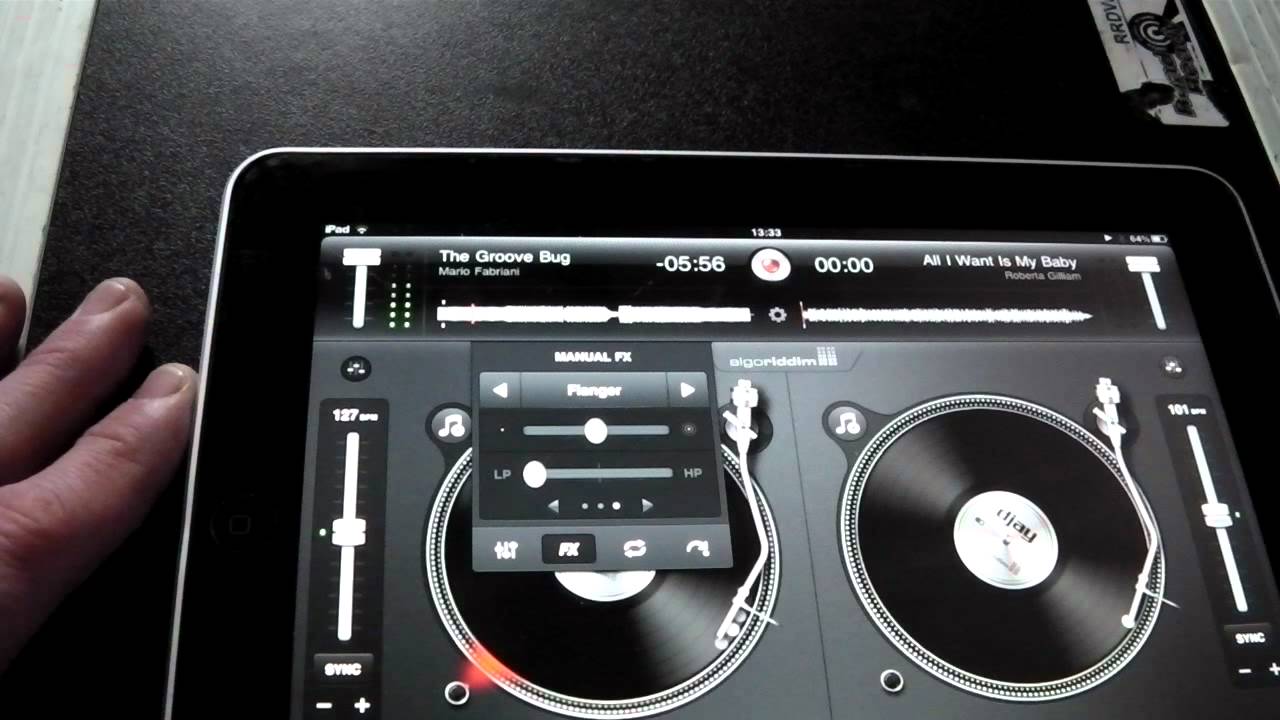
Alright guys, another video on the DJ app for the iPad. In this one we're going to look at the effects. Stunning effects on this guy and when you consider what you've got and what you can do, you'll be absolutely amazed. Right, how do we get to the effects? Left hand side, also the right hand side as well, we've got these small icons which are volume controls. Below those we have the pitch. Just in the middle you can see a small icon there. It's almost a bit like three very, very tiny oblong white dots. So if I press that, we get this small screen come up. What we can do here at the bottom, we can hit this guy here with an arrow and a dot for cue points. There for loop, there for effects, and here for our EQ. In this one we're going to look at the effects.
Sort of intricate, but once you get the hang of it, which shouldn't take long, you can have a lot of fun. Right, the box itself now, top, middle and bottom. What we're going to do, you can see a couple of arrows. If I press the arrow to the right, we go to something called a phaser, we go to bitcrusher, gate, echo, flanger, phaser, bitcrusher, etc. But also we can go the other way, like so. You'll notice below that we have a small icon that will go from right to left and also another one below that and we've got LP and HP. LP on the left and HP on the right. It's got nothing to do with the UK, it's HP Source. Small joke there. Yeah, don't laugh. And LP has got nothing to do with long playing record.
2:27 Our next effect, phaser
LP is short for Low Pass and HP is for High Pass. The track I'm using is Mario Fabrini, it's a track entitled Groove Bug, so I'm just going to press play. Right, first of all, just have a listen. Can you notice now, what we've got is a very low sound. The only reason I'm using the speaker from the iPad itself is so you're not overpowered by music, so you can hear me. Shame eh? HP, we've just got... The small, tiny, high frequencies. In the middle you have the full frequencies. Now if I just press flanger, now it can change the effect of the flanger by moving the icon just below where it says flanger. At the same time, LP and HP. Press flanger again to remove that effect and we can go to our next effect, phaser.
Hours of fun just messing around with one effect. Bitcrusher, gate. Easy way of explaining a gate. It's a bit like opening and closing the sound. Echo. Okay, you'll notice below LP and HP we've got two small arrows not highlighted like the top ones and we've got three dots. If I press the arrow to the left, we've now got some instant effects. Absorb, drift, sway. Now you're in complete control of that designated effect. I don't care what people say, even if you're not a DJ. Even if you're just some guy, some lady who likes certain little bits of music, you can have so much fun at a house party. Take your iPad, plug it into the PA system and you know what? You'll be the talk of the town. Okay, looking at the effects there and again, To remove that icon, just press where you started at the beginning of the video. Left hand corner below the volume control here and then slightly above the pitch. There you go. Have fun and enjoy DJing. Practice and enjoy.
This transcript was produced automatically from the audio of the video and may contain mistakes.