 7:27
Ellaskins DJ Tutor Ableton Live 10 Suite Video 1 for the New Producer DJ
Contents of the video
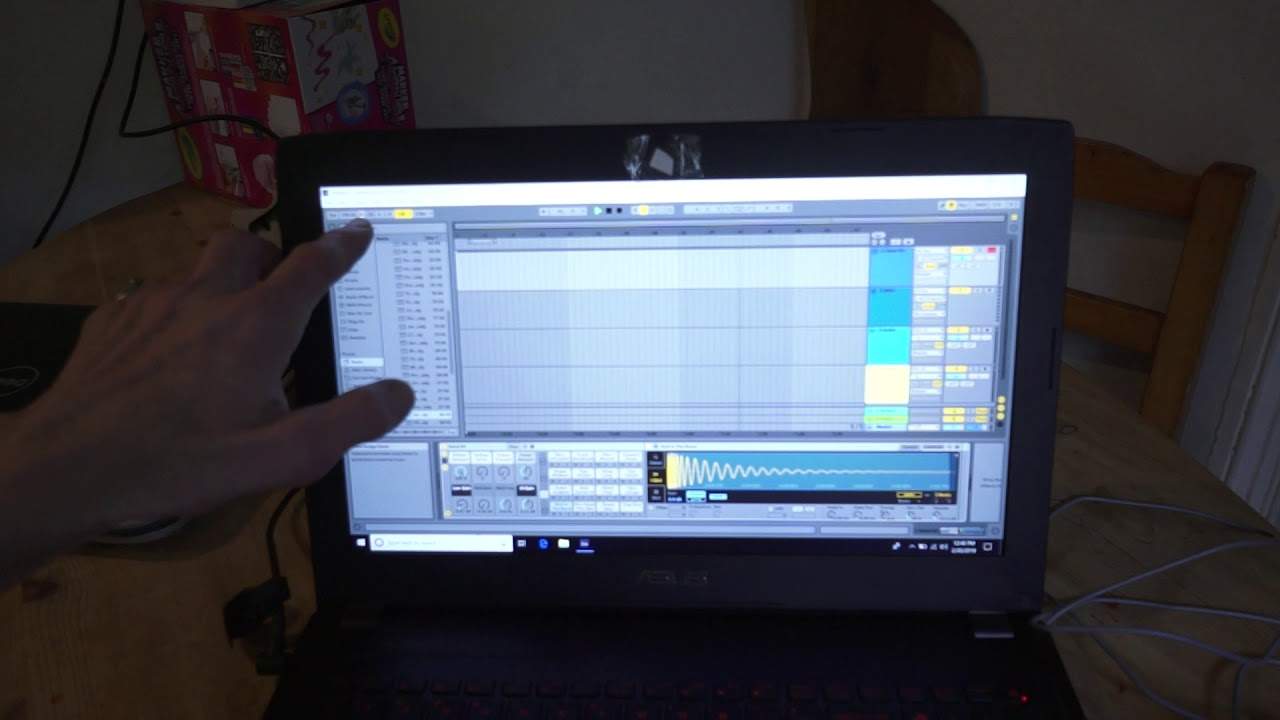
0:00 In front of you, you have Ableton Live 10 Suite
Right, in front of you, you have Ableton Live 10 Suite. Now my name's Jonathan Ellaskins, The DJ Tutor. I give free online lessons for DJs, whether it be beginner, intermediate or the occasional advanced one. One question I get asked all the time is how can I get into a nightclub? How can, you know, I become a great DJ and work in a big nightclub like the superstar DJs? Well, there are quite a few ways but one of them, right, I would say that the number one is to become a producer. Produce your own music because if you turn up to a nightclub with everyone else's music and you're the best DJ in the world, that's fine. But if you turn up to a nightclub and you say to the management, listen, these are all my own tunes. They are fitting in with the style of your nightclub but guess what? Every single track I have, no one's ever heard before because it's all my own music.
1:39 What I've learned so far is top ten
So not only will they probably like to hear those songs and be very interested in you, but also, the way the web is at the moment, you can legally then play those tracks so long as it is 100% your own music. That's the great thing. Alright, so this is Ableton Live 10 Suite. Now, I am a complete novice, a complete beginner, so hopefully these videos will almost be like a video diary of me not only showing you how to use, I hope, Ableton Live 10 Suite but also how I'm progressing as well. So what I've learned so far is top ten. So in the top left hand corner here, we have this icon with tap on it. Now, very soon as well I'll be using OBS so instead of having the camera looking at a screen, we'll be able to record the screen perfectly and upload that but this is, let's say this is stage one, a beginner.
I am a beginner anyway. Right, so we can tap on this icon here and that will give me the BPM of the track. Now next to that is the BPM. At the moment it's 129.43, if we listen, you can hear that tapping sound. Now that is the internal metronome. Next to there, we have these two small icons. Now if you're familiar with any form of DJ piece of hardware, quite often you'll notice that there are two buttons called the nudge button so for example if the track is at, for example here, 129.43 and you want to maybe speed it up a little bit. But you don't want to change the overall BPM, you can press one of these icons to either speed up or slow down. So you're actually nudging the track slower or faster which is great let's say for a live
Environment if you're using this let's say for live DJing purposes and maybe you're playing with a guitarist or a drummer and they're going out of beat and you want to catch up with them or you want to slow down. So for example, if you listen to that metronome, you'll hear a little bit of a nudge sound. So that's what we're doing here. That's the metronome, have a listen. That's slowing down and now it's back to its original speed because I pressed the icon directly to the right of the BPM. Now I'm going to press the icon on the next one, have a listen. Now it's speeding up. Okay next to that we've got the 4-4 time which is of course 1-2-3-4, 1-2-3-4, 2-3-4.
Okay, this is the metronome here and next to that a small tiny arrow. We can click that and we have at the moment count in there's none all right there's no counting so I'm just going to stop that second okay hold on stop there right so let's imagine you want just a count in, a very short count in before your recording starts you can change that from none at all. So as soon as you've got that count in, you're going to press that button. Okay. As soon as the track starts, that's it. It's going to start to record alternatively you can maybe have one bar two bars or four bars now let's imagine you go for four bars that's great if your microphone for your vocals is in a room next door and you start you want four bars and then you want to start recording
5:01 It's simply press play
So it gives you time to get ready. Below there is the sound of the click. A classic, a click or wood we've got a wood at the moment and at the moment rhythm so you can have it set for one bar half quarter and so on and at the moment it's just set automatic. Now next to there we have record we have play and we have stop now at the moment I have no sounds nothing at all brought in to the main part of the program. It's simply press play. And we're listening to the metronome. Now you'll notice hopefully this bar going across the screen now if I did have sounds and samples then that bar would tell me that this is the position of the track over the sample that's being played all right now for anyone out there who understands Ableton you're
Going yeah, yeah, yeah, yeah, yeah. Anyone who doesn't. What I want to do with these videos is give a very, very step by step idea on how the program can be used. Now I'm a complete novice but what I do know is that this is a wonderful piece of kit a wonderful program because you can become a producer you can make your own tracks and wouldn't it be a pleasure? To spend a little bit of time every day every week and just get to know a little bit more about this program maybe start which I hope to do some very, very basic simple drum patterns record them onto a thumb drive put them on the CDJs maybe I can well hopefully I'll be able to use what I make in my tutorials and then monetize them knowing full well that I'm going to be fine.
With putting Google ads on that because it will be my own work all right so this is video number one on Ableton Live 10 suite there will be a link in the description to Ableton by all means go to the website get more information of course there are places on Facebook where you can chat and questions answers there's a whole bunch more videos on YouTube this is just going to be my little beginner set all right.
So yeah again practice and enjoy thank you very much and look forward to more videos on Ableton Live 10 suite practice and enjoy thank you.
This transcript was produced automatically from the audio of the video and may contain mistakes.











