 15:48
Great DJ Mixing Tips Using the Pioneer DDJ-1000 Underground CD Pool June 2018
Contents of the video
0:00 Tunes, have a little bit
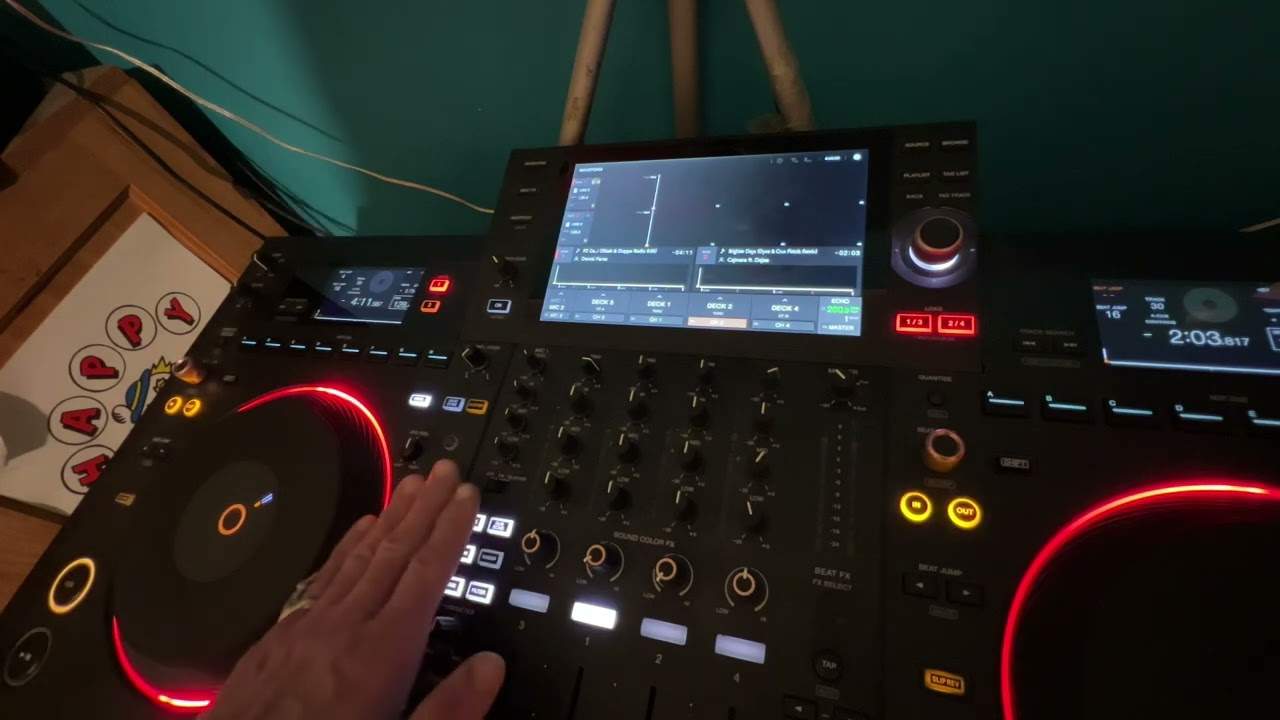
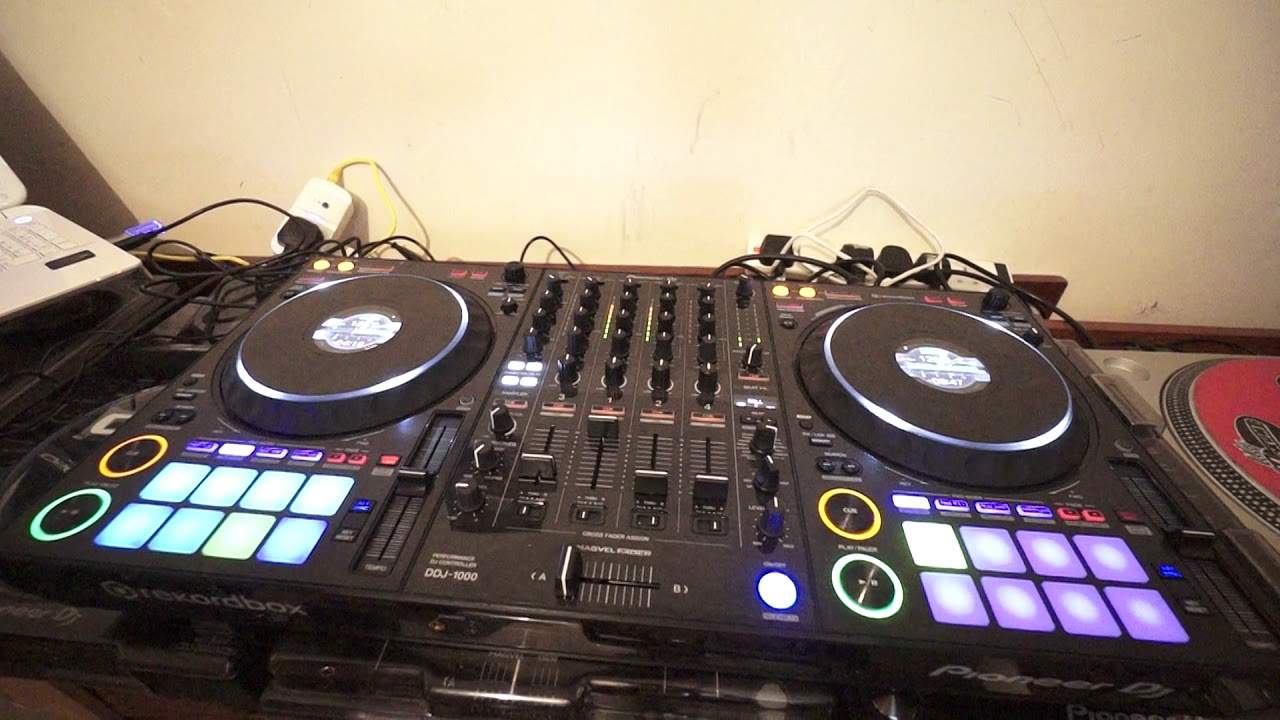
Alright guys, got the DDJ-1000 here from Pioneer. I'm also using the rekordbox software that comes as standard with the DDJ-1000. In fact what you should find is the rekordbox software should come as standard with any of the latest controllers from Pioneer. So in this video we're gonna have a bit of a mix, show you some tunes, have a little bit of a dabble and also Play with some of the features on the DDJ-1000. Now, first of all, anyone who is finding that when they load a track and it's not loading in at exactly the beginning of the track, for example, you may load the track up and you may find that the beginning of the track doesn't start at the beginning of the sound of the track. Or, you want the beginning of the track to be on the one. So in other words, there are some tunes out that have got like a kind of melodic slow beginning and then bang, the beat comes in. Other times you may load the track and you have a look and again maybe you want to expand the screen on the video that you're watching.
The track has actually set its start point, but the track starts a little bit further on. So if you're pressing play on the one and you want to snap that track in, you may find that it won't, the track itself will not start when you press play. There'll be a millisecond or so before it actually plays. So how can we change that? Now first of all what I'm going to do is with my hand now, if I just bring the camera back on the turntable itself. I'm going to bring that forward now to that first sound, there. And I'm going to press cue. Now have a listen. Now again, all of this is about practice. The more you do it, the easier it becomes. Okay, right, this tune we're listening to by the way is Beat Boy's track entitled Class. It's Beat Boy's original mix, beg your pardon. Okay, so let's press play and move the camera to a better angle.
2:30 Exactly what I'm doing and you
Okay, so I've already done the same on the other side. I'll give you a demonstration first, then I'll explain exactly what I'm doing and you can have a go. Two, three, four, one, two, three, four. One, two, three, four. One, two, three, four. One, two, three, four. One, two, three, four. One, two, three, four. Now what I'm doing is I'm going from deck to deck. One, two, three, four. One, two, three. Okay, so what's going on? Right, I'm playing the left hand deck, letting that play for a few bars and then I'm starting the right hand deck, moving the crossfade over as soon as I press play on the right hand deck but then on the left hand deck, the one that isn't playing, I'm pressing the cue button before I then...
Press, play, pause and repeat the process. The reason I'm pressing the cue button is of course then the track will go back to its original cue point. You can do this as fast or slow as you want. You can get to the stage where you can do it practically every single beat. It does get a little bit confusing but the faster you get the easier it gets and also... The faster you get means that you're a little bit better at using effects and getting to different parts of the mixer quickly. So for example... Missed it. Missed it. I keep on missing the crossfade! Probably one reason because I've got the camera right in front of me and I'm an idiot so I don't mind. Alright, so let's carry on listening to this track. Now again, let me just move the camera close to the program. So, let's imagine now we would like to go a little bit further into the track. Now again, if you've got a mouse you can do it that way, you can use the platter on the deck. Alternatively...
4:52 Of the effects
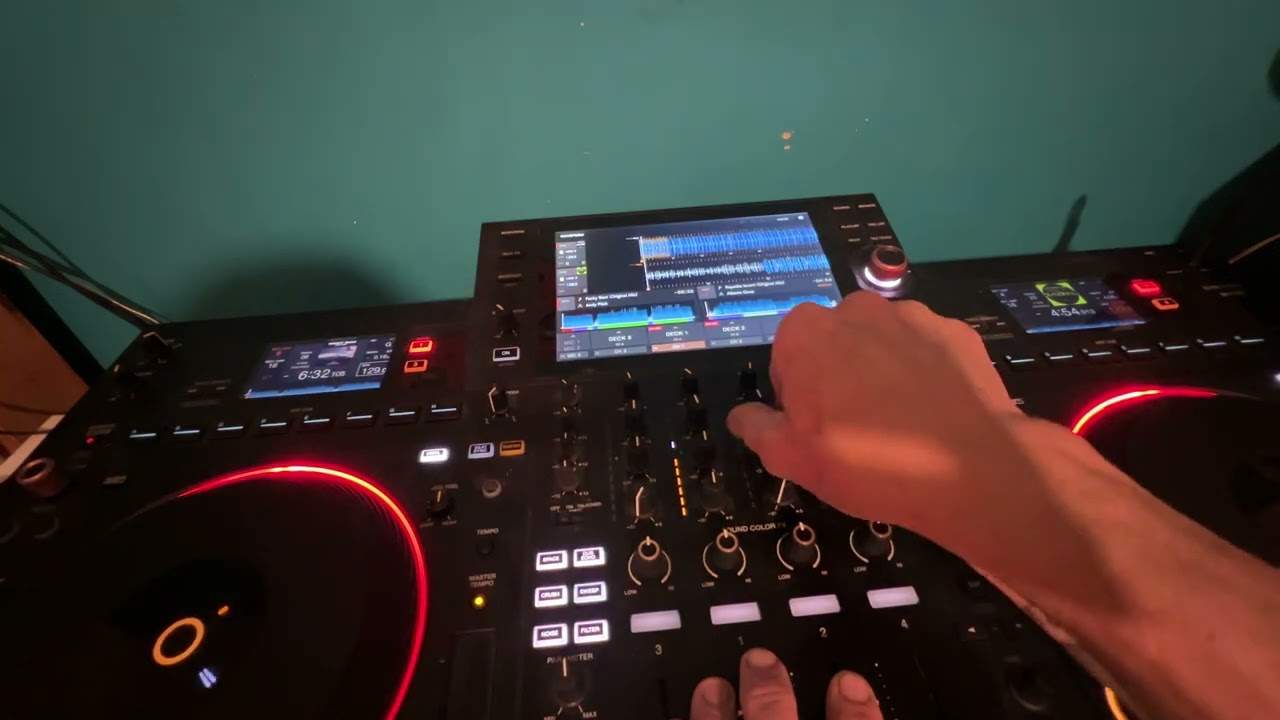
You can use the mouse on the laptop and you can highlight over a part of that track using your mouse and then press down there. And now I'm at that point where the mouse had highlighted over. Okay, so let's have a look at some of the effects. Now the mixer itself is not dissimilar to the likes of A 900 in many ways, four channels, good quality effects. You have your sound colour effects on the left and also a whole bunch of effects on the right. Now again, if you think about it, if you're using a 900 mixer and you're using the actual DJM900, using a set of CDJs and you're just using some random MP3 files, if you want to say form a loop or for example, should I say a roll really, And you start the roll, for example let's say you have the roll over one bar. It's very possible that roll might be out of sync but because you're using the correct software, because you're using the rekordbox program and the files have been put through rekordbox then when you use the likes of a roll it should be exactly in time. So at the moment now I'm going to set the dial to channel 1 because that's what we're listening to.
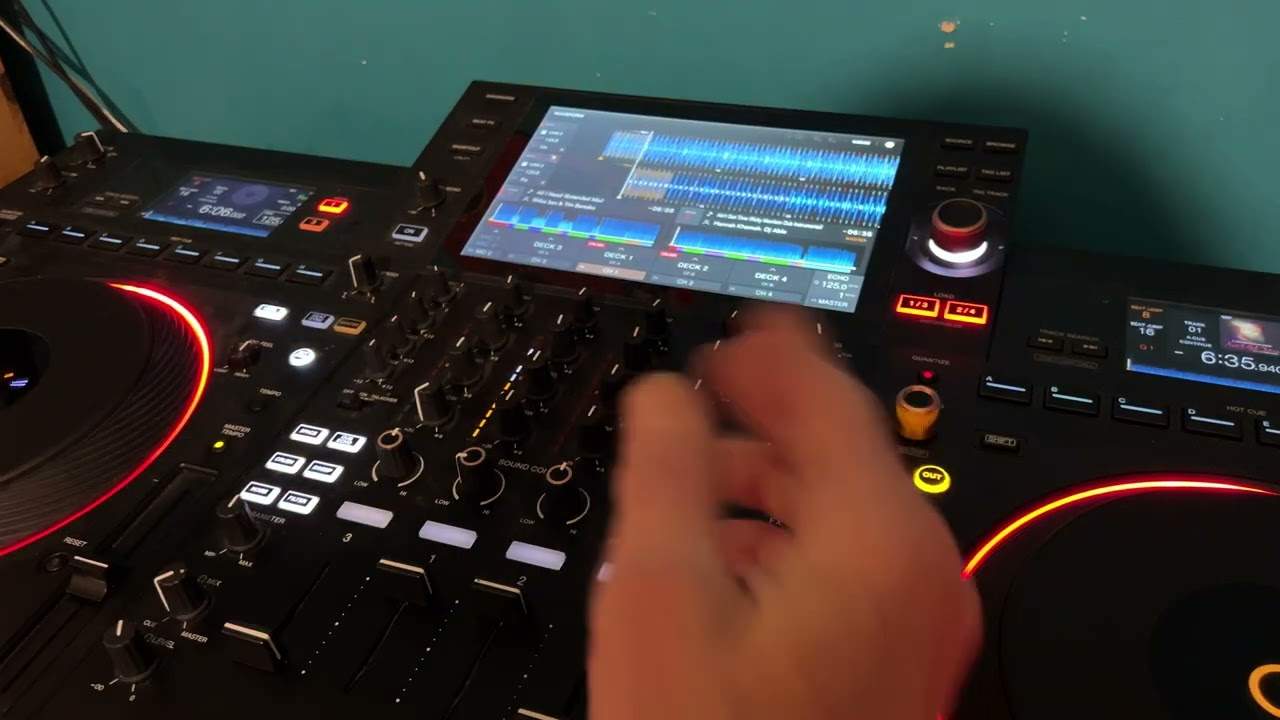
I have the roll set to four, which means it will be one bar. So let's just do a roll of one bar, see what it sounds like. There, believe it or not, that is a roll. So what I did, firstly, I made sure I'm on the correct channel. Secondly, I set the dial to the roll effect and I just started the effect by pressing the on-off button. Also, the level depth If I start moving the level depth anti-clockwise, what's happening is we're getting the effect but the more we move that dial anti-clockwise, the less we hear the effect and the more we hear the track as it should be playing in real time prior to us starting the effect. Now again, I can repeat the process by bringing that effect back in by moving that dial now clockwise. And also you can hear that kind of, it's a hollow sound. Now that's actual phasing and that's telling me that the effect is exactly overlapping the track. Okay, press the on-off button again so it stops flashing and now that will stop the effect completely. Let's try something else. Let's get an echo.
8:02 I had the level depth set to 12 o'clock
One over one, one beat. Okay, so what did I do there? I had the level depth set to 12 o'clock. I started the effect and then brought the volume down. So you heard the echo even without the track playing. Listen. And then, very important, if I want the echo to stop, there's a couple of things I can do. I'm going to use the top right hand dial and I'm going to select my track, press down.
Sorry, I beg your pardon. What I didn't do, I didn't stop the original track. That's quite important. You've got to make sure that you stop the track that's playing first. Otherwise, you just get this rather nice feature that sets in. It's a safety net because the last thing you want to do is have a track playing and... Accidentally think, oh I'm going to bring another track in only to find that damn all the music stopped. So that's quite a good feature. So right we've got another track loaded, press play and away we go. This one here is I Can't Stand It by Bloss. All of these tracks by the way can be found on the CDPool Underground releases for June 2018. So let's just spin this forward and again...
10:30 Counter, you can do count down or count up
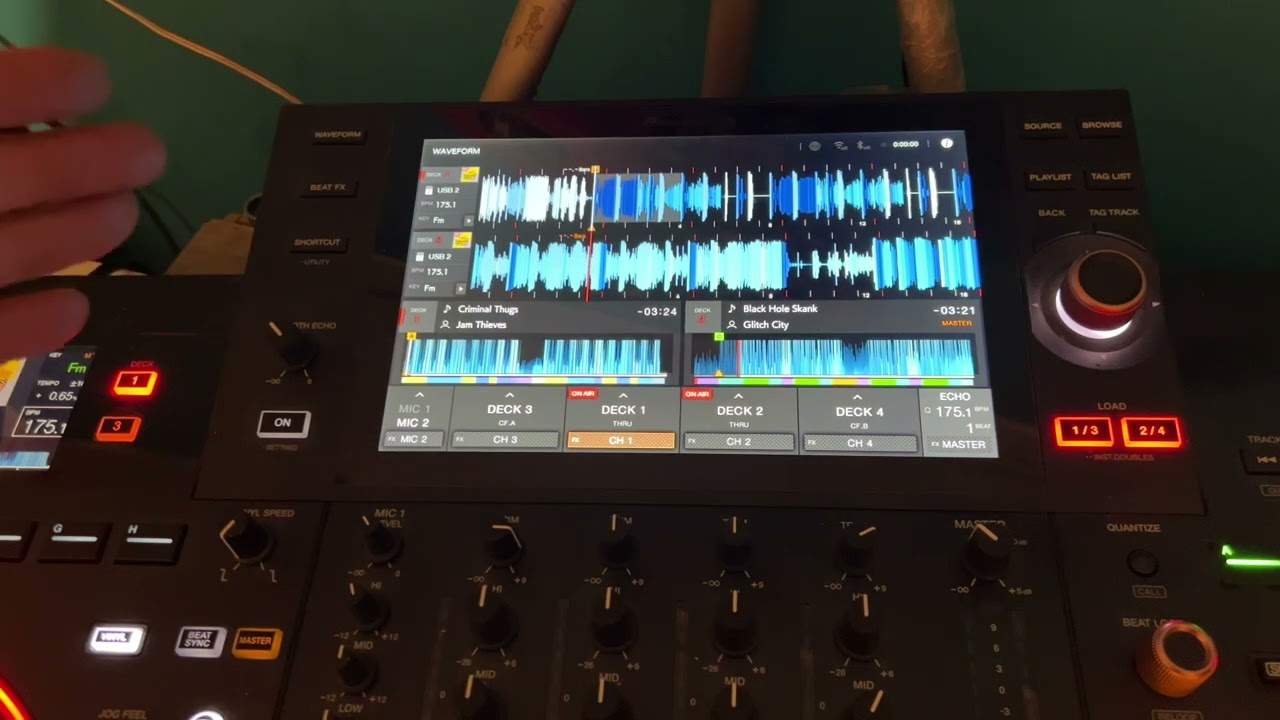
You can spin the track forward in, well the best way actually is by using the platter, the turntable itself. And again we're in vinyl mode at the moment. Now also don't forget on the DDJ-1000 in the centre of each of the virtual turntables you've got practically all the information you need. You've got the wave format showing you where you are on the track. You've got the count. Counter, you can do count down or count up. Ideally it's always good to go count down which means you know exactly how many seconds you've got left and of course minutes. You've also got your BPM readouts as well. Slow the track down. Small tip here as well, for people who are beginning to mix and want to have smooth transitions if you do a lot of beatmatching, very advisable to do plus or minus 6 BPM or 10.
When you go to 16 or anything above, then even though you should theoretically still be able to mix, you're not going to get such a defined position where to start to mix the next track in. What I mean by that is, let's imagine the pitch is in the centre point and you're at plus or minus 6, the track is 100 BPM. Alright, so for arguments, the track's 100 BPM and you move the pitch from the centre all the way to the minus position. You'll slow that track by 6%, which means it'll go down to 94. On the other hand, you bring it up towards you, it'll go to 106, which means you've got a greater area to fine-tune the BPM of the track. Whereas if you go to 16, you're going to speed it up to 116 BPM or slow it down
...to 84 BPM, which means you've got less control over the speed of the track. But again, as you start getting maybe a little bit better and beatmatching becomes very simple, then by all means go to plus or minus 16 because it means you can vary your mixes. You can go from hip-hop to house, house to drum and bass and so on. But for now, beginners, maybe stick to plus or minus 6, plus or minus 10. Okay, so we're now on the right-hand side. I'm going to choose another track, so we're going to go once again to the DDJ-1000 and I'm going to now on the left hand deck, around about the 1 o'clock position, I'm going to turn the dial and let's choose another track. Press down, press down and let's bring the volume down on the right, press play on the left and here we go. I'm going to go to my view and go to full screen.
Okay, this is connected. By the way, every track I play will be on the website. So if you want information on these tracks and all the others, highly recommend you go to cdpool.com, go to the Underground Tune 2018 page and you'll have soundbites of these tracks as well as all of the others on the compilation for this month. Okay, let's get one more. Spaceman, the original mix.
13:42 We'll finish off with Spaceman, the original mix by GW
See again, what happened here was the track itself was cued up with a bit of a gap. And if we listen, there. So if I press play, there's a tiny bit of a gap in between me pressing play and the track starting. So again, as I said earlier in the video, all I'm going to do is I press play, I found the beginning of the track and I'm going to cue it up there. That was a bit dodgy. Okay, there you go. Alright. We'll finish off with Spaceman, the original mix by GW. Hope that's been a help. Once again, check out the link in the description to CDPool and there will be a lot more videos coming over time on the DDJ-1000. Don't forget that this, apart from being a controller, as I've said in previous videos, what I do like about it is you can plug in two laptops. So let's imagine you are a DJ on the road
And your laptop crashes. If you've got another laptop already plugged in, on standby, switch over and you can play with the second laptop still having music, still being able to entertain the crowd. Alternatively, maybe you want to do a back-to-back set with someone. And many controllers out there now, it's all about unplugging one laptop, plugging the next one in. You don't have to because you can use two separate laptops. Two different DJs and you can do a mix, a back-to-back mix as well which is great. Also don't forget you can plug in your vinyl turntables as well as external CD players as well. So let's imagine you've got one laptop, you're having a bit of a mix, that stops working. So long as you've got CD players plugged in as well, you're good to go. Alright I hope that's been a help. Practice and enjoy. Thank you very much.
This transcript was produced automatically from the audio of the video and may contain mistakes.