 3:36
HDC-1000 Demo & Tutorial on the Set up menue
Contents of the video
0:00 This piece of kit from
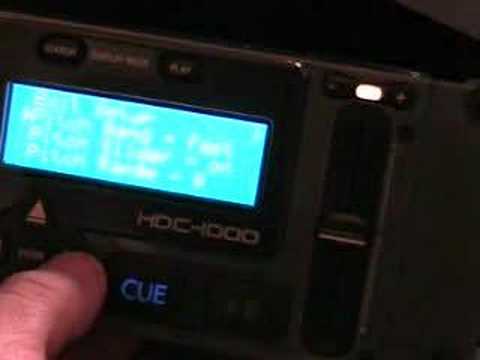
Alright folks, in this video we're going to have a look at this piece of kit from a company called Cortex and it's known as the HDC1000. This particular video I suppose is a bit of a demonstration and also a tutorial for you. In this video we're going to have a look at some of the features on the setup menu. Now first of all to get to the setup menu you need to move the jog wheel anti-clockwise or clockwise and that will make the cursor move up or down the screen. Where you've got the button that says enter, you can either press the button above or below where it says enter and that as well will make the cursor move up and down. So what we're doing, we've got the cursor at the moment now, if I just get a little bit closer, we've got the cursor next to where it says setup menu. I can get to that two ways. One is either press enter and now we're actually in the setup menu. Alternatively, I can press the button to the right of where it says enter and again we're in setup menu.
0:59 First of all, below where it says exit setup, we've got pitch bend
As before, we can move the jog wheel clockwise or anti-clockwise to go through all of the features in the setup menu. Alternatively, we can press the button below or above where it says enter to get through the individual facets. Now first of all, below where it says exit setup, we've got pitch bend. Now I don't know if you can see there, we've got fast. Now what I can do, I can press this button here Here we've got the buttons for pitch bend, minus or plus. When it's on normal, we've got a general normal speed of increasing or decreasing the pitch bend. If we go to fast, then we can press plus and the actual pitch bend will increase quite dramatically, minus it will slow down quite dramatically.
1:56 At the moment the pitch slider is on
If we scroll down again, we're now on pitch slider. Now at the moment the pitch slider is on. So that basically means that this now will increase and decrease the actual speed of the music. If I press the button to the right of where it says enter, It's now got VOL, which is short for volume. Now the slider is now an actual volume control for the music. If I press it again, the slider is now off. So basically that means that's completely disengaged. The next feature we're going to look at in this video is the pitch range. So if I press the button below where it says enter again, the pitch range on this now is plus or minus 8. Press this button here to the right of where it says enter, plus or minus 16, 24, 50 or 4. Now very briefly, if you are a mixing DJ, ideally you need to have your pitch control 4, 8 or on some units you can have 10 as well. When you start going to 16, 24 or 50, you've actually got less control and you will find it a lot more difficult
To beatmatch, so ideally keep it to 4, 8, 6 or 10 and that should be fantastic. Alright, a small insight for you, a bit of a demonstration tutorial from this guy here. It's the HDC-1000. Practice and enjoy.
This transcript was produced automatically from the audio of the video and may contain mistakes.











