 3:12
How simple is it to fire up the Pioneer WeGo2?
Contents of the video
0:00 We're looking at the WeGo2 from Pioneer and the program is Virtual DJ
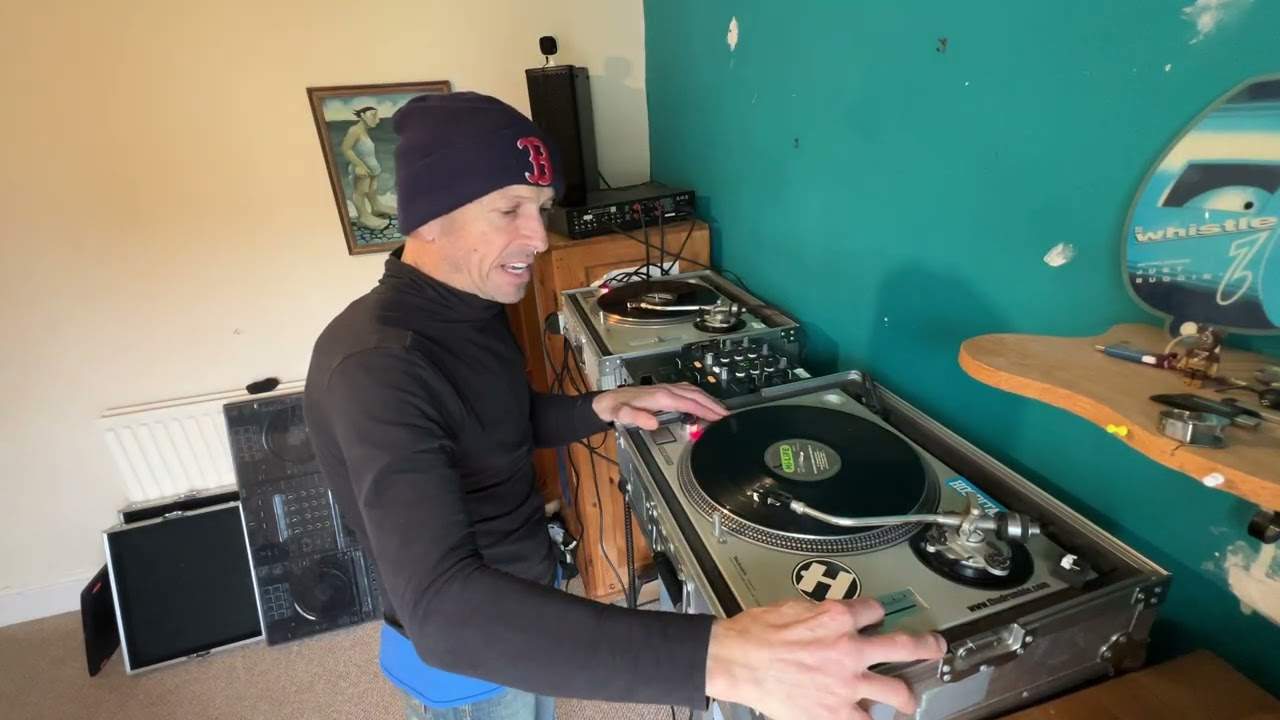
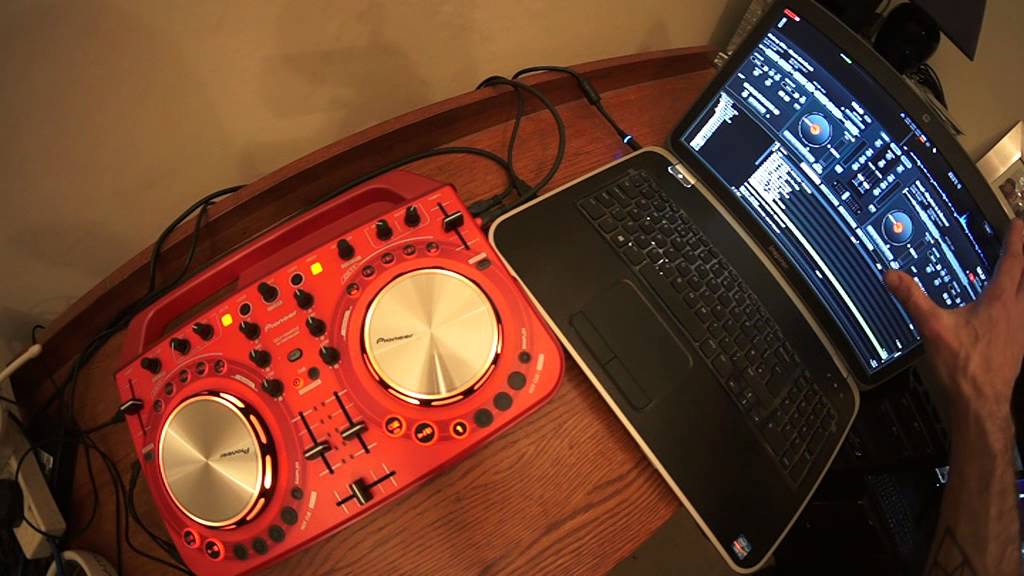
Alright ladies and gentlemen, short video here. We're looking at the WeGo2 from Pioneer and the program is Virtual DJ. In this video, first of all, I need to explain a few things. A lot of people who may be watching this kind of video for the first time don't even know what that red thing is. This is a controller. It's not dissimilar to having two turntables and a mixer. The difference is it's all in one and it doesn't use physical CDs or vinyl. It uses music from the PC over there. All my files, my music files are in the hard drive and the software is running the music. So we can see here, we can see two sort of circles. They are these guys here. And in the middle is this bit here. So software, you can see that sort of jiggling up and down, crossfade there.
0:49 What I'm doing by moving hardware, I'm manipulating the software
So what I'm doing by moving hardware, I'm manipulating the software. Now in this video, it is really showing you how simple the WeGo2 is to set up. Now first of all, you will need a USB cable from the WeGo2 into your laptop. Now that is it. I will explain. A few of you are probably going, no it isn't. But that is actually it. Because if you want to, you can plug the WeGo2 into a laptop and set it to configure which is sort of that sort of area. At the top there, but we're not going to delve into that at the moment. And you can configure it so you can use the speakers from your laptop and you can DJ out on the street, on the bus, anywhere using the WeGo2. Alternatively, if you want to, which is what I've done, which is really the next step. So you've got step one, which is just using your speakers from your laptop, which probably sounds shit. So ideally you do want external speakers. On the right hand side here, I've got RCA out.
Into at the moment, one speaker. And I've got my headphones in. Now again, if you do want to use external speakers, again, you'll have to go to and configure. So press play. This one here by the way is Fatboy Slim Dash. Hold on. Start again.
2:29 This video is showing you how simple it is to set up
Alright, so this video is showing you how simple it is to set up. And once you've already, let's say you've used this a few times and you've got your software configured, it will take roughly about two or three minutes to plug in. There's not loads of cables and wires and having to configure again and again. It's just as simple as making sure you've got your USB plugged into your laptop, turning the WeGo2 on. Going to the program, in this case Virtual DJ, turning that on. Plugging it into some speakers, headphones in and away you go. Practice and enjoy. Thank you.
This transcript was produced automatically from the audio of the video and may contain mistakes.
Related videos
-
Complete Beginner DJ Lessons Tags Key BPM Etc
A more advanced lesson folded in early, and worth doing once rather than putting off, because everything it sets up gets used for years…
-
Complete Beginner DJ Mixing Lessons Video 19 Getting Your Kit Ready for an Easy Mix
A whole lesson on getting ready, which is the right call - the exercise in the next video only teaches anything if the two decks are…