 4:59
How to Plug in CDJ and Mixer to Use as Midi Controllers for Traktor Step BY Step Instructions
Contents of the video
0:00 Plug in your external CD players
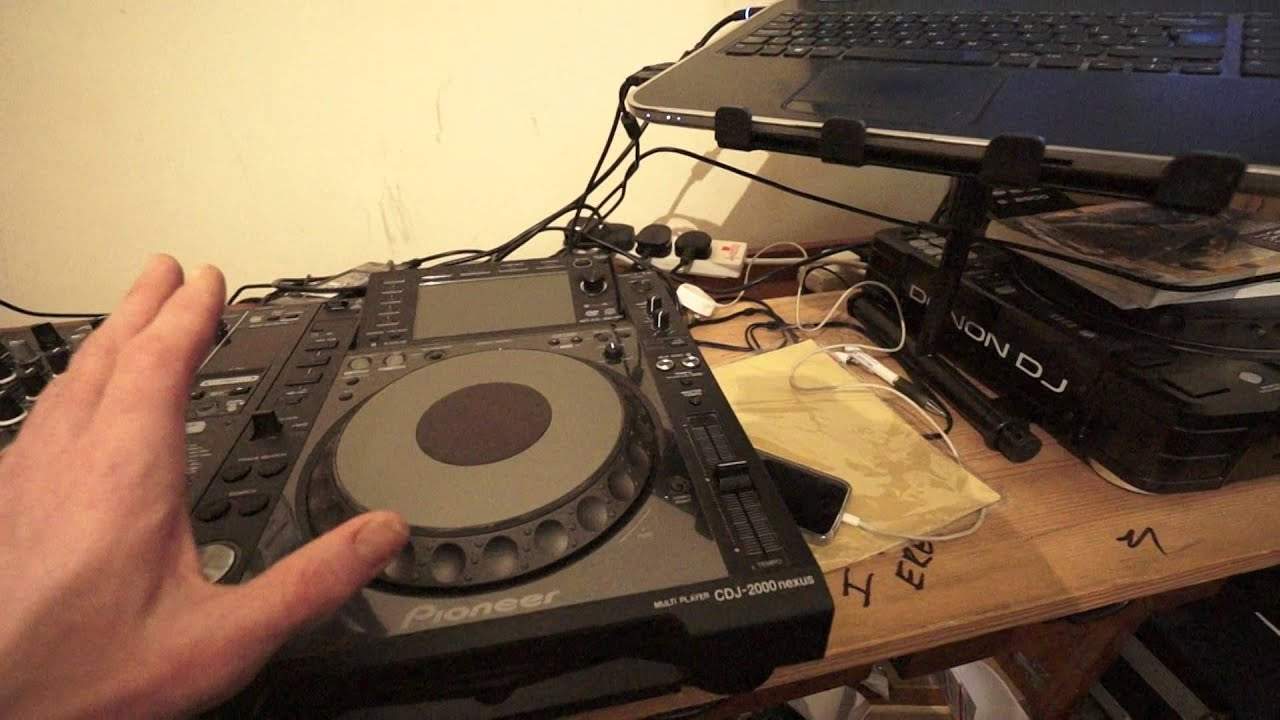
Alright guys, I'm holding the camera so it might be a little bit wobbly. In this video I'm going to show you how to plug in your external CD players and mixer into the Traktor program which I'll show you over there. So what you can do is you can use practically any CD player or mixer as external MIDI controllers. Now again you will need USB connections if you're going to follow this video step by step on CD players and mixer. If you do not... Have any USB connections on your CD player and or mixer? You can of course use an external sound card. This video isn't going through the steps of external sound card. This video is about the internal sound cards, or let's say the players that do have internal sound cards. So I have in front of me the two CDJ-2000 Nexus and the DJM-900 Nexus.
1:27 I don't know if you can see that, the USB and the power supply
Just to show you as well, the plugs in the back. We've got no link, we've got no RCAs, we've just got a USB and a power supply. Same here, the back there, there's only, actually that's just a booth but don't need that, alright. The speakers, power and USB there. And then same with the other player, all we've got in the back is the... I don't know if you can see that, the USB and the power supply. I'll just take those out so you know I'm not lying. Okay so again very important make sure you've got latest firmware on your players and also make sure that you've got the drivers installed on the kit you're using on your laptop because you may follow this step by step and think how come I'm still not getting the players to work with the program. It could be that the actual software doesn't even know they're existing, that's why you have the drivers so the software can communicate in between the hardware, the MIDI player and the program itself. So once you have plugged in your USB into your laptop and very quickly...
3:24 I will put a link to the Traktor website
Any people using Macs, don't panic. If you've only got one or two USB connections, just get an external hub. So you'll go into your external hub, out of that, even just one USB, into your laptop. Okay, so I'm now going to turn all of the kit on. I'm now going to just scroll down. I haven't got a desktop icon, so Traktor. And start that up. Okay, the next thing to do is just to make sure that the players, which are now going to be MIDI players, are talking to the program. So I'm going to press link and now I've got USB MIDI. We've got this icon here with a CD player and a laptop. Push to connect. So push down once, turn select to two. So I'm going to turn that and I'm going to turn that to B. I want this deck to be B and over to the other side press link, push down, turn selector 2, leave that at A and press down. Okay so what we've pretty much done is we have set it up so as I move here we can see that we are going well whatever I do here is corresponding to
I hope that's been a help. I will put a link to the Traktor website. Thank you for watching.
This transcript was produced automatically from the audio of the video and may contain mistakes.











