 8:23
KAM Digi Two Video Set up Tutorial Using Virtual DJ Le
Contents of the video
0:00 This is the software and underneath here we have the hardware
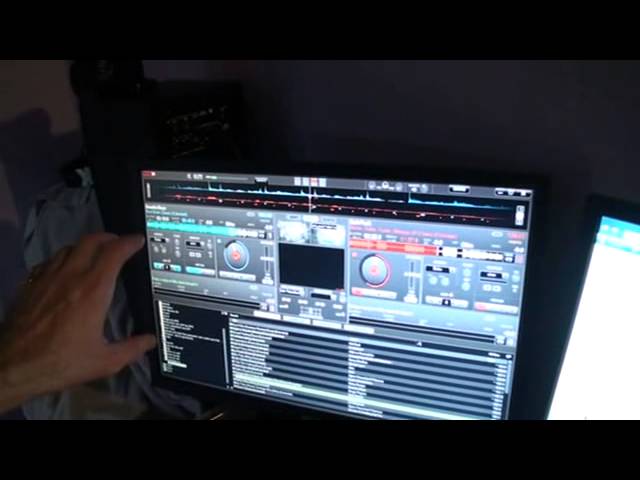
Alright guys, in this video I'm going to give you a tutorial on the video functionality of VirtualDJ LE. This is the software and underneath here we have the hardware. This is the CamDigi 2, known as a controller. This is the hardware and this is almost like these are the proper dials and sliders for the software. By all means you can use a mouse on the software but it's always better to get a controller, it's more hands-on. Alright, hardware and the software. The Digi 2 comes with VirtualDJ LE that will allow you to video mix but if you want to take video mixing on the road, have it on the big screen, use it as a mobile DJ or club DJ, you will need to upgrade to a more professional version of VirtualDJ.
Right, when you load the software up you'll see this screen. You have mixer, video and scratch centre top of the software. You need to click on the icon, video. Once you get that you have two small boxes which are your virtual monitors. That is what you will be able to see playing all the time even with the volume down. That box there that's black at the moment, that is what the people will see and also that is your proper mixing screen. So whatever happens there, that's what everyone else will see. Whatever happens on the two small boxes is what is going on with your two little sliders. Right, first of all and foremost you need to find where your video files are. Below here is that's video files I've already got ready but where do we get them from?
Okay, to the left of the screen you have this box, that's almost like your virtual PC. That's all of your files, your folders on your PC. And you need to click through to find them. You will start to see a top left hand corner maybe my computer and desktop. As soon as you press one of those folders then it'll open up. It'll open up into more and more, find your... And you need to find where you've got your videos. Excuse me, I've got mine in here in extendermix.eu Right, just very quickly want to talk about extendermix.eu It's a new website that's opened up and they are giving down... They're selling sorry music videos downloadable. I believe it's £40 for 100 music videos. Now a lot of people are saying yeah that's great
2:47 You've only got yourself a controller
But I can't play music videos. Well maybe you can't, but think about this. Alright, you don't have to play the video. You can still play just the audio. And when you consider that's 40 pence a track that's pretty good. So I'm going to talk very fast here but I hope you get what I'm saying. Let's imagine you've only got Virtual DJ LE. You've only got yourself a controller. You've got hundreds and hundreds of just music files but there are certain tracks that you want maybe more expensive than you'd like to pay. But you can get them for 40p each from extendermix.eu Well guess what? You buy them at 40p and then you can play them through the video mixing functionality here but what will come out of the audio which you'll see or hear in a bit
Is just the audio so you don't really have to think about the video you still have got the audio which is the most important part. Alright, so we've found our files now on the controller we have this centre dial Now that will take you through all of these all the files. And as soon as you've found a file you want for example, let's have a look at Beastie Boys if I press number 1 that will load up on Virtual Deck 1 So I can scroll around again now and right, Got To Be Real by Sheryl Lynn beautiful tune, we're going to press number 2 and now that is ready to go on deck number 2 Fader up, press play and I'm going to press play on the other one as well so we've got the two tracks going I'm going to press play OK, so we can see them going
It's blurred because that's what it was like at the beginning of the video Right, I'm just going to press pause on that one and I'm going to press pause on the other one as well So they're both on pause and I'm now moving the volume up and down on both sliders You'll notice as well the two screens there are still showing That's because those are our monitors They should always be on so long as you have a video playing Bring the slider up on channel 1 and that's the Beastie Boys channel 2 Beg your pardon, oops There you go Channel 2 And there it is Alright, first of all we need to look I'm going to pause that again on the different transitions The different ways this software can mix the video So if we have a look below the centre screen here
Right hand side we have video effects We're going to look at the left hand side which is video transitions And we have a choice of default, zoom, scratch or cube So whatever you want you click on that icon and you'll go as follows Zoom, scratch, cube It's going to default so bring that one up OK, we're going to pause those again and bring both volumes down So looking at this very simply it is just a question of That's to find your files Load, load Volume up Volume up Volume down And cross fade Alright, you can do a lot of things with video mixing that you can do with audio as well So let's say for example you want to form a loop What we have here Top left hand side and top right hand side This area here is on the software
5:59 Loop, three, four
That area just there So if I zoom out again And we have a look here What I'm going to do now is I'm going to form a loop A lot of people are scared about doing loops in case it's slightly off But this way is foolproof Right, what I'm going to do is press beat loop And now on cue one we have two beats Cue two we have four Cue three eight And cue four sixteen So now we can hear We've got one bar One, two, three, four Or we can hit one Or three Which is two beats Now you'll notice we have the in and out shining If we press the slash two We can halve that Notice as well we've gone from The three to two Press it again
And as soon as we want to come out of the loop We press out So if we disengage the beat loop Now that particular icon is not shining anymore We can now do our own manual loop
And again, halve it
Or double it And go out again There you go So beat loop You can loop on it Exactly the same over here With pitch, increase or decrease Key lock here Also we can change the key
Using this dial And above it, it's got the wording key
Alright First tutorial here On the CamDigi 2 And also Virtual DJ Ellie With the mixing functionality Any questions, any comments Post them in Well yeah of course post them in a comment Also what I will do Is put a hyperlink to Extendermix.eu Go and check it out There are thousands of videos to choose from Practice and enjoy
This transcript was produced automatically from the audio of the video and may contain mistakes.











