 7:54
KORG KAOSSILATOR PRO DEMONSTRATION How to add a beat over a tune
Contents of the video
0:00 Set up the Korg K-Oscillator Pro
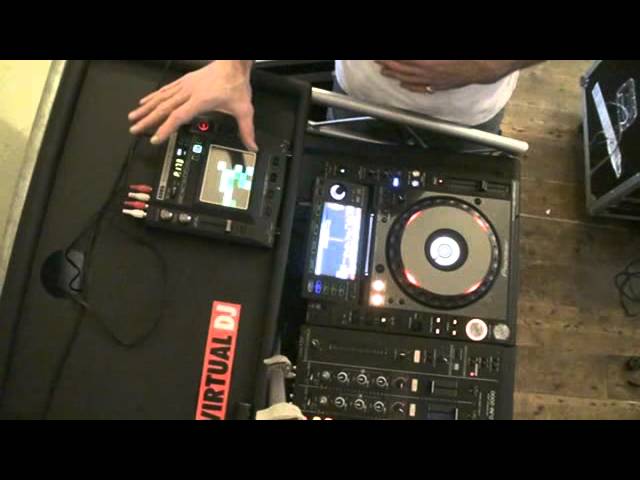
Alright ladies and gentlemen, in this video I'm going to show you how to set up the Korg K-Oscillator Pro so you can plug in a CD player and then utilise one of the beats that are in the K-Oscillator Pro and overdub the beat onto the track that's playing. First of all we need to know how to plug this in, to get it going and also how we can incorporate the K-Oscillator Pro with a CD player. Make them both work together. Now conventionally what you would do, normally what you'd do is you would go from your digital or your analogue out of your CD player, or when I say analogue, your line out, RCA right and left, beg your pardon, from your CD player into the back of your mixer. Now what I'm going to explain here is...
What you can do with virtually any CD player or any mixer so long as you have a line out from your CD player and line in, or CD in, or auxiliary in on your mixer. What you will do is normally you would go from your CD player into your mixer. In this case if you're going to use the Korg K-Oscillator Pro you need to go from your CD player and then on the back of the pro you can see there four RCAs. Four! The far left hand side is the input so you will go from your CD player to the first two which are the input and then the second two which is the output. So, from your CD player into the input first two, second two out of these two into your mixer. So if you were going say from your CD player into line one in your mixer you would do exactly the same from the output of the K-Oscillator Pro into line one on your mixer.
Now then, what we're going to do is I'm going to use one of the beats. That one there which is 1-7-3. So how do we get to that first of all? Above the touch sensitive pad we have five touch pads and I'm on number seven. As soon as I press that again I've got to number 160 if you haven't listened.
Top right hand corner we have a dial which has program and BPM just above it. I'm going to tune that till I get to... 1-7-3 which is the beat I want.
By the way, the track I'm using for this demonstration is Sway featuring Mr Hudson, a track entitled Charge. It's a TC remix and I got this from CDpool Underground December 2012 CD number one. I'll bung the information in the description for you as well. Right, let's have a listen to the track.
2:52 On the K-Oscillator Pro on the left hand side
Okay that's the track. On the K-Oscillator Pro on the left hand side... ...we have two more dials. Input volume and program volume. I'm going to turn those two down now... ...and when you turn them down or off they will be at the position of 7 o'clock. Now, the input volume is the volume from the music source. So with that set at 7 o'clock if I press play and slowly move this clockwise... ...you can hear the volume getting louder and louder. Okay, press Q there. I'm now going to put my finger on the touch sensitive pad and move now the program volume up... ...clockwise again... ...and we can hear that getting louder.
So these two volumes here are the volumes for the music input, your input source and also the volume for the K-Oscillator Pro itself. So these two are there for you to get the right sound you want. So you get a good happy medium. You may want this higher, the K-Oscillator Pro higher... ...you may want the music source higher. This is where your ears come in so you get a nice mix of a sound. The next thing you want to do is make sure that the beat that is being played on the K-Oscillator Pro is the same BPM as the beat that's playing on the track. And we can do this manually by touching below the program BPM dial. There's a button there, it's highlighted in red. You can see it flashing, it's got tap tempo.
So if I press that really fast out of beat... ...have a listen now... ...press it very slowly... ...and really you only need to press it three times.
So what I'm going to do manually now, use my ears, I'm going to press play... ...bring the volume up on the input volume... ...I'm now going to tap this in beat with the music.
A demonstration here.
5:30 ...we're looking at a musical instrument
At that point it says the beat keeps drumming on and on but there's no beat... ...so of course using something like the K-Oscillator Pro you can add a beat into it. So, while I was touching the pad... ...as I move my finger down towards the bottom left hand side we get a nice filter effect. That's been a help, bit of a demonstration also a tutorial. But again what we're looking at here... ...we're looking at a musical instrument. This isn't just a toy, it needs a lot of time spent on it. Also it's great if you are a music producer... ...and maybe occasionally you go out with your laptop and a mouse. Well that's great because you maybe get some really good... ...hello... ...my god I haven't got any hair! Maybe you get some really good sounds but I'm old school, I like to take kit with me.
People out there like to see touchy knobbly feely bits. Check out Beardy Man, alright he's a great beatboxer... ...but also he makes some wicked music as well and you can see him using kit. Alright this is what people like to see. Alright I hope that's been a help, if you want any information on the K-Oscillator Pro... ...check out the link in the description and I will say enjoy and practise or practise and enjoy... ...and also check out the lickable clinks. Cheers!
This transcript was produced automatically from the audio of the video and may contain mistakes.