 14:08
MASCHINE MIKRO. Short demonstration,tutorial
Contents of the video
0:01 You've got in front of you the Machine Micro from Native Instruments
Right guys, you've got in front of you the Machine Micro from Native Instruments. What do you get in the box? USB. It's not sugar, it's silica gel. Do not eat it. A bunch of stickers. Software suitable for Mac or PC. And this here is rather nice. It's 3GB of samples and 1000 premium sounds. OK, you install the software and if you're using PC, you need to double click on the machine setup. That is loading now. It will take a bit of time so don't expect it to be done in a couple of seconds. Just sit back and relax. Right, we're almost there. One important factor about the Machine Micro is you need to run it as a standalone application first before you use it. As a plugin with any other host software. Right, double clicked on the icon and there it is. You can see that it's updating the database.
Right, more than likely the first time you get the program up on the PC or your Mac, you'll be asked to activate it. So now on the back of your DVD you'll have some numbers and you will be asked to activate the program. And you need to put the numbers that are on the back. Of the DVD into somewhere around about here. Now I've already done it. You can see we've got machine there and there are a few boxes. Now I didn't have to put the numbers into each box, all I had to do was type the numbers in and they automatically went into each box. Pressed activate and it worked. But what I did have to do as well is update it. Now bearing in mind this particular item would have been put on the back of your DVD.
2:18 There's the software, there is the hardware
I put it in the box a few months ago and there are always updates with the software so as soon as it was activated we got the machine icon coming up and I had to just update some of the software which I've done and I'm downloading it now. Right, pretty much set up. There's the software, there is the hardware. Now we need to make sure that the software is talking to the hardware and vice versa so we have a look top left hand of the screen. File, edit, view and control. If I click on control you can see the machine micro mark 2. So if I just look at the hardware, I'm going to click on the icon now and bang there you go they're talking to each other. Top here we've got kits, loops, multi effects so we've got a kits, different ones and loops.
Also if we click on the icon disc then we can go through to the PC to find other appropriate programs that we can use. So I now have the machine micro talking to the computer.
So I'm going to press play there and if we have a look at the screen. There you go, stop. Right even though it's called the machine micro it's not a micro it's a bit of a beast. There are preset kits in the software so if we have a look here we have atom heart kit and I've set that up. Now we've got one. Through to 16 samples and they're here so one, kick. So if we go to say number 7, shaker. This is something I made earlier on. Now all it's doing is it's playing something that's preset in there. I suppose in a way it's giving you an idea of what to expect with the sounds which is quite wicked. Now again bearing in mind this particular video is just a very, very small demo on some of the aspects of the machine micro.
5:16 The machine micro has got some fantastic kits, old school classics
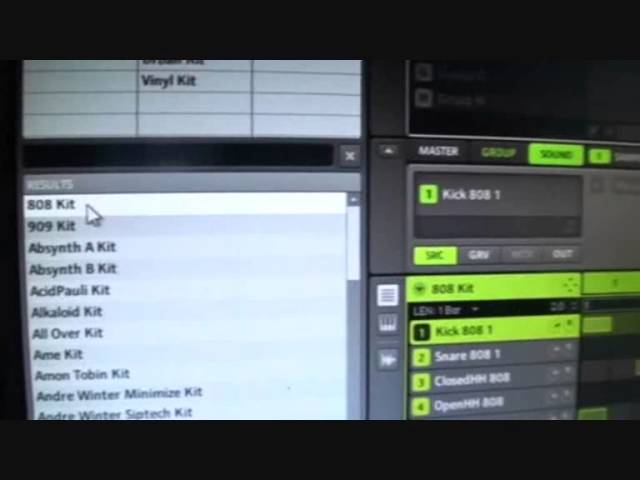
So we have all these different kits along here so what I'm going to do I'm just going to double click on there and we can see that now load up. So if I press or just sorry click on play at the top. There you go. So if we stop that I'm just going to go down to the corner there and turn that up. Right that's turned up. Touch sensitive as well so depending on how hard you touch the pad is how loud or soft the sample will be. The machine micro has got some fantastic kits, old school classics. 808, got that 909 as well with that absolute classic sound. Snare in your face. One very important thing about this video is that I'm scratching the surface. Of the machine micro. So there is the screen if we have a look at these three icons.
7:17 Blip vertical and if we have
Top one, middle and bottom. Top one first of all is the screen showing the samples that you will get. Now these are in real time and the sort of thing you can achieve. I'm going to stop that there. Right the next one. Is keyboard. Almost acts like a keyboard for that sample. So for example if we go to, I'm going to go to blip vertical and if we have a look at the controller. I'm going to get a different one just to highlight this a little bit better. Right I'm on the Martin Roth new style kit. And I've highlighted the keyboard icon. And we're on hit Roth. So this will give you a much better idea of what the keyboard icon is all about. It's now a keyboard. Quite funny actually, this is getting to be a bit of a tutorial as well as a demonstration of the machine micro and the machine software.
Right at the moment now I've got on number seven I've got the tambour. Now short for tambourine. And we can see here the tambourine is going all the way through. Like so. If I press play. That's already preset in the program. Now if we have a look underneath here, we can see these small icons. Now for every one of those lines that's indicating that that tambourine is being played. But I don't know if you notice they're not at the same level. That's because what the program is doing is making this tambourine sound real. In other words if let's say a person was using the tambourine. So. Look at it another way. Alright I'm going to try and make it as simple as possible. If let's say a machine was making this sound, even though a machine is an old school machine.
The sound would be exactly the same all the way through. It would be a continual level of sound. What you can do here is you can make the sound higher or lower by yourself. So what you're doing is you're almost making the machine make the sound. As though it was made by a human. Because a human is not a machine. So when you tap the tambourine, sometimes when you tap it it's going to be slightly harder and slightly softer. Meaning that the sound isn't going to be the same. Which is shown here. Which is great so it means that every single sample can be slightly higher or lower. Giving it a very organic sound.
10:09 Top screen up
Right. Look at the top screen up there. And the bottom screen. And the one there. Right, so if I want to I can click on say bongo. And I can go to any of those icons. Now that sound has now gone over to number 7. So we press play. No longer got a hi-hat there. We've got the bongo. Just have a listen when it goes along here. It's a lot lower. And I can demonstrate that even further by reducing these. Get another one. Look at the hardware now. Changing the BPM. Just show you a couple of settings here using the controller. On F1 mode. Volume. F2. We can get a nice swing. It's almost over sampling the sample that we've got. On 3. We're back to the BPM. We're in record mode. And this now is enabling me to make my own beats.
So what I've done first of all is I've got a bit of a bass kick. And I've hit it four times. But one of them is slightly off. So if we press play and have a listen. Sorry. Slightly off. So how do we get that on? So what I can do is using the mouse if I want to, I can just move that over like so. Now let's have a listen. Press play. Right, I'm going to add to that now. So there it is the Machine Micro. Now I've scratched the surface with this. I plugged it in. Downloaded the software and I've spent a couple of hours or so. And I'm already making, sort of making beats. Now don't forget it's a launch pad alright? You can use it to launch your samples. You can use it to make beats. You can incorporate it with your keyboard with other software you have.
You can plug it into your studio. You can take it out on the road with you. And you can make some wicked beats and samples and goodness knows what over your tracks. In other words, you're doing a remix. You're having a mashup where you can incorporate beats over that mashup. Now I know that much in an ocean that is to be known about the machine. So go and check it out on the internet. There's loads more videos. If you want any info on this product by the way then check out the link in the description. And I will say Machine Micro practice and enjoy. Love it.
This transcript was produced automatically from the audio of the video and may contain mistakes.











