 4:29
Browsing folders and loading a track
On YouTube this video is called NUMARK MIXTRACK PRO Tutorial 2. Browse file, folder and load a track
What this lesson teaches
A short, specific lesson on the browse section, and it is more useful than it sounds, because the thing it explains is the thing everybody gets stuck on.
Two jobs, one dial
The large central dial does two different things, and there are two small LEDs beside it labelled folder and file telling you which.
In folder mode, turning the dial moves you through the folder tree - drives, then folders, then folders inside those - and pressing the dial opens the one you have landed on.
In file mode, the folder tree is frozen and the dial moves through the tracks inside the folder you opened.
The back button toggles between the two. That is the whole mechanism, and once you know it the browser stops being mysterious: if turning the dial is not doing what you expect, you are in the other mode.
Why not just use the laptop
A fair question, and the answer is about what else your hands are doing.
A trackpad gives you one pointer doing one thing at a time, and it needs your eyes. Mid-set you are loading the next track while the current one plays, usually with one hand, usually without looking down for more than a second. A dial you can find by feel, with a push to confirm, is built for exactly that and a trackpad is not.
There is a second reason that matters more as you get further: the laptop should not be directly in front of you - it should be off to the side so you can watch the room. That only works if you can drive the browser without looking at the screen.
Loading
Having found the track, you load it to deck A or deck B with the load buttons.
And you can load the same track to both - which is not a quirk, it is the setup for the single best beatmatching exercise there is. Two copies of one record removes every variable except timing, and this is how you get them.
Contents of the video
0:00 Tutorial number two on the Mixtrack Pro from Numark

Alright guys, tutorial number two on the Mixtrack Pro from Numark. In this video we're going to concentrate mainly on the centre large dial with browse above it. The button here with back on and also we can see a small LED to the left of the centre dial. Directly to the right of that we have the word folder. And then we have a thin line, and then we have a word file, and if I press the back button, we will see we've now got an LED shining next to the file icon. So, I'll bring the camera back, and at the moment I'm utilising the software known as Traktor LE. So what I'm going to do, I'm just going to explain that you can move this dial. And by pressing the back button, you can go from folder to file and so on. Now using the functionality here, this will save you having to use the mouse to work inside the PC to find the files that you need. So at the moment now, if we look, we can see we have the PC. We have C, D and E drive.
1:22 All of my files, users are on the C drive

All of my files, users are on the C drive. So what I'm going to do now is press the back button and now on the hardware, the LED is shining next to the folder icon. By moving now, turning that large wheel, I can click across like so. I'm going to leave it on C. I'm going to press down on this button here. Like so. Straight away now, what's happened? It's opened up the folders inside the C drive. Now I need to go down to Users. This is where I will find a lot of my music. Once I've gone to there, I'm going to press down again. Now I'm going to go to J because that is the username for myself. I'm going to click down there. Different files and folders inside here. Again, by turning that large dial I can go through the folders. I'm going to go to Downloads and press down. Now I've got more folders. While I'm moving through these folders, if we can see on the screen here, just bring that up,
3:25 What I can do now is press either load B
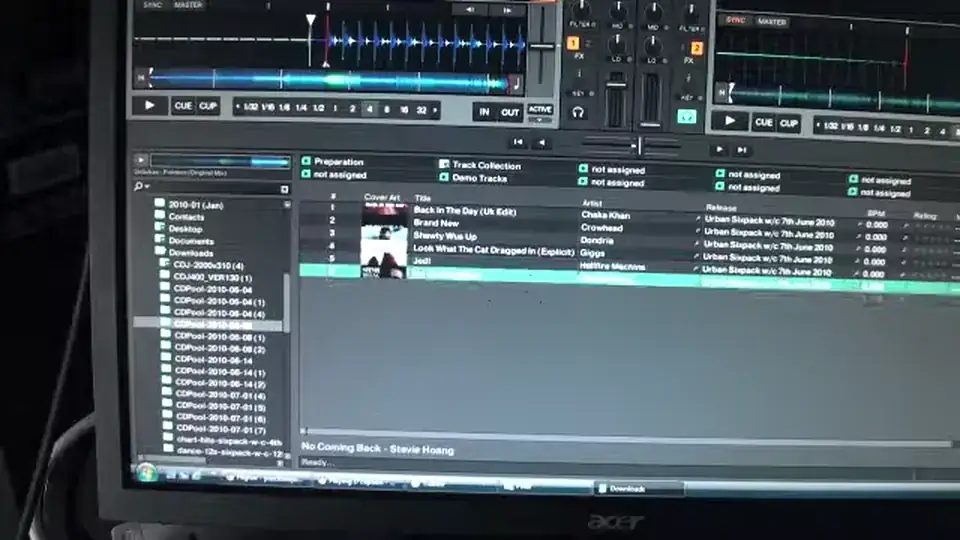
I'm able to look and see the tracks in those folders. As soon as I get to a folder I want, I can press down. And if I want to, I can then press back. Now you can see the LED shining for file. If I go to the screen, what happens now, we've disengaged the area here so we can no longer scroll. Up or down here. Now by using the centre dial, we're now in a position to scroll through the files. So if I want to play a certain track there, what I do is I press down. Now that file is loaded up and ready to go. What I can do now is press either load B. That file will now be loading on deck B. Alternatively, and also if I want to, I can load the same file Video number two on the Mixtrack Pro from Newmark using Traktor LE software.
Practice and enjoy. Thank you.
This transcript was produced automatically from the audio of the video and may contain mistakes.
This video is part of
Related videos
-
Complete Beginner DJ Lessons Tags Key BPM Etc
A more advanced lesson folded in early, and worth doing once rather than putting off, because everything it sets up gets used for years…
-
Complete Beginner DJ Mixing Lessons Video 19 Getting Your Kit Ready for an Easy Mix
A whole lesson on getting ready, which is the right call - the exercise in the next video only teaches anything if the two decks are…