 6:21
A controller overview, start to finish
On YouTube this video is called Numark Mixtrack Pro Tutorial Video 1 the Overview
What this lesson teaches
The first of a short series on the Mixtrack Pro, which is a good vehicle for the general lesson because almost every entry-level controller is laid out the same way.
Do the boring thing first
He reads the instructions out, which is unusual enough to notice: install the driver software before connecting the controller, and check the manufacturer's site for updates first.
This is not ceremony. The computer has to recognise the controller as a specific device before the software can map its controls, and plugging it in first can leave you with a half-installed driver that is harder to fix than to avoid.
What a controller is pretending to be
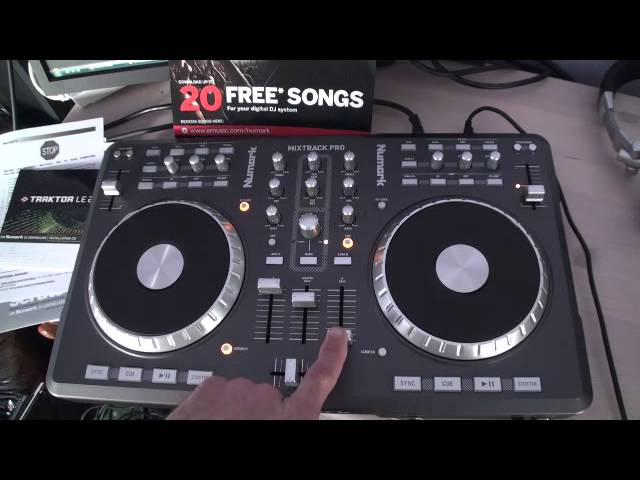
Everything on the surface is a stand-in for something that used to be separate hardware: two platters, pitch faders, cue and play, effects, a crossfader, channel faders and a master gain.
The volume hierarchy catches people out on day one. Channel faders up but master down gives you silence, and so does the reverse. Both have to be up, and when there is no sound the master is the first thing to look at.
The habit worth building immediately
As he moves each control, the matching control moves on screen - the faders slide, the gain dial turns.
Get into the habit of watching that, because it is your diagnostic tool for the entire time you own the thing. When something does not work, the question is always "did the message arrive?" If the on-screen control moves, the hardware and the software are talking and the problem is elsewhere. If it does not, it is the connection, the driver or the mapping. That single observation will save you hours.
Cue, and why headphones exist
The cue button on a channel sends that channel to your headphones only. With the channel fader down, the room hears nothing and you hear everything - which is how you find the start of the next record, check its tempo and decide whether it works, all while the current one plays.
Key lock
He demonstrates this properly and it is the most important concept in the video.
Moving the pitch fader changes the speed of the track. Because the sound is being played faster or slower, it also changes the pitch - everything goes up as you speed up, down as you slow down, like a record.
Key lock separates the two. With it engaged, the software corrects the pitch as it changes the speed, so a track sped up by three per cent stays in the same key. With it off, you get the honest behaviour.
Both are useful. Key lock keeps two tracks harmonically compatible when their tempos are far apart. Working without it teaches you to hear the relationship between speed and key, which is a real part of the craft.
One wheel, two jobs
The platter has a scratch button beside it, and this is the other thing beginners find confusing.
Scratch mode on: moving the platter moves the track, as a record would.
Scratch mode off: moving the platter is a pitch bend. Turning it forwards nudges the track temporarily faster, backwards temporarily slower - which is how you correct a mix that has drifted, without changing the tempo setting.
Same gesture, two entirely different purposes, and knowing which mode you are in is most of using a controller well.
The cue button trick
Press cue and the track plays from your cue point. Keep your finger down and it keeps playing. Lift your finger and it stops and jumps straight back.
That is a momentary preview, and it is how you audition a drop point over and over without losing your place.
Contents of the video
0:01 Tutorial number one on the Mixtrack Pro from Numark
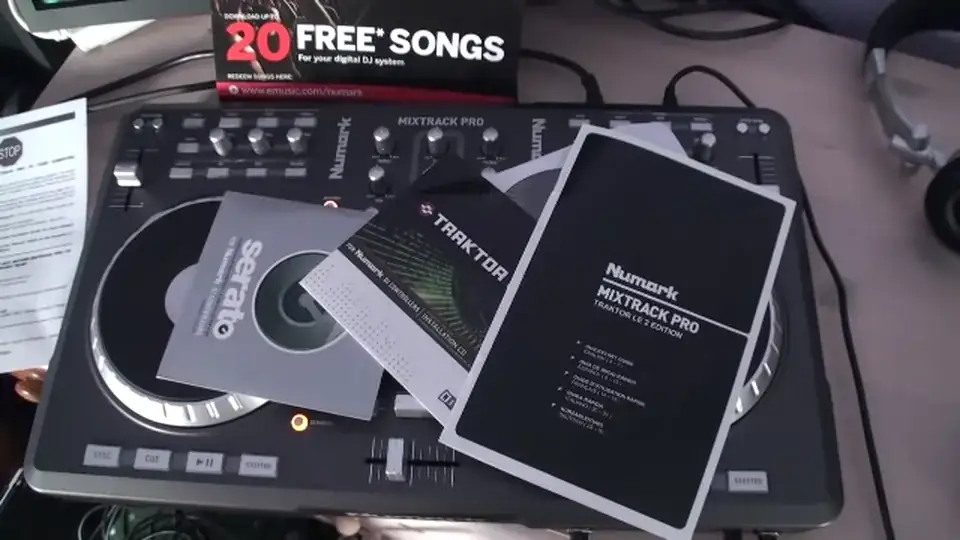
Alright guys, tutorial number one on the Mixtrack Pro from Numark. It comes with two forms of software. You can either use the Traktor LE2 or Serato. Both of these forms of software will run on either PC or Mac. Always important to read the instructions and in here it clearly states if you're using PC to install the driver software first, which is there. And also stop. Before you connect Mixtrack Pro to your computer follow these steps. You need to go to the Numark website and check for any available updates. Alright, at the moment I am using the Traktor software and I'm using my PC. So if we just have a look, that is the hardware, that's the Mixtrack Pro and we can see on the PC we have the software. So
What we're dealing with and what we're looking at is exactly the same functionality you would expect to have with a set of CD players. Maybe not top-of-the-range CD players but you have your platters, you have some effects, you have pitch, you have sync button, cue, play pause and shutter as well. This one here is your master gain. This will increase the volume of both channels so if this one's down and these two are up you won't have any volume coming or you won't have any sound through your speakers. With these two down and this one up and then these two up you will start to have sound. You'll also notice while I'm moving these we have the two virtual sliders on the PC moving as well. The centre one you'll notice right top centre
2:14 Basic functionality of the hardware
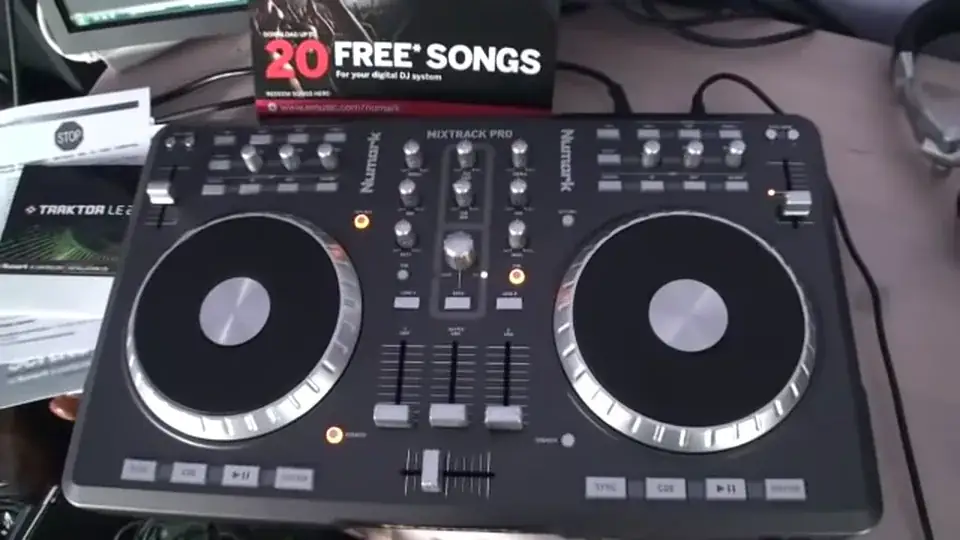
Of the screen, we have that small dial moving that is telling me that I'm utilizing moving the game control. So if we come down and we have a look at the basic functionality of the hardware. This guy here will enable us to browse through our files. Here we can load the tracks on to either side. We can cue here as soon as this lit up, we know that we're able to listen to the track without having to put the volume up. This will enable a DJ to listen to the track through headphones. Without letting the crowd hear what they're listening to. So for example with this volume up, our gain up master we can then with this volume down listen to that side the crowd can hear the other side and then as soon as we were ready
To go we can bring this one in. We have this function here called key lock. What that will do it'll keep the same key of the track disengaged and if we start utilizing the pitch control. What will happen is not only will the speed decrease by moving the pitch away or speed increase by moving the pitch towards you. What will happen is the sound, the tone of the track will decrease as we move the pitch away and increase as we move the pitch towards us. We have a scratch feature on here so with this light shining here we can now use the scratch functionality of the platter. Disengaged and while we utilize the platter, we move it forward and backwards with our hand. We can do the same as using pitch bend so I'll
4:44 Anticlockwise we can see it slowing down
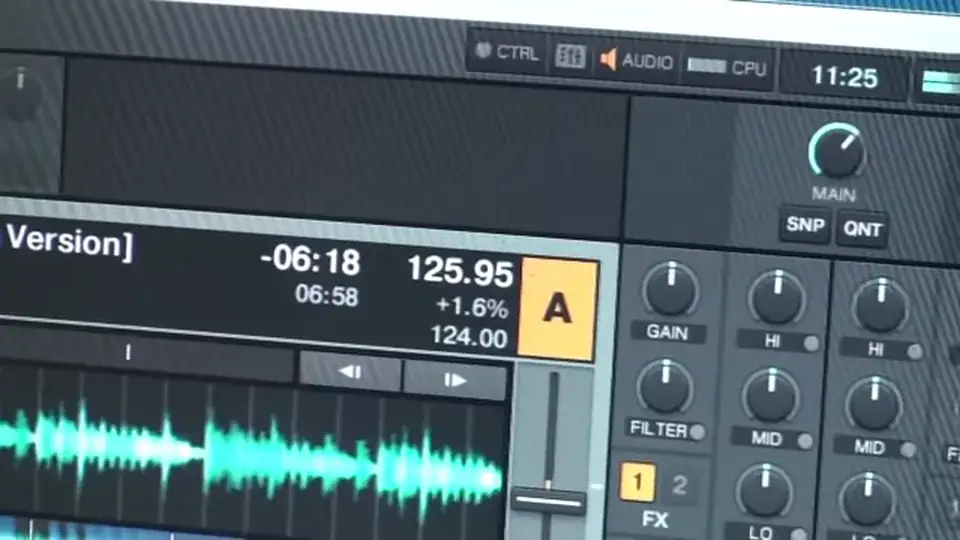
Just give you a demonstration of that. Take off the scratch. Track you're listening to is Danny J Lewis Deeper. Clockwise we will increase not only the speed but the key. Anticlockwise we will reduce the key and reduce the speed. If we have a look at the screen, more importantly by that A. What I'm going to do now is move the platter in clockwise motion and we can see the speed of the track speeding up. Anticlockwise we can see it slowing down. Also we can see that icon which is the pitch icon moving as well. We'll just stop that. This here will enable me to cue the track at any point I want to. So I've hit Cue and now the track will start from that cue point. Notice as well when I hit Cue, keep my finger on it, it carries on playing. If I take my finger off it stops but what will
Happen is it'll go right back to that cue point. It's a great way of starting the track from a different point not just from the beginning of the track all the time. But if I press play, it will start from the beginning of the track all the time. Pause, it'll carry on playing. Alright video number one on this guy Mixtrack Pro from Newmark. Go and check out any more information in the description. There will be plenty more to come. Any questions, comments, chuck them underneath. Practice and enjoy. Thank you.
This transcript was produced automatically from the audio of the video and may contain mistakes.
This video is part of
Related videos
-
Complete Beginner DJ Lessons Tags Key BPM Etc
A more advanced lesson folded in early, and worth doing once rather than putting off, because everything it sets up gets used for years…
-
Complete Beginner DJ Mixing Lessons Video 19 Getting Your Kit Ready for an Easy Mix
A whole lesson on getting ready, which is the right call - the exercise in the next video only teaches anything if the two decks are…