 6:13
Numark Mixtrack Pro Tutorial Video 3. Using the Effects
Contents of the video
0:00 Effects features on the controller
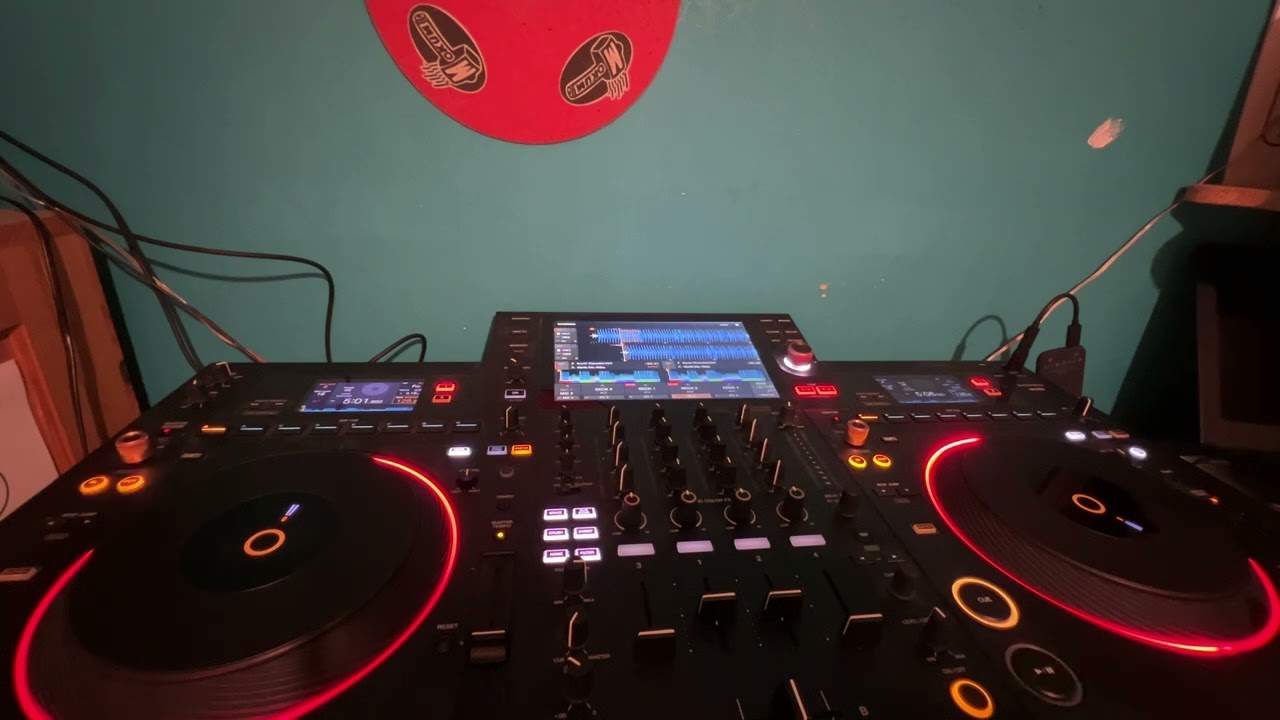
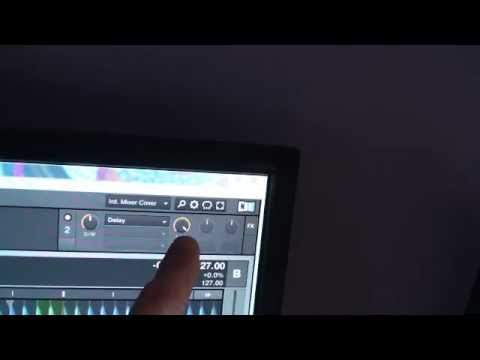
Alright guys, tutorial number three on the Mixtrack Pro from a company called Numark. In this video we're going to be having a look at the effects features on the controller and also the effects on the software. The software I'm using is Traktor LE. The functions we're looking at is the effect button there, also a dial with select above it and then the middle one you can see control and then control. So from right to left we have control, control, select and then the button is effect. Using those on the hardware and if we have a look over here on the software we have a small dial and we can see DW. That is short for Joystick. We have dry and wet. We have there delay, you can see at the moment that's the effect.
1:16 By turning that dial I can go from zero up to 100%
And then here we have another dial and we can see delay under there. What I'm going to do now is I'm going to turn the dial on the controller with the word select above it. And you should be able to see on the software we are going through from delay, flanger, reverb, no effect. Delay, flanger, reverb, no effect. All I'm doing is I'm moving the dial on the hardware and I can move that clockwise or counterclockwise however much I want. It won't stop and then I'll have to turn it around the other way and stop. It can continue moving in any way it wants to or I want it to indefinitely. There you go. Also, now if I go back to the software we can see we have D and W. Now, as you saw earlier on in the video we had the center dial with control on it.
By turning that dial I can go from zero up to 100%. But at the moment we can't hear anything because the gain and the volume are down on the hardware. Now next to the first of the control dials we have the next one. We have another one. Don't forget there are two control dials. Now I'm going to turn the control dial that is on the far right. And we can now see that we're using, we're moving should I say sorry, the software. And we can see we're going through 4 over 4, 3 over 8, 1 over quarter, 1 over 4 sorry and so on. What I'm going to do now is I'm going to put the master gain up. And on this channel up. We can now hear that beat. At the moment we've just got a loop. Now if we have a listen, I'm going to select the flanger.
3:23 Them as precisely and concisely as
I'm going to move the center dial control and I'm going to move the control dial on the right hand side. If you listen we can hear no difference whatsoever. Just going to bring the volume down again. The idea of videos like this by the way are trying to explain them as precisely and concisely as possible. So it's easily found out, all the information is found out by anyone and everybody. What I'm going to do now is press this button here with effect. Press that. If we go back up and have a look at the software. We can now see that flanger is on. I'm going to turn up the center slider on. The controller with master gain. And now turn up the slider on the right hand side with our loop. What I'm going to do now is turn the dial, the center one with control.
And now we can start to hear that effect. That's because we've engaged that effect by pressing the button with effect on it on the controller. So if we move down to the dials you can see exactly what I was doing. While we were looking at the screen. Now at any point if I select a new effect this is what will happen. Not only has the light stopped shining around the effect but also we do not have anymore effect. That is because as soon as you select a new effect, the effect you were using is disengaged and now you get no effect at all. So we can now choose another effect maybe go for delay. Press the effect and now we have that effect. Again I'm going to turn the two control dials. Center one here, far right here.
Also if you look at the software if I press the effect button I can turn the effect off. So there's two ways of turning the effect off. One is to change the effect. And the other one is to press the effect button here. Demonstration, tutorial on using the effects. Mix Track Pro from Numark. Practice and enjoy. Thank you.
This transcript was produced automatically from the audio of the video and may contain mistakes.