 7:23
Numark NV SLICER demonstration and explanation tutorial
Contents of the video
0:00 We're rocking the Newmark NV here
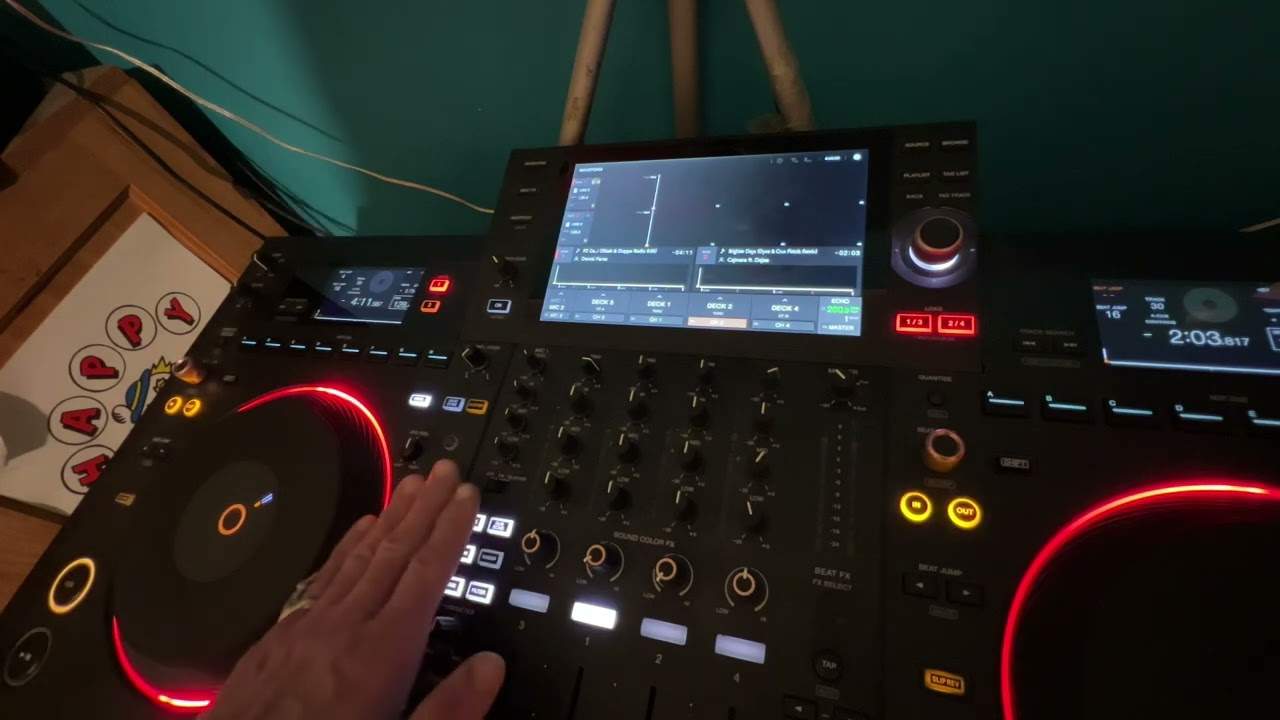
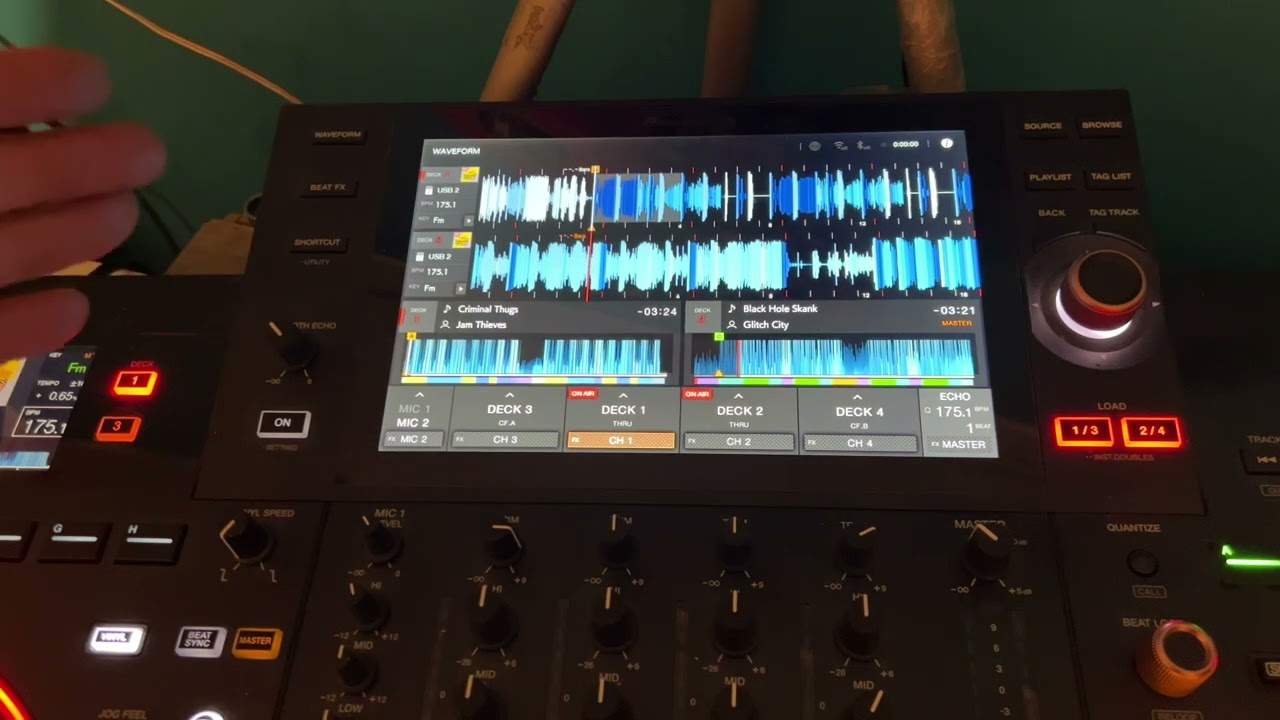
Alright ladies and gentlemen, we're rocking the Newmark NV here. We've also got Serato DJ. The track I'm using is from Karmic Power Records, Josh Love, Save Me. It's the original mix. Check out all the links in the description to the Newmark NV, to Serato DJ and also Karmic Power Records. In this video, we're looking at the slicer effect. I'm going to talk in great detail for Partially Excited, explain how the slicer effect works, what it does and how it works in relation to the program as well. So I'm going to press play pause on the Newmark NV. Let's have a look now at the program itself. Now if we have a look, first of all, let's just press play again. What's happening is all of the waveforms...
...seems to be moving in bars. It's sort of moving in two bars, so it's stuck and moves again, stuck there and it's moved again. Alright, also if you have a closer look, you can just about see this area here is highlighted in red, but inside that highlighted area is a small area that's highlighted even in a darker red. If we have a look at that highlighted area and we count the beats, we can see 1, 2, 3, 4, 5, 6, 7, 8. So we have eight beats that are highlighted in red, but one of them is highlighted even more and when I press play, what happens is that one that's highlighted seems to move along inside these eight beats and as soon as we get to the last beat in that two bars, then we have the next group of two bars light up following as the music, or should I say, as the music plays.
1:46 Newmark Envy
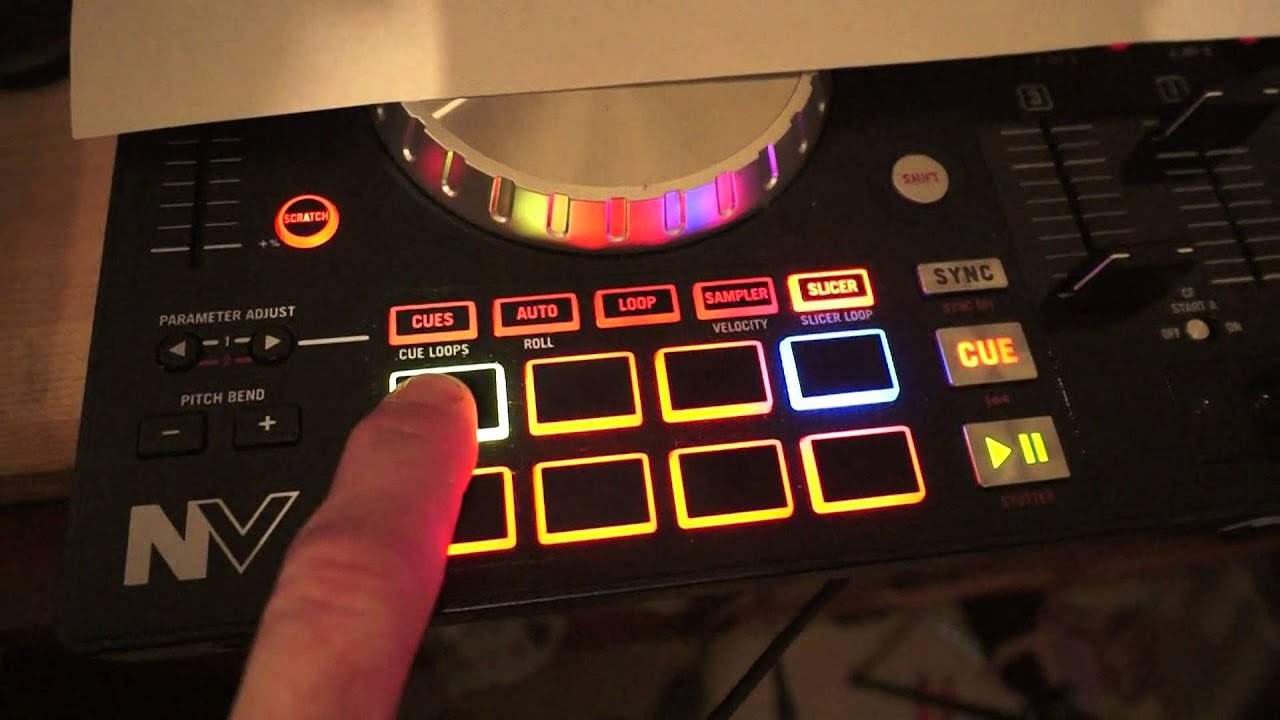
We have two bars highlighted and in turn, we have one of those beats highlighted in those two bars. Now let's have a look at the Newmark Envy. I'm going to press play. Now we can see we've got eight pads. We have the slicer engaged and while the track is playing, one of those pads is highlighted in green while the others are in red. And we can see that... ...that green is highlighted. ...that green is highlighted. The green pad or the green LED seems to move along the eight pads in time with the track. Press play pause again. Okay, what we need to do here is we need to also, sorry not do, we need to look at the parameter adjust. We've got two buttons, one facing to the right, one facing to the left. The one facing to the left will cut, slice up even more the one beat.
I'll explain in slightly greater detail shortly. The one on the right will extend. The one on the right will extend that beat slightly. So let's have a look at this piece of paper here. Right, now let's imagine, okay, that we're just looking at number one. This is 1, 2, 3, 4, 5, 6, 7, 8. I've just got eight squares with numbers in them. Right, so if I press the parameter adjust, the button on the left hand side, what I'm going to be doing and say for example, I press this button here. What it will do, it will slice up this beat. But if I press the parameter adjust, the button on the left, it's going to slice up the beginning of the first beat. Now again, it depends on how many times I press the one on the button on the left.
It will slice up less or more. So let's just press play. Parameter adjust, the one on the left there. Let's press it again once. Nearly dropped the camera. Don't want to do that. 1, 2, 3, 4. So we can hear if there is a slight delay in the music, it's because I haven't got the program set up on my PC correctly. So I do apologize. It's not the MV. Don't worry about that. I'm going to press parameter adjust again, button on the left hand side. So we can hear the slicer is slicing up even more. It's a little bit like a chef in a kitchen. If you kick him up the ass and he's cutting cucumber. Well, he probably whacked you over the edge with a knife, but he's going to slice it a lot quicker. So I'm now going to press parameter adjust the button on the right hand side a few times there.
5:22 Break featu
One on the left, left again, left again, left again. Okay. So self-explanatory what's happening here is parameter adjust. Press it on the left and it decreases or should I say so? I'll start again. It decreases the amount of the slicer effect you get. If I press the one on the right, it decreases the amount of slice you get. But also what's happening is you have eight pads 1, 2, 3, 4, 5, 6, 7, 8 that will correspond to the eight beats here. So depending on which one of these you press, you will be able to slice up the corresponding beat on the program. All right now, I hope I've explained that. Again, it's all well and good using effects. But what I find if you know what's happening and you know how the effect works and you can understand how the effect works,
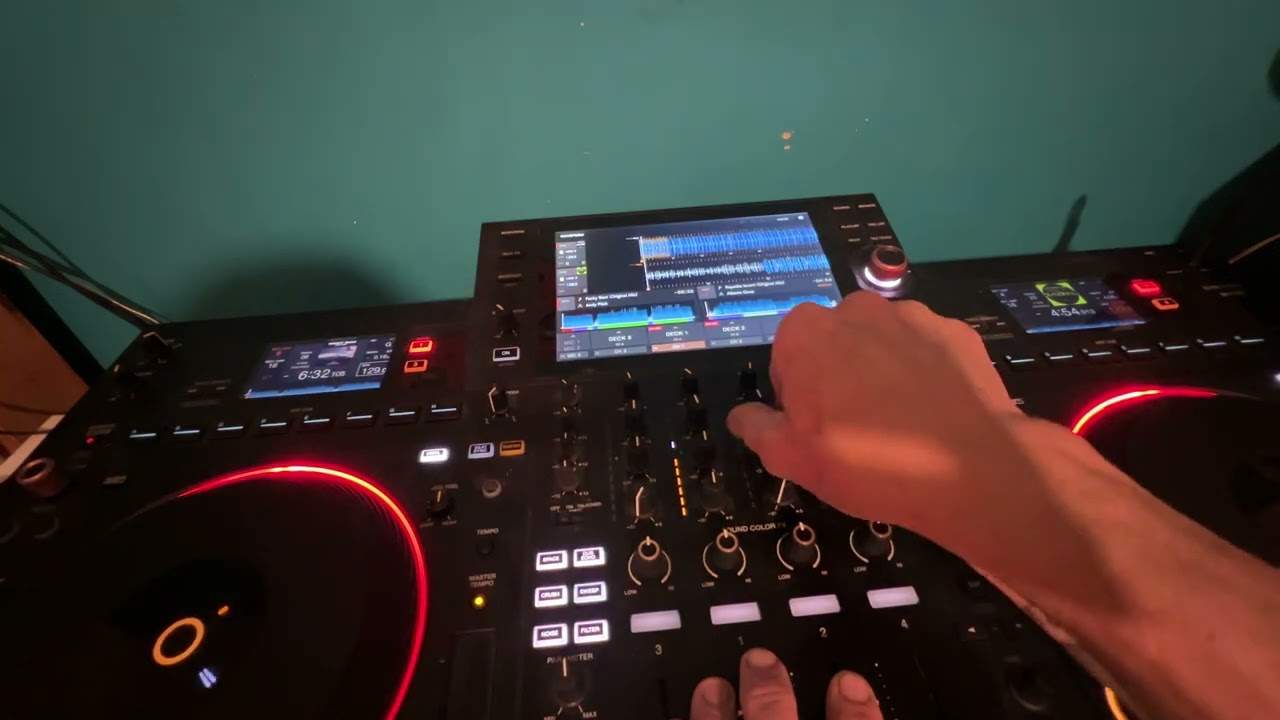
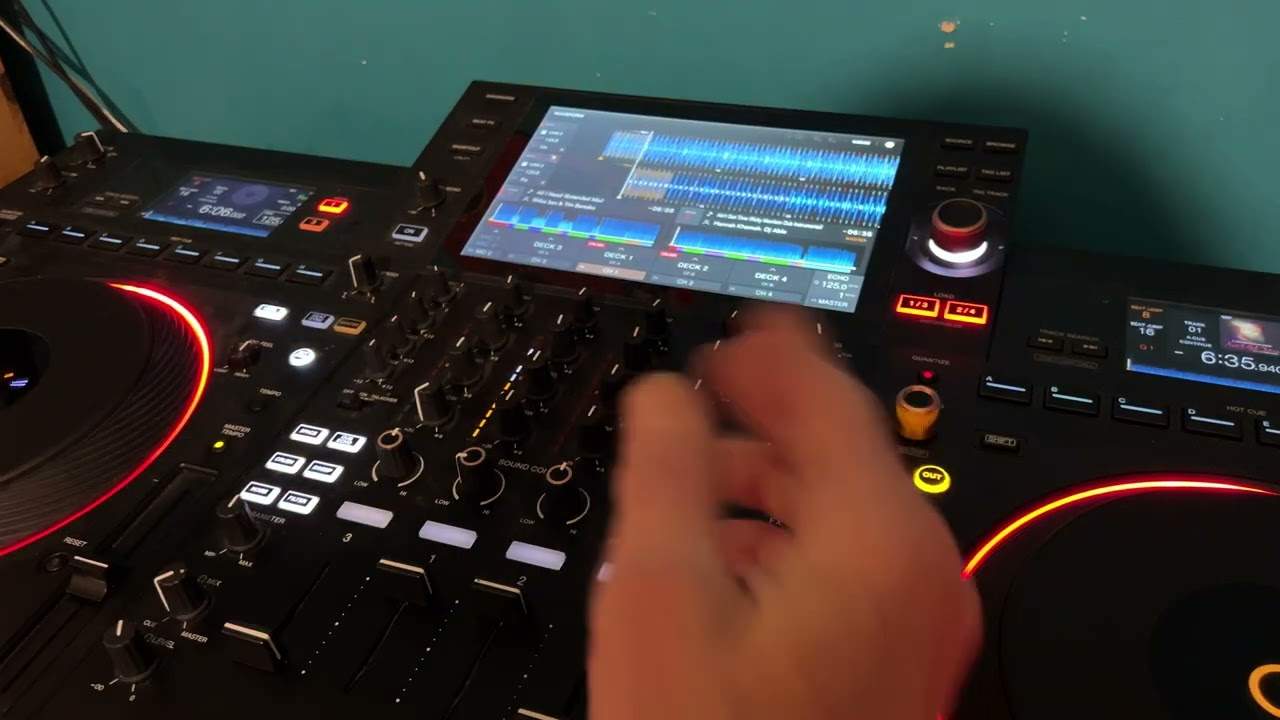
Then you're more likely to use the effect correctly instead of just pressing buttons and thinking, oh, that sounds really good when it probably sounds shit. So I'm going to press play again. Now we'll have a look at the break feature. All right. Now this is a great effect for just dropping the track out. And bringing it back in. So the break effect is engaged. I've turned this dial to 12 o'clock. Press Effect 1. We're going to move that now to 9 o'clock. So what I'm doing, I'm pressing the Effects 1 button in time with the track. 3, 4, 1, 2, 3, 4. Move it to 12 o'clock. 3, 4, 1, 2, 3, 4. 1, 3, 4. 1, 1, 4. 2, 3, 4. 1, 2, 3, 4. 1, 2, 3, 4. 1, 2, 3, 4. 2, 3, 4. And you can see as well the track's still playing so you're never going to lose a beat.
All right. I hope that's been a help and you try explaining things in great detail. It is... It's not difficult but let's say it's hard. Okay. We're rocking the new Mark MV. A big shout out to Mr. Carl Detkin of course and thank you very much for watching. Go and check it out. We're using the Serato DJ. Big shout out to Mr... Hold on. Save me. Josh Love. All right? Karmic Power Records if you love this kind of music. Practice and enjoy. Thank you.
This transcript was produced automatically from the audio of the video and may contain mistakes.