 7:23
Numark NV Tutorial Using Deck 1 and 3 with Hot Cues on Serato DJ
Contents of the video
0:00 We're rocking the Newmark Envy and Serato DJ
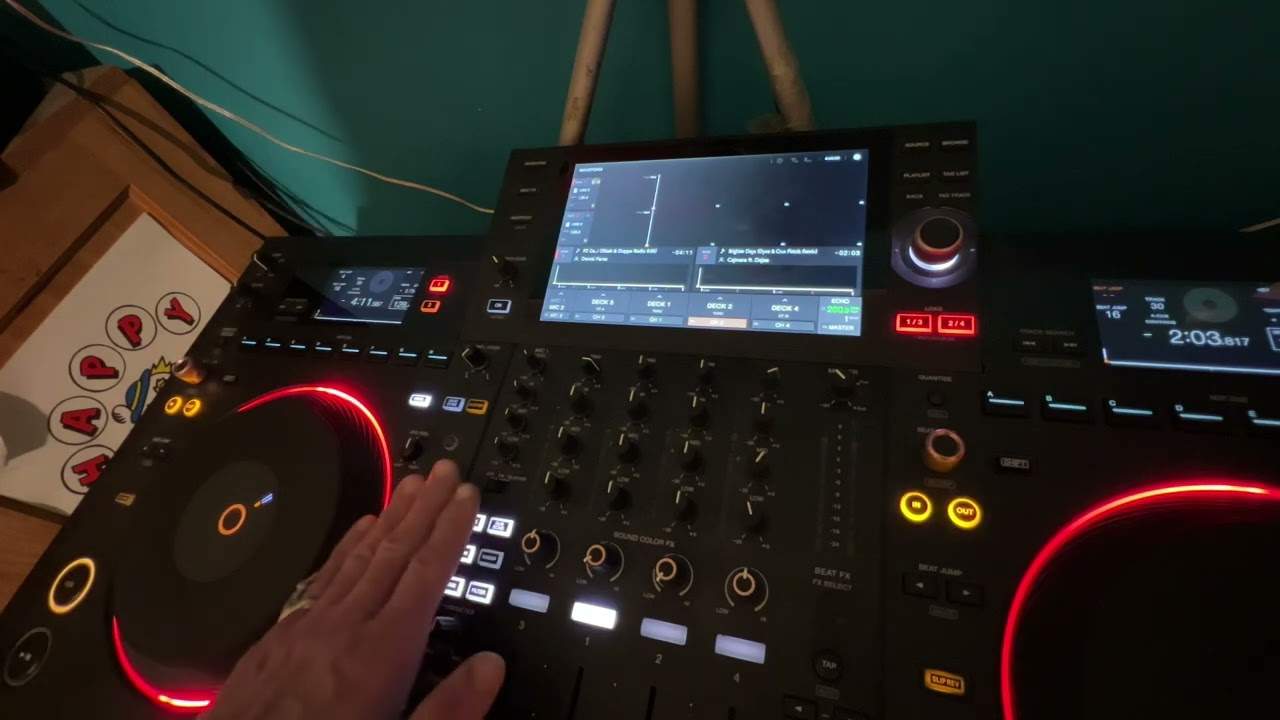
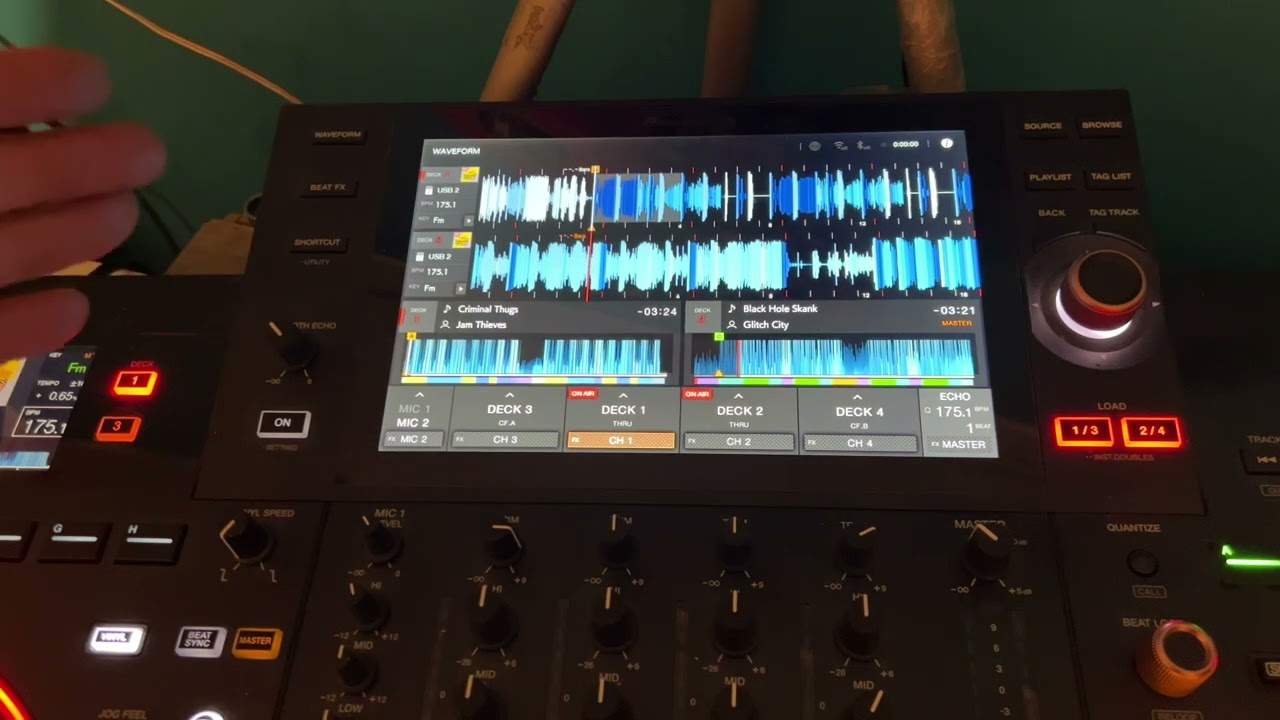
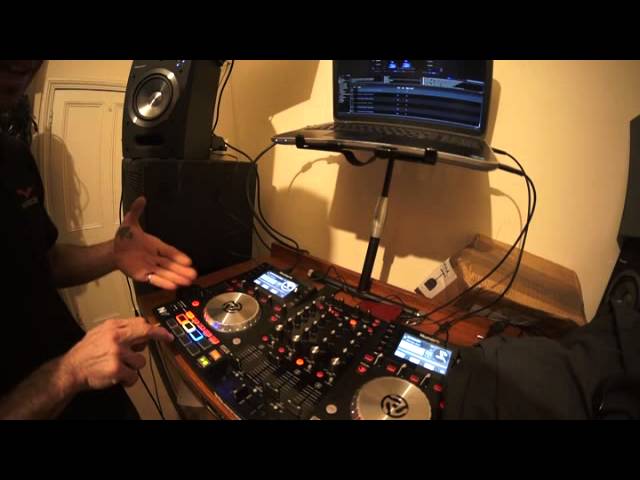
Right ladies and gentlemen, we're rocking the Newmark Envy and Serato DJ. What I'm going to show you here is how to add some samples over a track that's playing. What we're going to use is deck 3 and deck 1. Deck 3 is the first channel on the left hand side next to deck 1. From deck 1 we've got deck 2, then deck 2 we have deck 4. So, what we need to do, we need to layer the tracks or layer the actual mixer. What do I mean by layer? I'll show you. Well, top left hand corner of the Newmark Envy on the left hand side of the Envy. Top left hand corner where you have the control panel, you've got the screen there. So we have deck, range, tap, adjust and sync. What I'm going to concentrate on is the deck. Now, when I press that, I go from deck 3 to deck number 1.
At the moment we've got deck 3. This one here is Holler if you hear me. Just bring that down. Now, by pressing this button here with deck, that means that I can pretty much change all the functionality from this one side of the deck, from this one side of the deck to this other side of the deck. From deck 3 to deck number 1. So I've pressed deck, the deck button, and now I'm on channel 1, or deck number 1 should I say, channel 1 here. So all of the functions here now are for this slider here, slider number 1. If I press deck again, all of the functions now are for this one here. So, do that. We can hear there's a deck. Definite change in the track. Press that, the deck, and now I'm not making any effect on the track at all because I've gone from deck 1 to deck 3.
OK, let's just go to deck 1, have a listen. We're on deck 1.
OK, a couple of things here that I'd like to explain. In a way it's a demonstration on two parts. One is showing you how to go from deck 1 to deck 3. The other one is how... Now you can add samples from, say, one track over the other one. So let's go to deck 3.
I've got the volume up on deck 2.
3:03 You can see I'm adding the samples
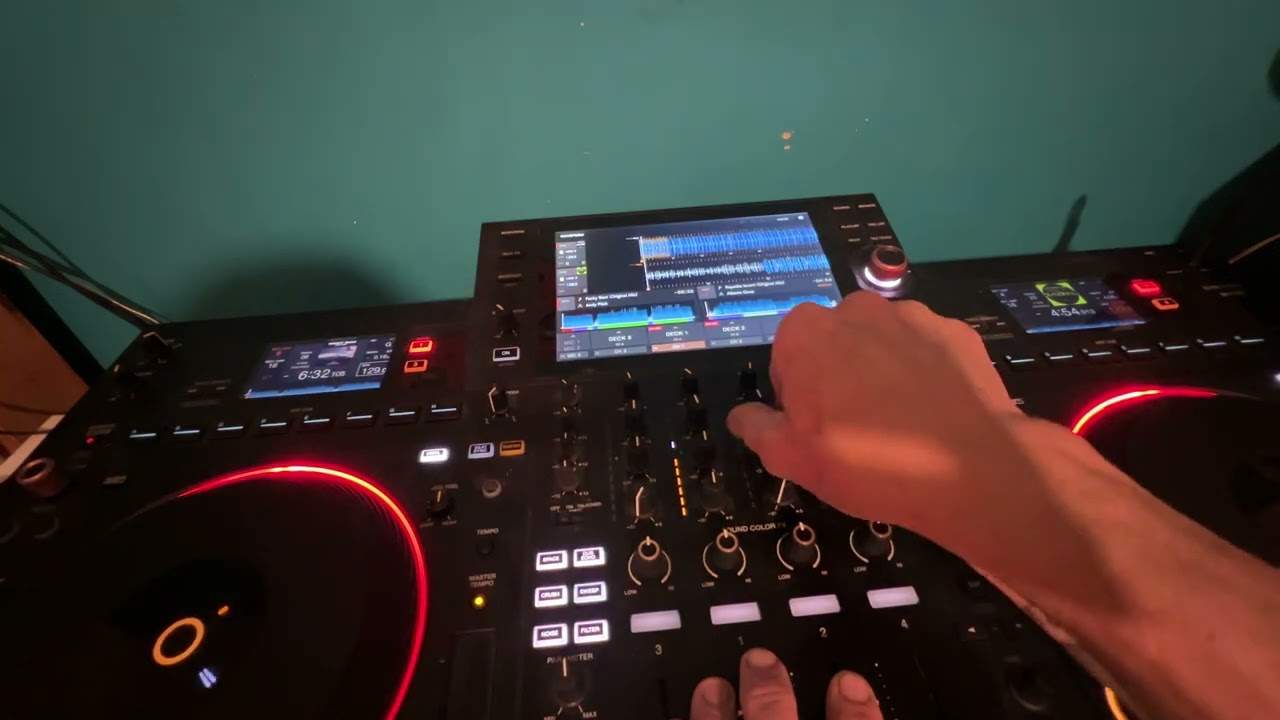
OK, you can see I'm adding the samples. What I've done there is I set cue points on the other track. I'll explain how I did that in a second. Also we can add the beat from the first track as well.
4:06 I'm going to get rid of these things and I've got thre
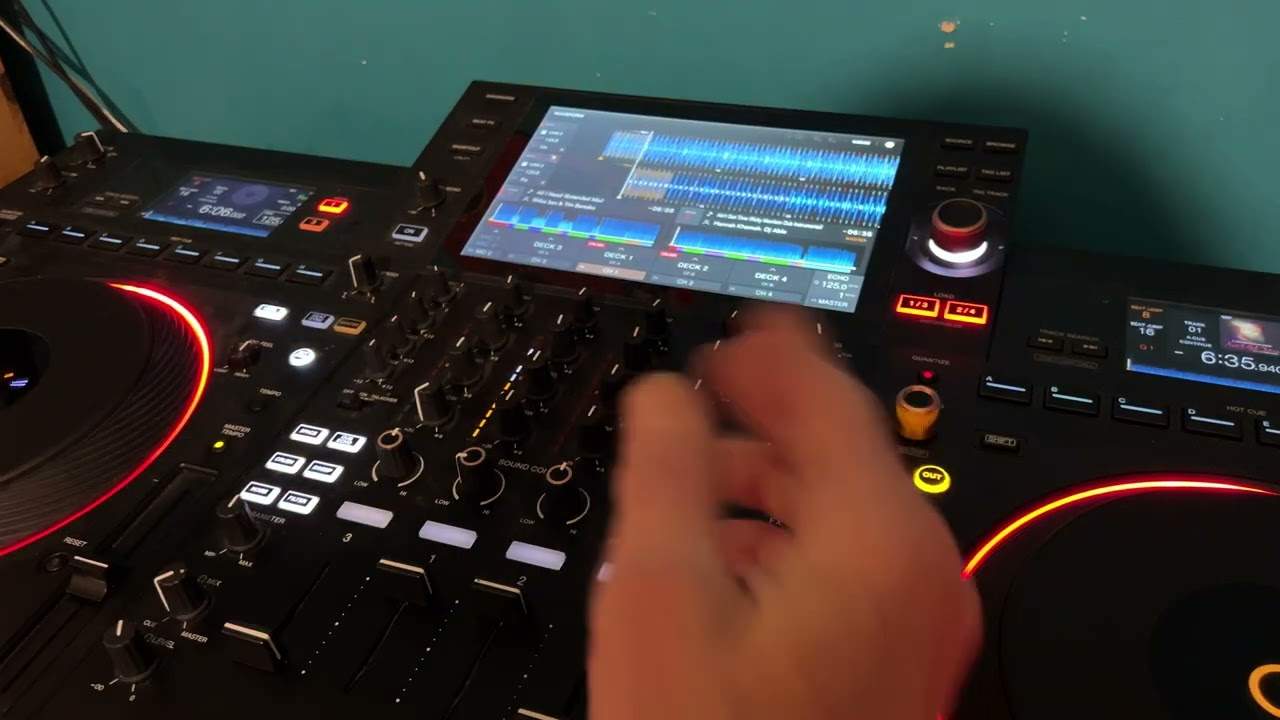
Now also, because I set cue points what that means is that I can bring these in any time. Well, it's a bit like using a keyboard. If I wanted to let the track play or the cue point play then what I'd have to do is press play pause while I've got my finger on one of these pads. So I'll give you a demonstration there. We'll put that up. Have a listen. You can see it's just playing a tiny part of the track or it's playing the track as long as I've got my finger on the cue. Or one of, sorry, one of these pads here. But if I then press play pause like that then it'll carry on playing. Just going to cue that up again, try it with another one. Press this again but while I'm pressing it I'm going to press play pause
And it carries on playing. OK, so you can have a lot of fun. Alright, these two tracks aren't exactly the best ones to use together but it gives you an idea of what you can do. So I'm going to get rid of these things and I've got three hot cues now and I can do that by pressing the shift button. While my finger is pressing down on the shift button I then need to press the relevant cue points that I set. So let's just do another cue point, let's press play. So we'll do one, two, three, four one, two, three, four one, two, three, four one, two Cue that up and again while the Newmark MV is in cue mode I'm going to press the cue points here that I've set. It will only play the cue points for as long as I have my finger on that cue point.
That's really important because you may think, yeah let's play it and all of a sudden you're halfway through the set you're just about to drop a track and you're like why isn't it playing? It's because you haven't pressed play pause. So if in doubt there, play pause, bang away you go. OK we'll cue that up again, let's go back to three. Bring it out and away we go.
I think you get the idea. There you go, I hope that's been a help. There will be quite a few videos on the Newmark MV over the next couple of days hopefully. Again it depends on time for me but I'm using video as well so you can see the video is plugged in there and I hope that's a help. If you want any info on the Newmark MV or for that matter Serato DJ I'll put two links in the description one to a direct link to the Newmark MV itself and also to Serato DJ software. Thank you for watching. There's Serato, practice and enjoy thank you.
This transcript was produced automatically from the audio of the video and may contain mistakes.