 7:11
Pioneer DDJ-1000 Beat FX and Hot Cues with rekordbox Demonstration
Contents of the video
0:00 We've also got the rekordbox software, both from Pioneer
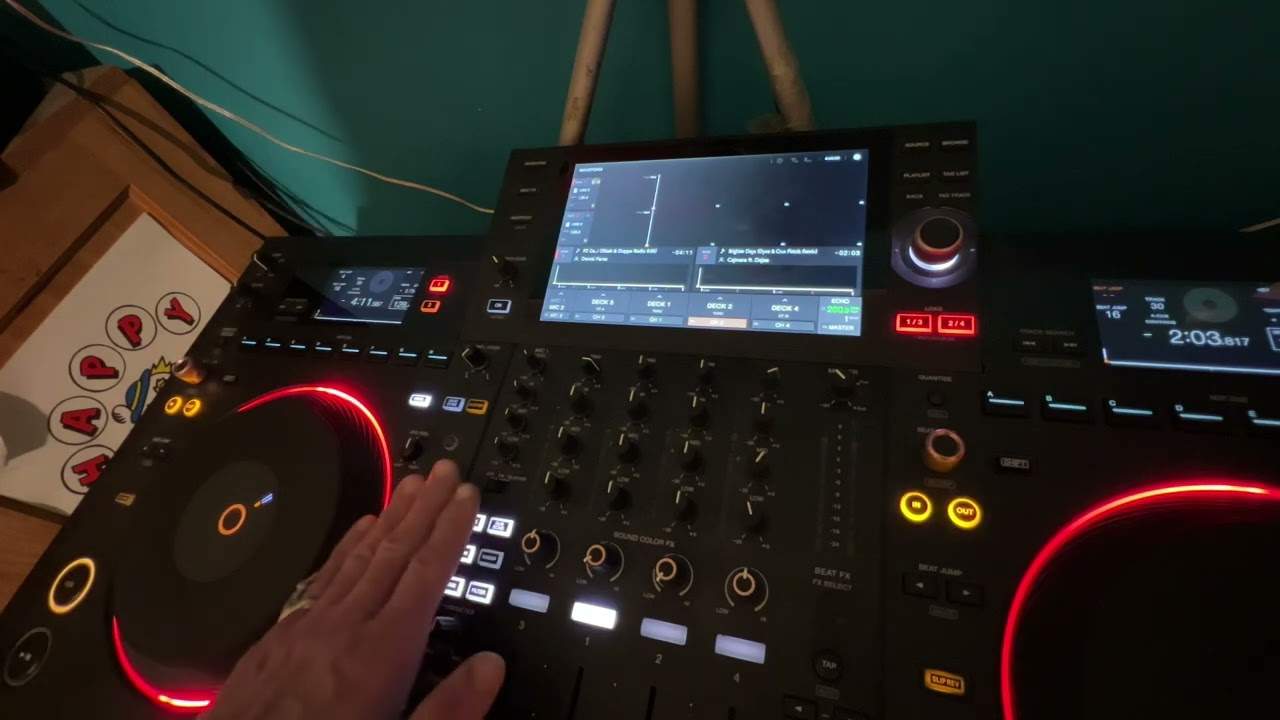
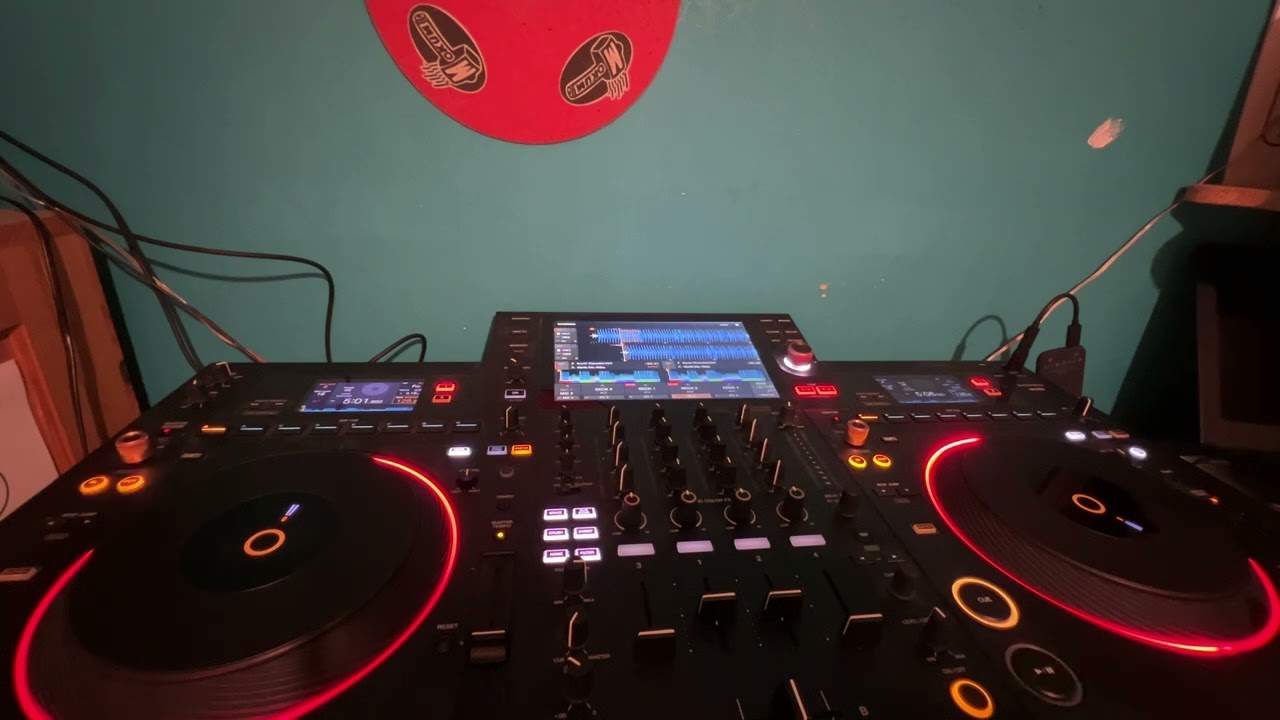
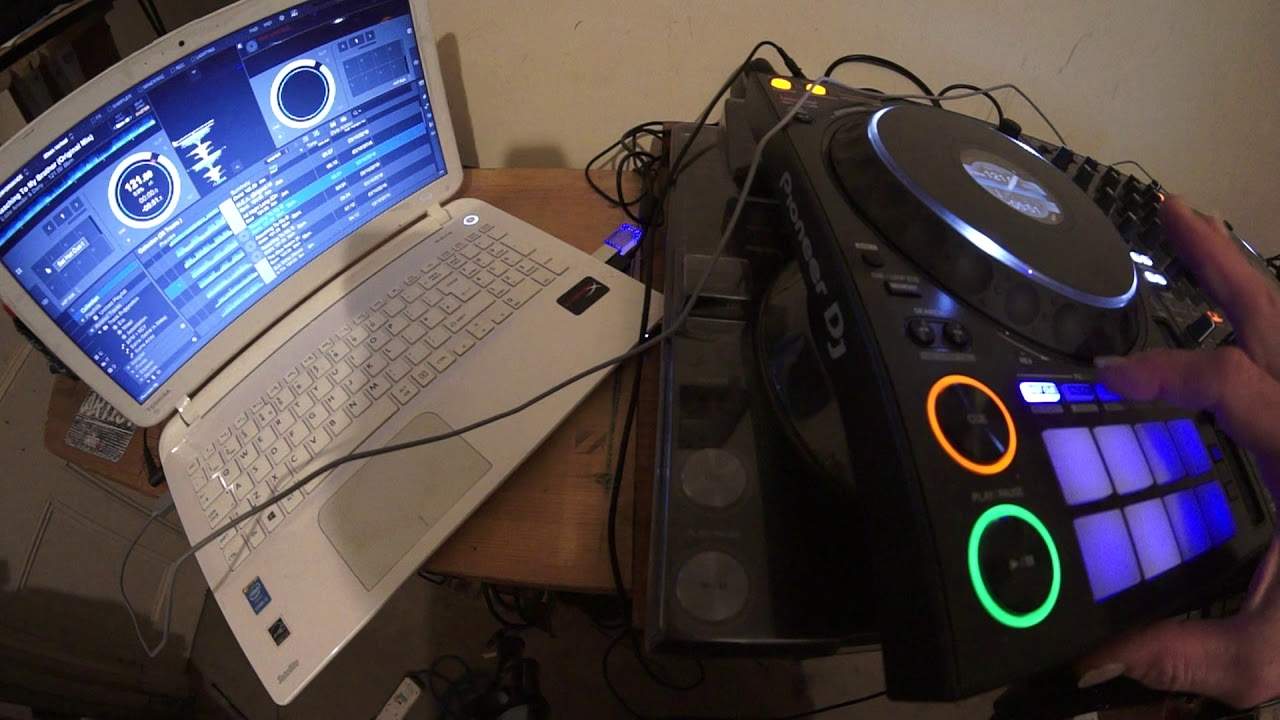
In this video we're looking at the DDJ-1000. We've also got the rekordbox software, both from Pioneer. The tune I'm using is Reaching to My Brother from Karmic Power Records. There will be a link in the description. I'm going to be looking at the hot cue feature and also the pad effects 1 feature, simply because there's more to it than meets the eye. Now, I'm using a fisheye lens. I'm just going to bring it back very slightly. There you go. So hopefully you'll be able to see the software as well as the hardware. A good idea would be to maybe watch this video in full screen. If you're on a mobile phone, it may be a little bit difficult in view of the small screen. Now, let's go to hot cues. OK, so on the DDJ-1000 we have 1, 2, 3, 4, 5, 6, 7, 8 pads.
So that's 8 hot cues. Well, no it isn't because you can have another page of hot cues. OK, but how do we do that? So let's just play the tune to begin with and let's just do some random sort of hot cues. Skip it forward a bit. Skip it forward a bit more. Another one there. Another one there and so on. OK, cue that up. Now we've got 8 hot cues.
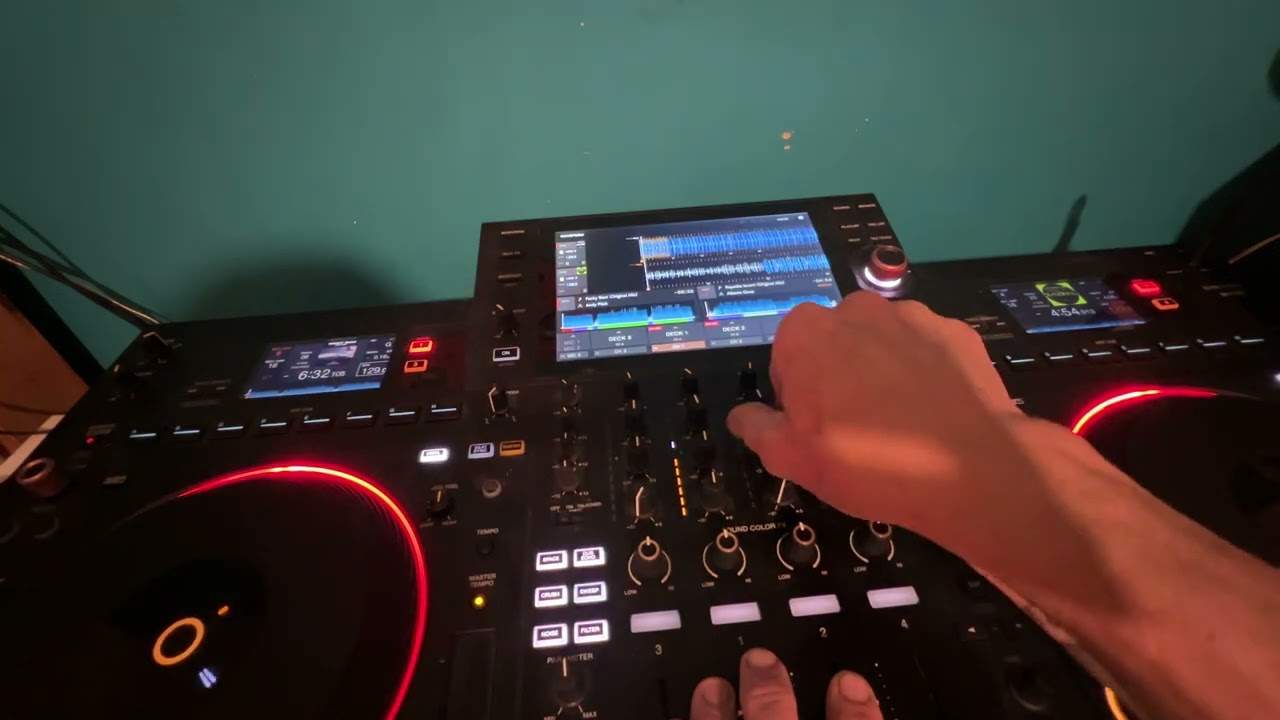
Alright, so... We have the hot cue icon. We have pad effects 1 beat jump sampler. Next to that we've got page with two arrows, one facing to the right, one facing to the left. I'm going to press the one facing to the right. Oh sorry, to the left. I beg your pardon. And now the hot cues that we had have somehow disappeared. The pads are now back to the original color. That's because we're on a new page and now we can assign 8 extra. 8 extra. 8 extra. 8 extra. Hot cues. So let's press play, skip it forward and let's do 8 more.
In fact what I'm going to do is... Hold on. Let's just skip it forward a bit. There. Skip it forward a bit more. There. There's a reason for me doing this now you'll see. There. There. There. There.
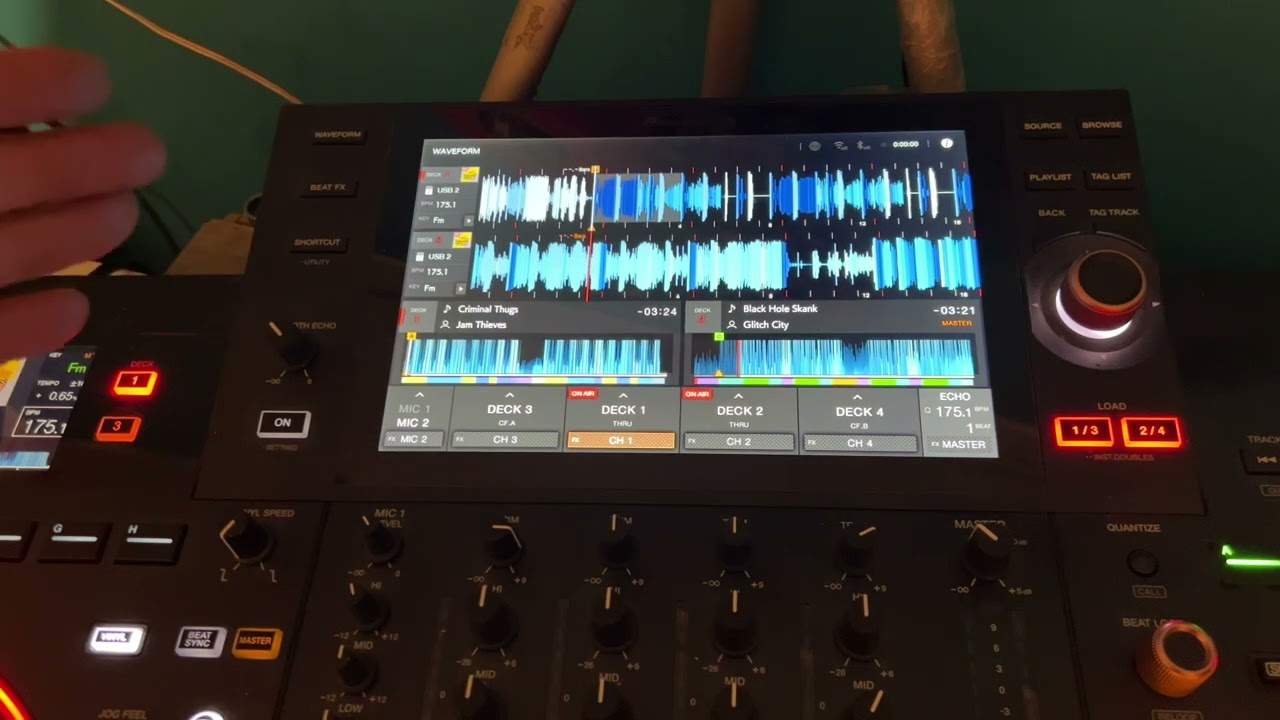
And there. OK. So. If you can see on the software now, we have yellow icons and green. There are more green icons than yellow. That's because when I was setting the hot cues they were very close together. So first of all what we can see is we can see different colors, green and yellow. Of course that's associated with the different pages. So if we need to go back to the original hot cues, we press the right hand button and now we're back to the original hot cues that we set.
3:00 The original hot cues that you've made
The left page button and now we are to the second lot of hot cues that we've set.
Now like with pretty much every single controller out there, if you don't want to use those hot cues or you made a mistake, the easy way of getting rid of one or all of the hot cues is press shift while your finger is on shift, press the pads and that will delete. The original hot cues that you've made. So we'll delete all of those there they've gone. All right, now let's have a look at the pad effects one. OK, so let's concentrate really now more on the software. So I'm just going to try and get a little bit closer there. OK, so if you can see this area here now, this shows me that on the first page we have delay, we have slip, delay, slip, delay, filter, revamp. VBR, I'm not sure exactly what that is.
4:12 Below here we've got the small little wheel icon
Do apologize and also we have the parameter, we have the timing of that. So one over one, one over four and so on. And that's by the way, I do apologize. I've got hay fever or something at the moment. Allergies. There you go. All right, so let's imagine we want to change one of the effects on one of the pads. How do we do it now? Below here we've got the small little wheel icon. And I'm sure by now you're familiar with that it comes with practically every single software. You click that and that can change certain angles on the complete software if you're going to click the wheel on the top of the search bar, I'm pretty sure with most softwares, whether it be Serato, Traktor, Rekordbox, Virtual DJ, you've got the wheel to change inside the
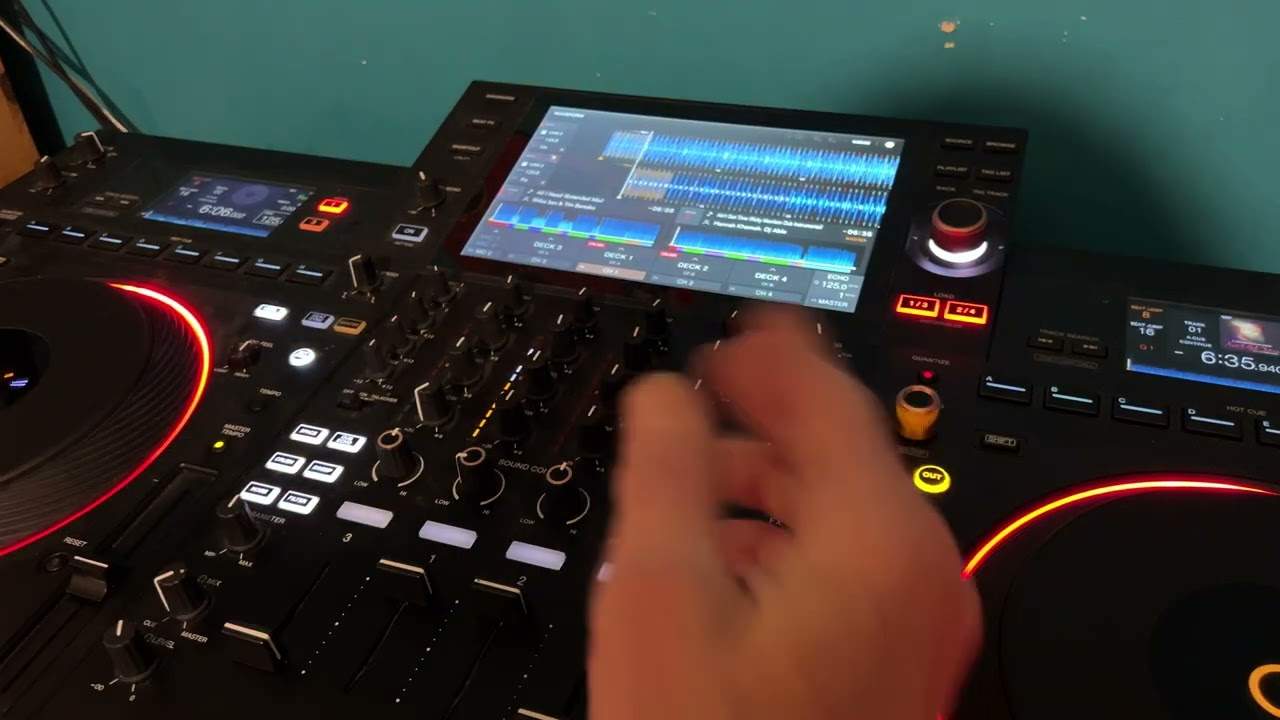
Complete software, whereas here we have the small wheel. Where we can change the effects. So I'm going to click on that and now we have delay, slip loop, delay, slip loop, delay, filter, reverb, V break, trans crush and so on. So what I'm going to do, I'm going to click on delay. Now we've got beat effects and this is where we are on the beat effects and now I can change to any of these effects. So up echo empty delay reverse. Roll roll, slip roll, robot phaser, flanger filter, trans reverb, spiral and so on. Let's just get a spiral and now we can see that that's on spiral. So if I click the wheel again, now the first pad is on spiral. So I'm allowed to change any of those pads to any effect I want to.
Bearing in mind though, it's not just eight pads. We're back to exactly the same with a hot cue. We can change all of the, well we can change 16. So again if I press play filter reverb now let's go to page wrong one there and now we're on a completely new set of effects, dub echo.
Okay, there you go. So if I was to put this video in a nutshell, very simple eight pads, you have different pages so you can. Set hot cues on one group of pads, go to a new page, set new hot cues on another page exactly the same with the pad effects one. I hope that's been a help practice and enjoy thank you very much.
This transcript was produced automatically from the audio of the video and may contain mistakes.