 4:08
Pioneer DDJ Ergo Auto Loop Function Demonstration
Contents of the video
0:01 Dial, clockwise move, find
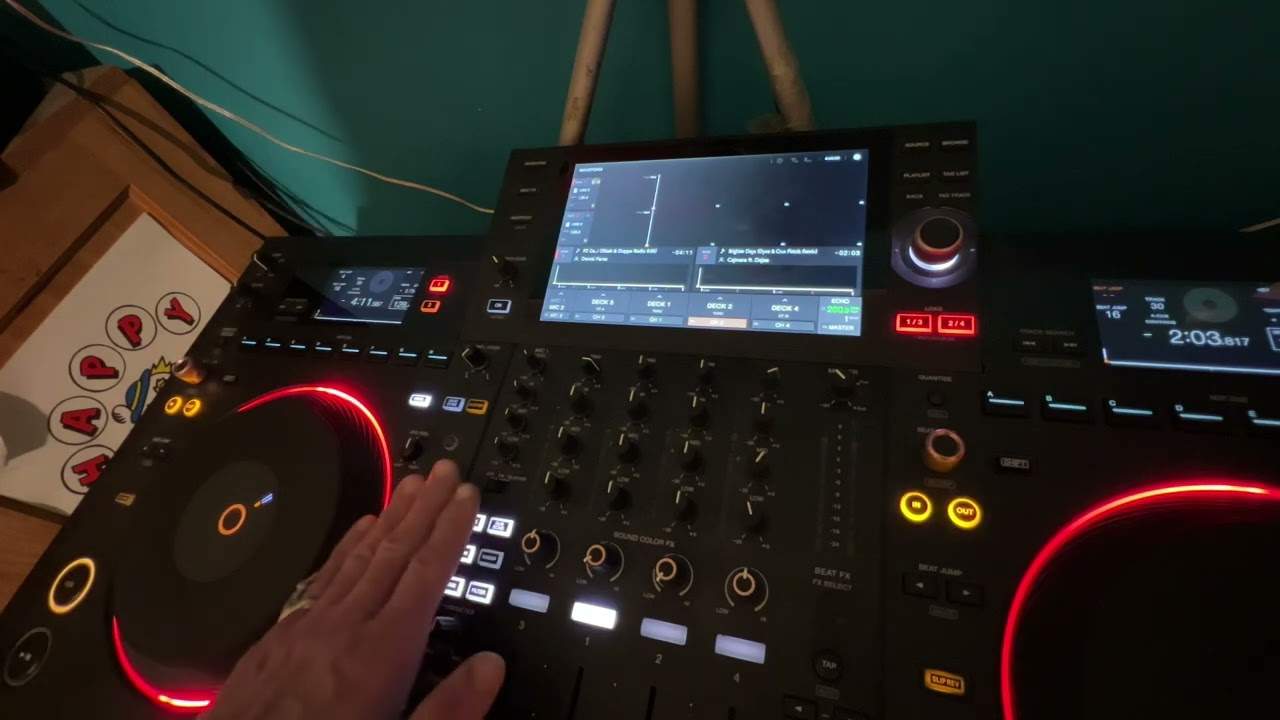
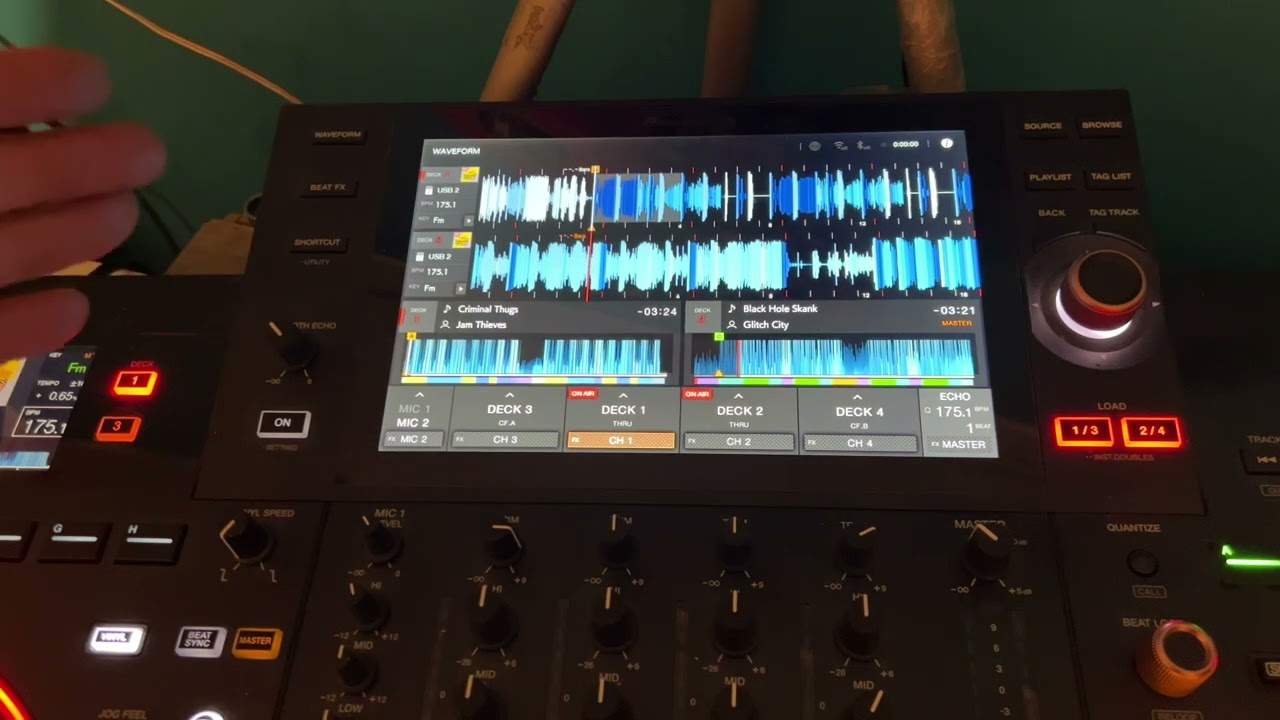
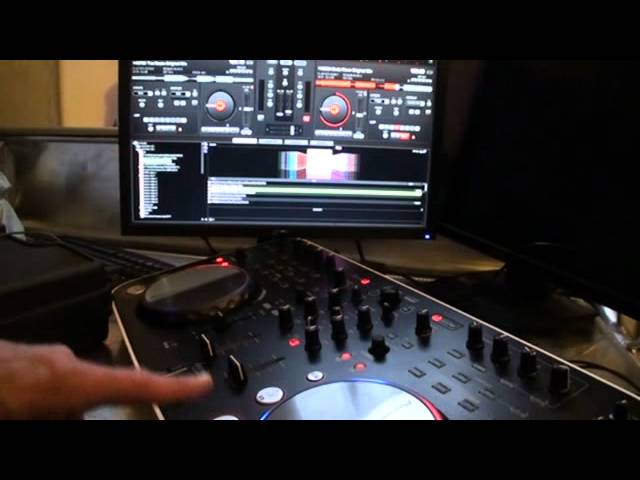
Alright guys, in this video we're looking at the DDJ Ergo DJ controller from Pioneer and also VirtualDJ software. I'm going to be explaining this in rather more great detail for the visually impaired. Alright guys, in this video we're looking at the Autoloop dial and it's also, well it's a dial but you can also press it so it's a button as well. You will find that if you put your hand on the platter of the controller, either the right hand or the left hand platter, you will find it roughly 2 inches 11 o'clock from the platter and that's where you'll find the dial. What I'm going to do now, I'm going to start to turn this dial and what you will find... What you can see first of all is you will have highlighted on the screen next to loop, you'll have 1 which is one beat, then 2 as you move the dial clockwise and then 4 as you move it clockwise, 8 as you move it clockwise, 16 and 32.
As you move it anti-clockwise then it will go from 32, 16, 8, 4, 2, 1 and it'll go into a half beat. We can't see that on... The screen but if we have a look at the wave format at the top, you can see that the small highlighted area here is getting smaller and smaller. It's actually reducing in size but we can increase it as well. Now that's when that guy becomes a dial. But what we can do is this, let me just play the music. The tune by the way I'm using is Body Move, it's the original mix. I'm going to press play.
1:45 We've got that set to 4 beats
Now at the moment... We've got that set to 4 beats. If we have a listen, 1, 2, 3, 4, 1, 2, 3, 4. Now if I turn this clockwise, we go to 8. Now we've got that on 8 beats which is 2 bars.
Clockwise again, we can get a 16. Clockwise again, 32. Anti-clockwise, we can run down, 4, 2... Now 1, again... Half. If I press down, we get out of that loop. Now that's where the button part of this particular function comes in handy.
Now at any time now, I can move the dial clockwise or anti-clockwise and I can see now that I'm on for example 2 or 4 or 8. If at any point I want to form that loop on 2 beats, press down and now I've got 2 beats. 1 beat.
3:01 What I'm doing there, when I'm pressing down, I'm counting 1
Have a listen... 1, 2, 3, 4, 5. 1, 2, 3, 4, 5. What I'm doing there, when I'm pressing down, I'm counting 1. So at the point when I press down, I count 1. 1, 2, 3, 4, 5. What I'm doing is I'm pressing 1, 2, 3, 4, press. And again... 1, 2, 3, 4, press. What we're doing there is we're enabling the time signature to keep on going. Have a listen... 1, 2, 3, 4, 1. 1, 2, 3, 4, press. And again... Press, 2, 3, 4, press. Press, 2, 3, 4, press. Press, 2, 3, 4, press. Also we can set the loops manually by pressing in and out.
We press the out and we go out to the loop. Hope that's been a help. Practice and enjoy. Thank you.
This transcript was produced automatically from the audio of the video and may contain mistakes.