 7:17
A controller and its software, for a first-timer
On YouTube this video is called Pioneer DDJ--RB and rekordbox for the New Beginner DJ
What this lesson teaches
A look at Pioneer's entry-level controller of the time, the DDJ-RB, with rekordbox. The specific model matters less than the three ideas in it, all of which apply to anything in this class.
Bus-powered, and what that costs you
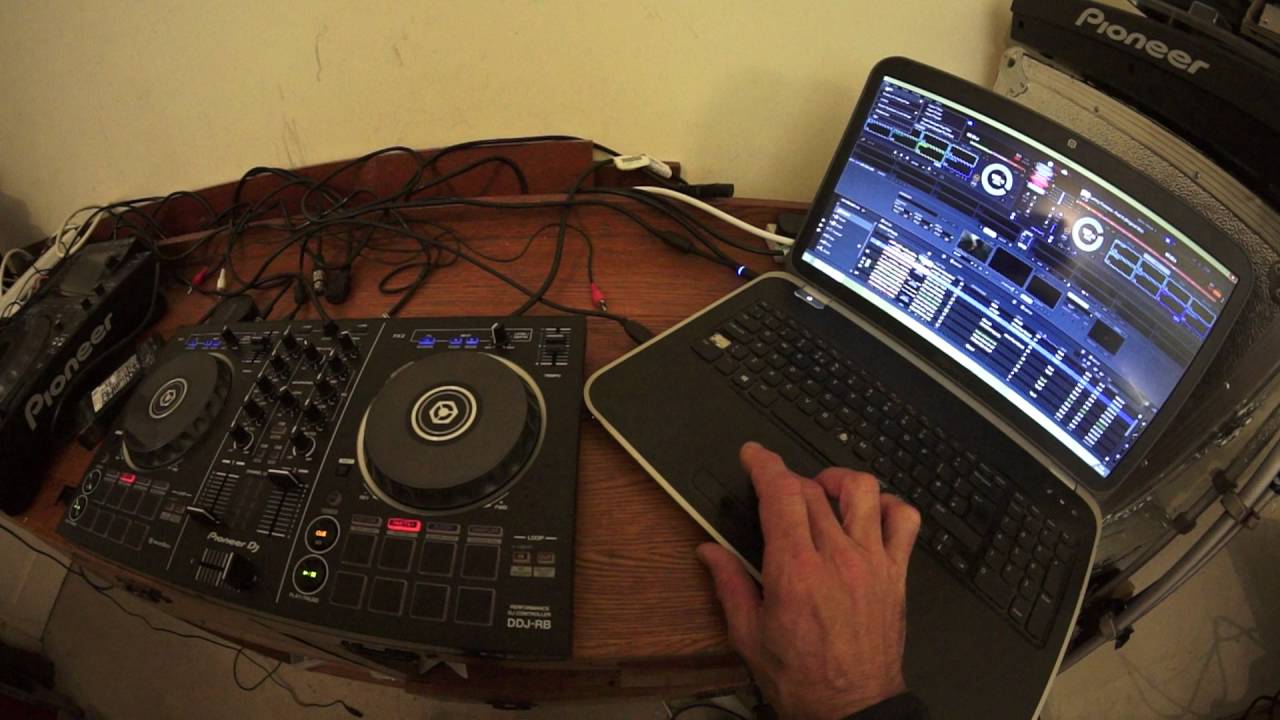
The controller takes its power from the laptop over the USB cable. No separate power supply, which is why it is light and cheap and travels well.
The consequences are real and he states both. At a friend's house, your laptop battery is now running a piece of hardware as well as itself, so it will not last the way you expect - take the charger. At a gig, plug the laptop into the mains before you start, not when you notice you are at ten per cent and have to go hunting for a socket behind a speaker stack mid-set.
Importing, and why the music is not just there
The software does not see your hard disk. It has a library - a database of tracks it has been told about - and the controller can only browse what is in it.
So: File, then Import, then Track or Folder, and point it at your music. Folder is the one you want for a collection; track for a single new download.
This trips up everyone once, and it is worth understanding rather than memorising: the library holds the analysis too - the waveform, the beat grid, the cue points - which is why the software needs to know about a track before it can do anything clever with it.
Hot cues
The eight pads under each platter. Press one while the track plays and it stores that exact point, and lights up. Press it again, from anywhere, and you jump straight back.
To clear one: hold shift and press the pad.
That is the whole mechanism, and it turns a track into something you can enter at any of eight points rather than one.
Pad FX, and the idea that makes them work
The top four pads chop the track into repeating slices - a sixteenth of a beat, an eighth, half a beat, a whole beat - which is the stutter effect you hear constantly in modern sets.
The important part is slip mode, which is on by default here. With slip engaged, the track carries on playing underneath while you are mangling it. Let go, and you land exactly where you would have been if you had never touched it.
Without slip, you come out of the effect wherever the chopping left you - which is to say, out of time, in front of people. Slip mode is what makes these pads something you can use live rather than something you practise alone.
The lower four give slip roll, delay, a robot effect and a backspin.
The filter
He singles out the filter knob under the EQ as one of his favourite effects, and the reason is worth naming.
Almost every effect needs to be in time to sound deliberate. A filter does not. Sweeping the bass out of a track and bringing it back works on any record, at any point, with no tempo relationship at all - which makes it the one effect you can reach for when something needs saving.
Contents of the video
0:00 Pioneer DDJ-RB
Right guys, Jonathan here, The DJ Tutor, and in this video we're going to look at the Pioneer DDJ-RB. This video, by the way, is exclusive for Get In The Mix, which is based in Colchester and the United Kingdom. If you want any more information on Pioneer's, at the moment, September 2016, entry-level controller, the DDJ-RB, then check out the link to Get In The Mix where you can get info on the RB as well as all of the other products they sell. Now, the RB is bus-powered. What that means is that the power from the laptop is used to power the RB. Two points here. One is if you're going to say go over to a mate's house and you want to play with it for an hour or so and have a bit of a mix, then make sure your laptop is fully charged if you do not want to take the charger with you.
Alternatively, if you're going to use the DDJ-RB at a gig, I highly recommend that you plug the charger in. You don't want to plug the charger into your laptop because you do not want to go halfway through the gig and realise you've got 10% left and try and fanatically find your charger and plug it in and mess around. You don't want that hassle. Plug it in at the beginning of a gig, you're good to go. All right. Now, the DDJ-RB, at the moment, as I said, is Pioneer's entry-level controller. There may be other controllers that come out in the future that are slightly more cheaper, better, who knows? But at the moment, this is a very good controller for the price. Now, the DDJ-RB comes with software from Pioneer known as Rekordbox and it will come as standard.
2:25 Firstly, how to load up the DDJ-RB
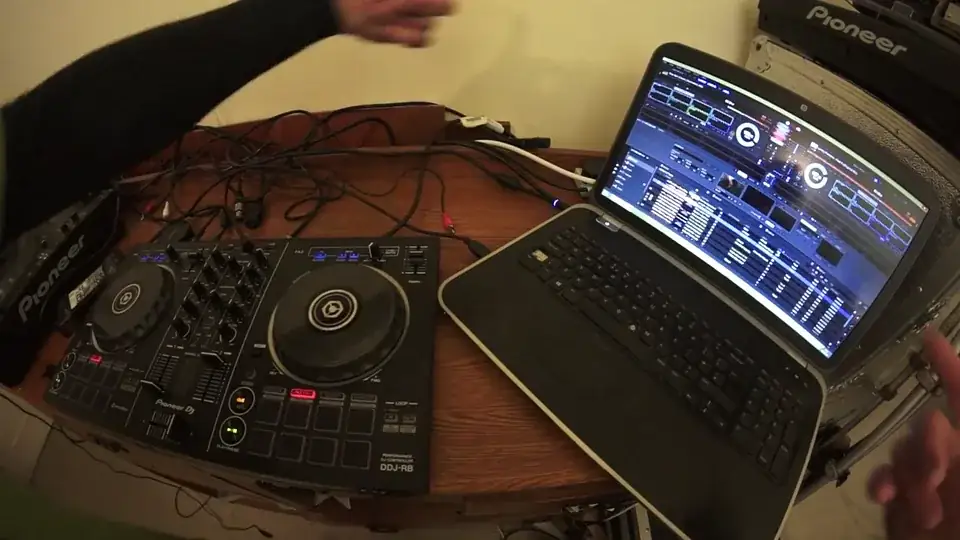
Now, on the screen at the moment, I have Pioneer's updated Rekordbox software which is their video mixing software. Now, if you do want to video mix, you will need to pay a little bit more but let's go back quite a few years. If you wanted to be a VJ, a Video DJ, you would have had to pay a lot of money. Nowadays, you can buy something as simple as the DDJ-RB which is very inexpensive. Update the Rekordbox software and buy video files and you're good to go as a Video Mixing DJ. And yes, Rekordbox can do video mixing. So, here we go. This is the DDJ-RB. In this video, I'm going to show you a couple of things. Firstly, how to load up the DDJ-RB. First, I'm going to import a track. Very simple. Top left-hand corner of the Rekordbox software, we have an icon called File.
What I'm going to do is scroll over that with the mouse and click down. Below that now, we have a word Import. I'm going to move over then to a new box that says Import Track or Folder. Now, I've got two options. I can import a track or I can import a folder. For this instance, I'm going to import a track. Click on that. Now, we're going inside the computer and now we have an option of or we have the option of finding the tracks so this is where you know your laptop. You know where the tracks are. You go and find them. OK, so I'm going to highlight over a track here. I'm going to click on it and now I'm going to click the Open icon and now that track would have been imported into the lower part of the Rekordbox software.
All I need to do now using the Arby is top center. Use this dial and as you can see on the program, I'm now scrolling up and down through the files. Once I've highlighted the track I want to play, I can now load it to the right hand deck or the left hand deck. In this case, I'm going to load it to the right hand deck. Press down. Press play. And we're good to go. We're now playing that track, by the way. This is a track from Mr. Lenny Fontana from Karmic Power Records. There will also be a link in the description to Karmic Power Records. OK, let's have a look at these pads here. Now below each of the turntables, the platters, we have one, two, three, four, five, six, seven, eight pads. In this video, we're going to look at the hot cues.
4:51 Pad effects one, two, three
So I'm going to press one of the hot cues there. What's happened is it set a cue point during the track. When so, for example, while the tracks playing when I press that hot cue, it will set a cue point at that precise point. And when I press that pad again, it will go back to that cue point. Now you'll notice it's highlighted in red. Now if I want to remove that hot cue, all I've got to do is press shift while my finger is pressed down on shift. I press the pad again and now we have taken away that hot cue. So I can press the pad again and now we have recorded a new hot cue there. Let's go to pad effects one, two, three and four. The top four pads now will slice up the track. The first one on the left hand side will slice at 1 16th of a beat.
The next one, 1 8th of a beat. The next one, half a beat and the next one, one beat. Now at the moment it's also in slip loop mode. What that means is that when you press either one of these pads, it will slice up the part of the track when you start to press. But the underlying track will carry on playing. Now below those four top pads, you have four underneath. Now at the moment, the one on the left is set to slip roll. The next one to delay, the next one to robot, which is quite a nice kind of grimy sort of effect. And the next one, the one on the right far right is backspin.
What you heard there was me using the backspin but also the filter, which is just below the low, mid and high. One of the I would say personally, one of the best effects of all time. OK. So that's it for this video. I hope you enjoyed it. If you did, please hit the like button and don't forget to subscribe to our site here. Video number one for getting a mix on the DDJ-RB. Check out more videos to come and I'll finish off with practice and enjoy. And a big shoutout to Karmic Power Records. Thank you very much.
This transcript was produced automatically from the audio of the video and may contain mistakes.
This video is part of
Related videos
-
Complete Beginner DJ Lessons Tags Key BPM Etc
A more advanced lesson folded in early, and worth doing once rather than putting off, because everything it sets up gets used for years…
-
Complete Beginner DJ Mixing Lessons Video 19 Getting Your Kit Ready for an Easy Mix
A whole lesson on getting ready, which is the right call - the exercise in the next video only teaches anything if the two decks are…