 2:29
Pioneer DJ Opus Quad Setting Beat Effects on the Screen
Contents of the video
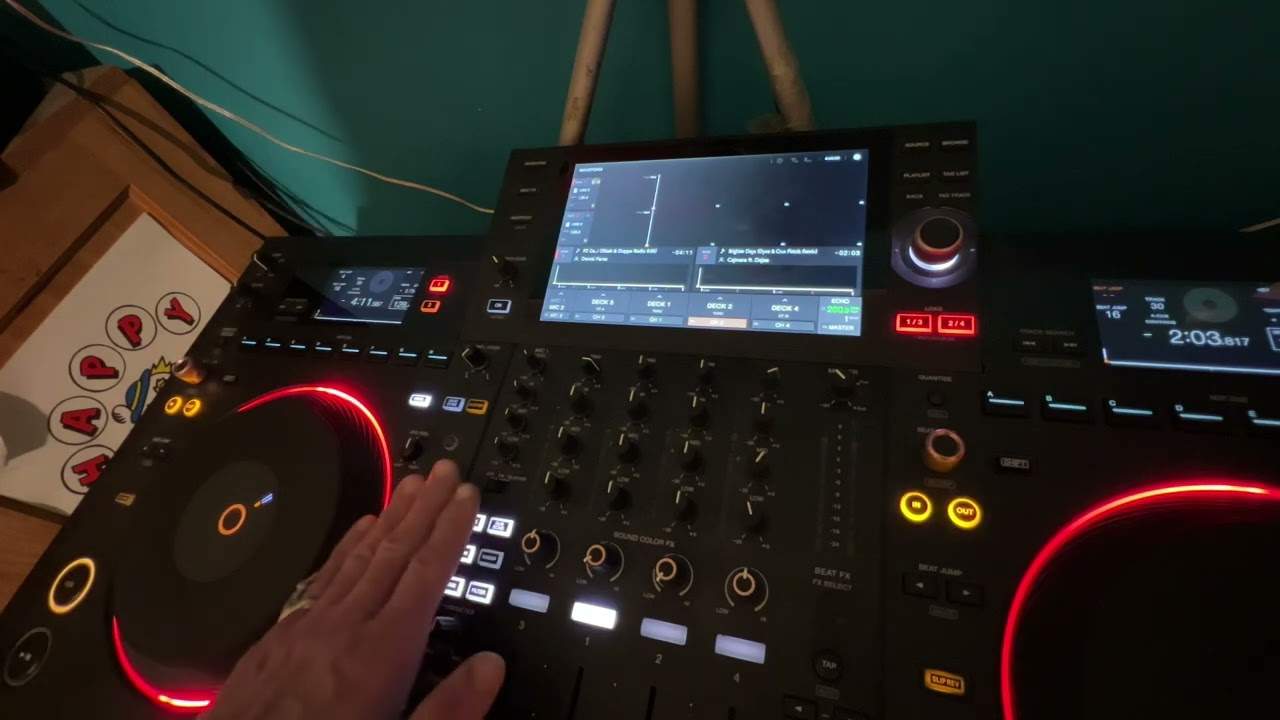
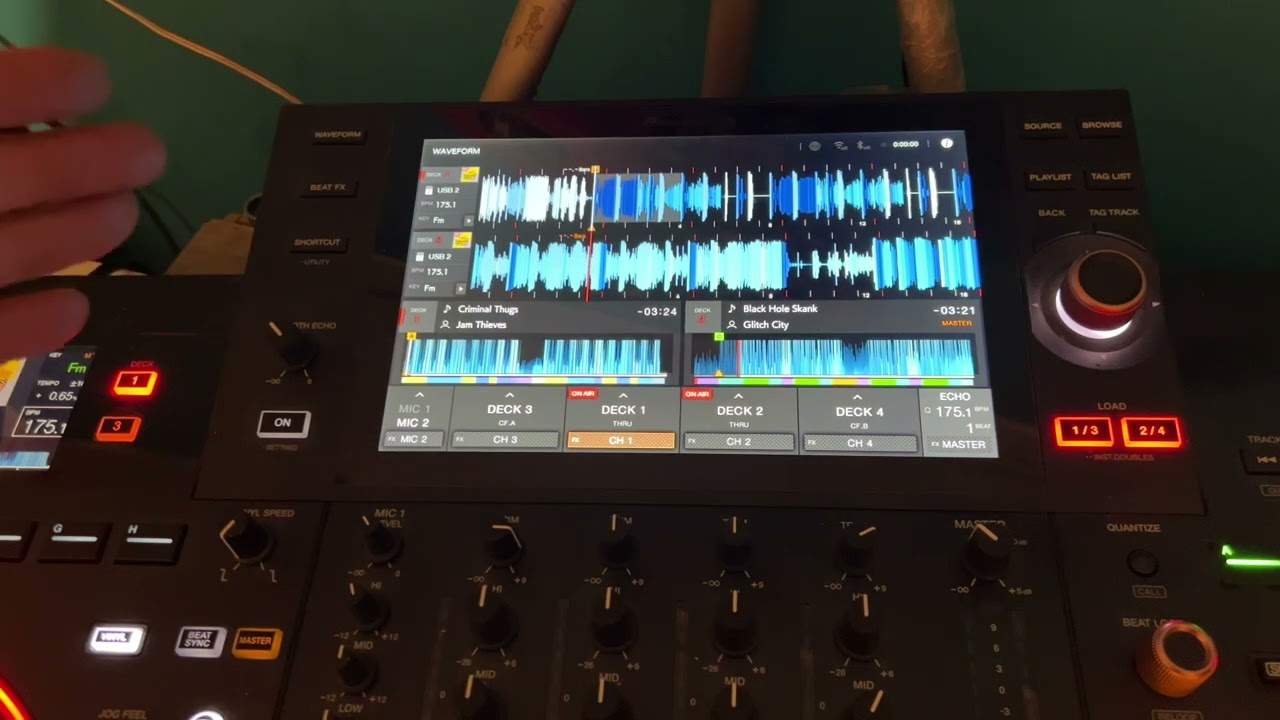
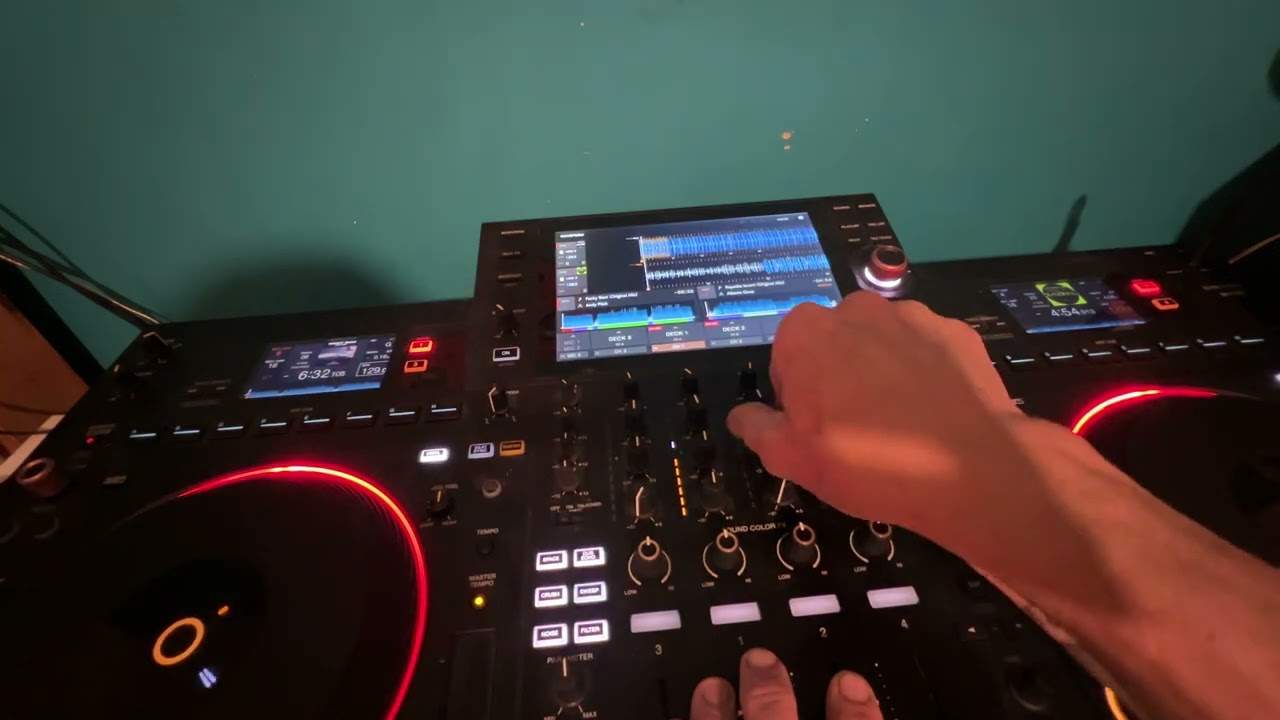
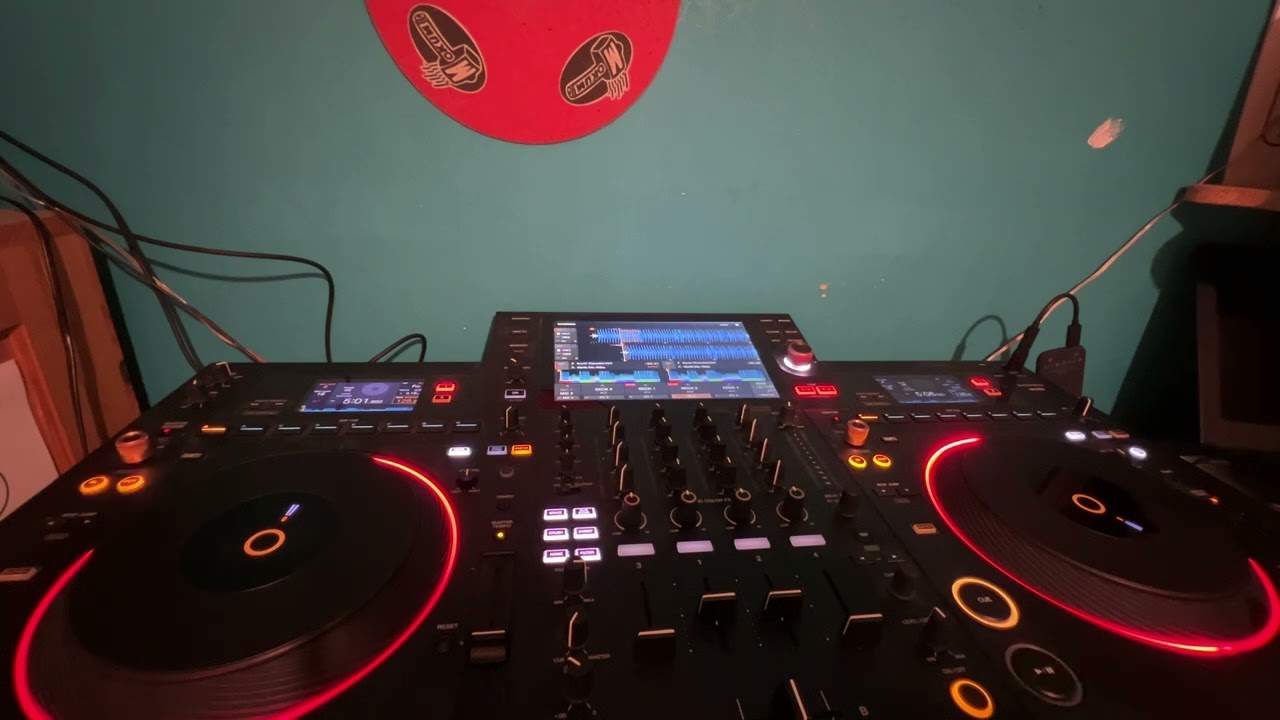
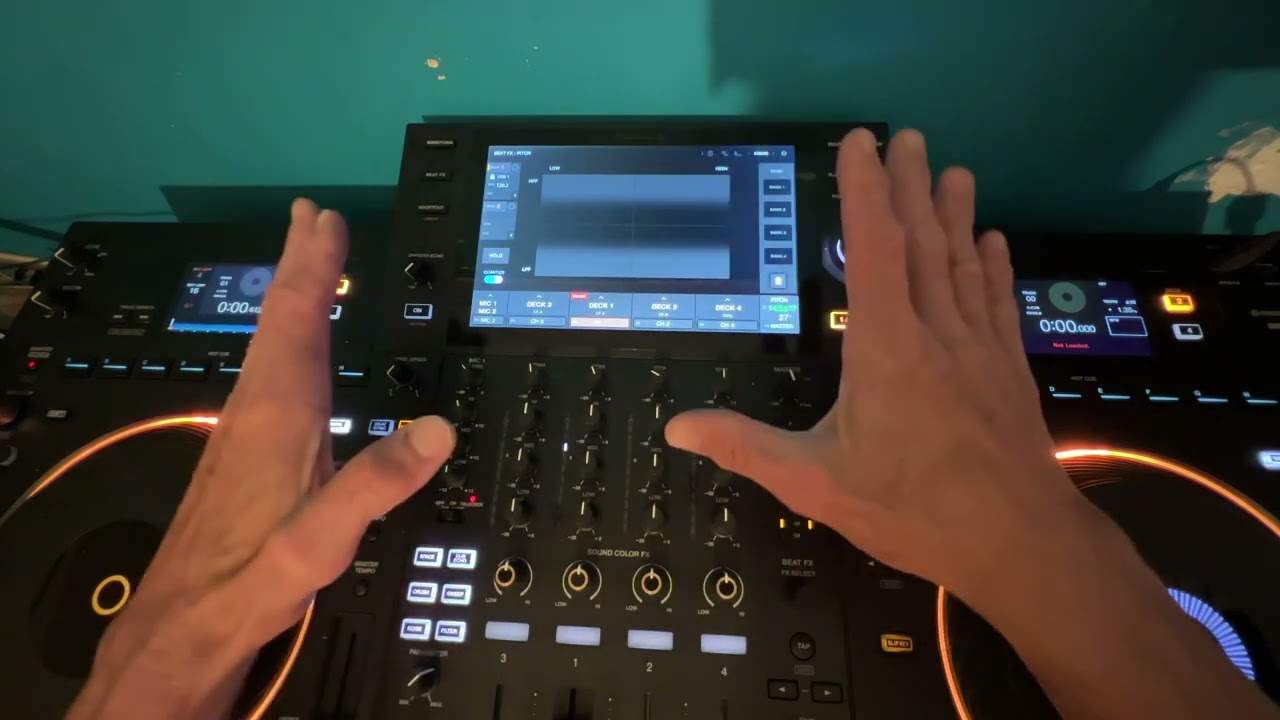
Pioneer DJ Opus Quad, in this video I'm going to show you how to use the beat effects on the touch screen. So, track I'm using is Slave to the Vibe, but I'm just using a very simple loop, of course for copyright reasons. I'm going to press the beat effects button which is on the left hand side, it's the second one down. I've got a nice screen here. Okay, so what I can do now is I can turn the beat effects dial and on the bottom right hand corner we can see a variety of effects. So, if I go to Trans, I can now put my finger on the screen and we get the desired effect. Let's try another one and one more.
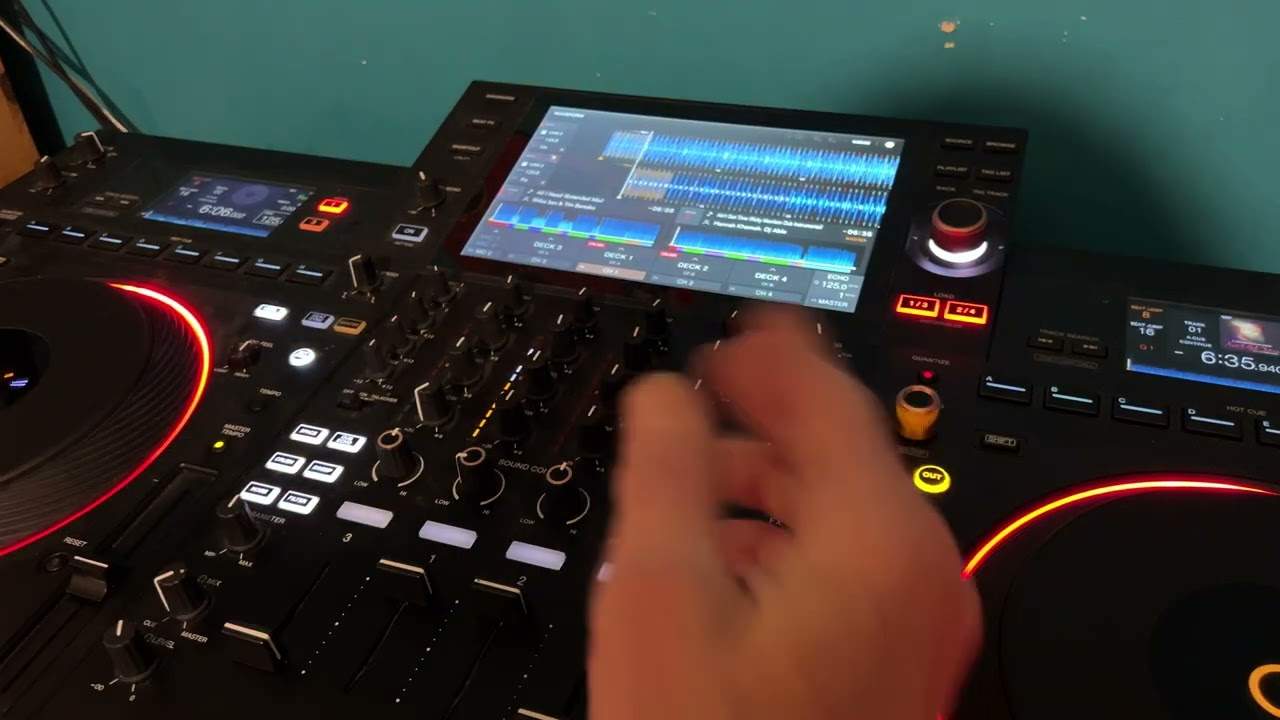
Of course, what's happening is as I move my finger on the screen we're getting the desired effect but as soon as I take my finger off the screen, the effect is over. But if we press the hold icon which is on the left hand side about two thirds of the way down, I can now touch the screen again and wherever I leave my finger, that effect will stay at that tone, at that position. Press the hold icon again and it's gone. Now, that's all well and good pitch, but how about if we want to use a multitude of effects? Without having to turn the dial all the time, we can do it very simply like this. I've got Trans so I can now press Bank 1 and that's highlighted with Trans. Go to another one, Filter, Bank 2, Flanger 3 and Phaser Bank 4.
Now, I can press any of these icons and do exactly the same as I did earlier on. There will be more videos on this in the near future, but as stated in the introductory video, I don't want to cover too much. If I want to remove any of those effects, I can press the delete icon and I can delete one, two, three or all of them and then I can carry on choosing new effects. Hope that's a help. Practice and enjoy. Thank you.
This transcript was produced automatically from the audio of the video and may contain mistakes.